How to Connect Google Sheets Data to Framer (With Plugins)

Written by

Jatin Sesma
CMS developer
Table of contents
Build with Radial Code
Share this


Framer sites gain powerful dynamic capabilities through Google Sheets integration using dedicated plugins. This approach lets anyone update website content in real-time by simply editing spreadsheet data, eliminating complex coding or manual CMS management. Designers and teams love how it streamlines workflows while keeping everything visual and intuitive.
Benefits of Google Sheets + Framer Integration

Google Sheets serves as a flexible, collaborative database for storing text, images, dates, numbers, and more. Framer's built-in CMS handles static content well, but plugins unlock external data syncing for live updates. Changes made in your spreadsheet reflect on the live site almost instantly after a quick sync.
Key advantages include team collaboration—non-technical users edit familiar spreadsheets without touching Framer. It supports diverse field types like booleans for toggles, colors for design elements, rich text for formatted content, and file links for media. This setup scales perfectly for portfolios, directories, pricing tables, or any data-driven section.
Automation shines here: one plugin click pulls fresh data, keeping sites current without redeploying. Security remains strong through Google's OAuth authentication, ensuring only authorized access. Overall, it transforms Framer from static design tool into a responsive content platform.
Essential Prerequisites
Set up your environment in minutes for smooth integration:
- Active Framer account with an open project containing a CMS collection.
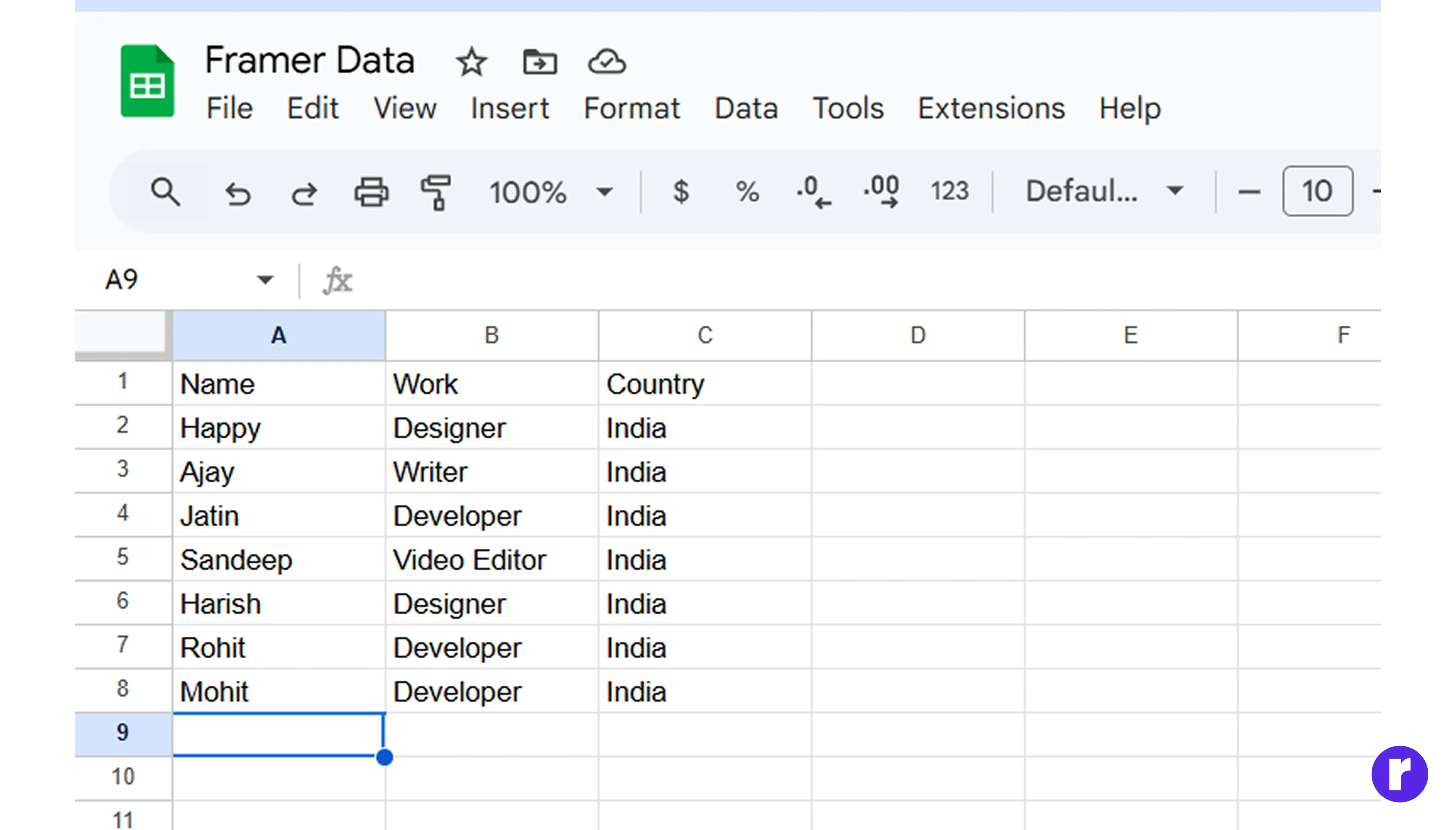
- Google account and a prepared Sheet with organized data—use row 1 for clear column headers, avoid merged cells or formulas that might break syncing.
- Matching CMS fields in Framer, like "Title" (text), "Image" (URL), or "Price" (number). Ensure the Sheet is shareable publicly or linked to your Google account for plugin access.
Using the Official Google Sheets Plugin
Framer Marketplace offers a free, official Google Sheets plugin released in late 2024, perfect for straightforward setups.
Step-1 Installation Steps

Launch Framer, navigate to the Plugins panel via the puzzle icon in the toolbar, search for "Google Sheets," select the official option, and click "Create" to add it.
Step-2 Authentication Process
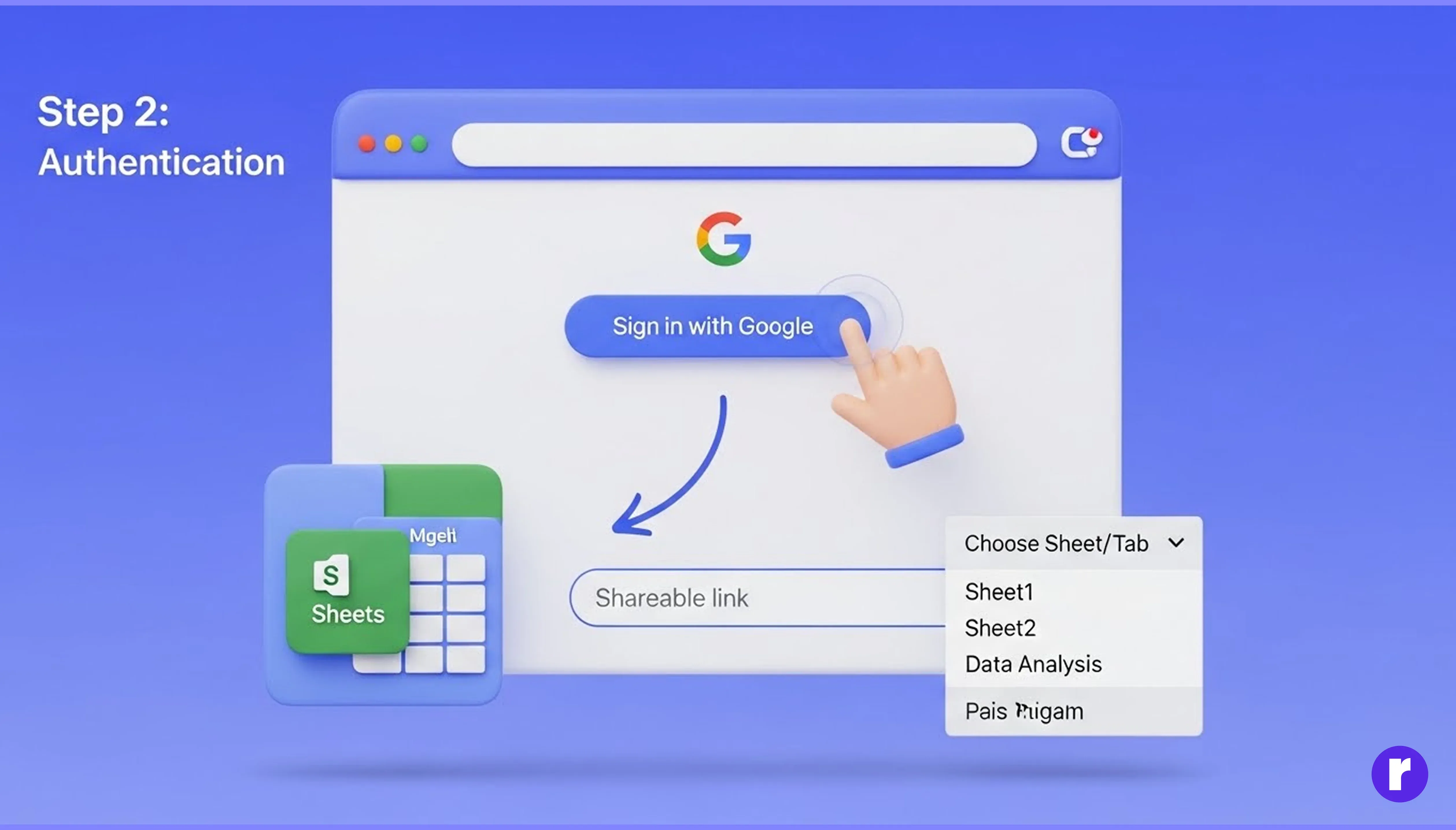
The plugin prompts Google sign-in for secure access. Copy your Sheet's shareable link (from File > Share > Copy link in Sheets), paste it into the plugin, and choose the correct tab/sheet from the dropdown list.
Step-3 Field Mapping Explained
Align spreadsheet columns to Framer CMS fields visually—drag or select matches like Column A "Name" to CMS "Name" field. The interface previews data and flags type mismatches, such as treating URLs as images. Supported formats include text, rich text, toggles, colors, numbers, images, links, dates, and files.
Step-4 Sync and Deployment
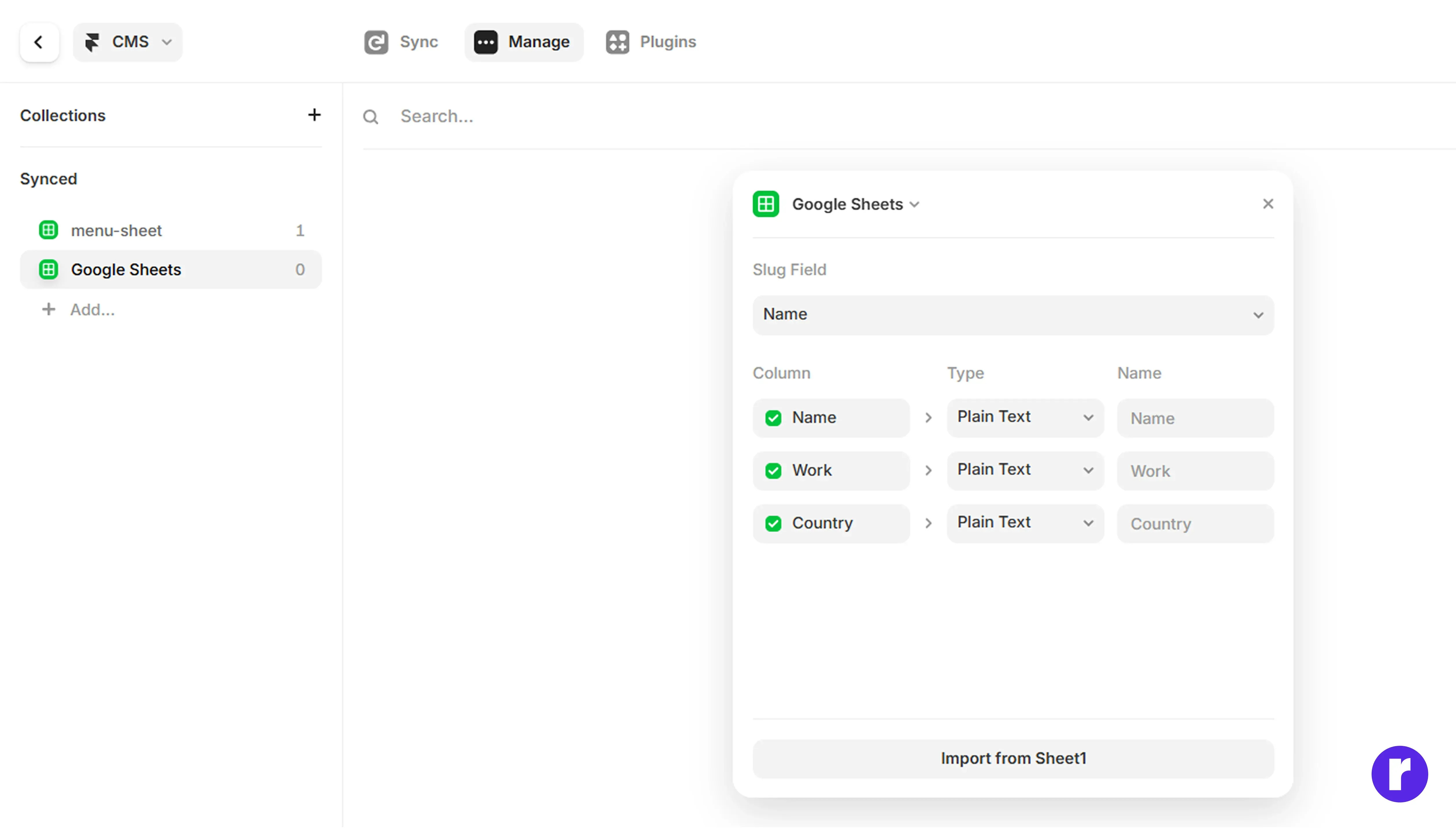
Click "Import" or "Sync" to populate your CMS collection immediately. The connection persists, so future updates require just one button. Drag CMS items into components like stacks, grids, or lists for dynamic displays, then publish to see live results.
Exploring FramerSync as an Alternative
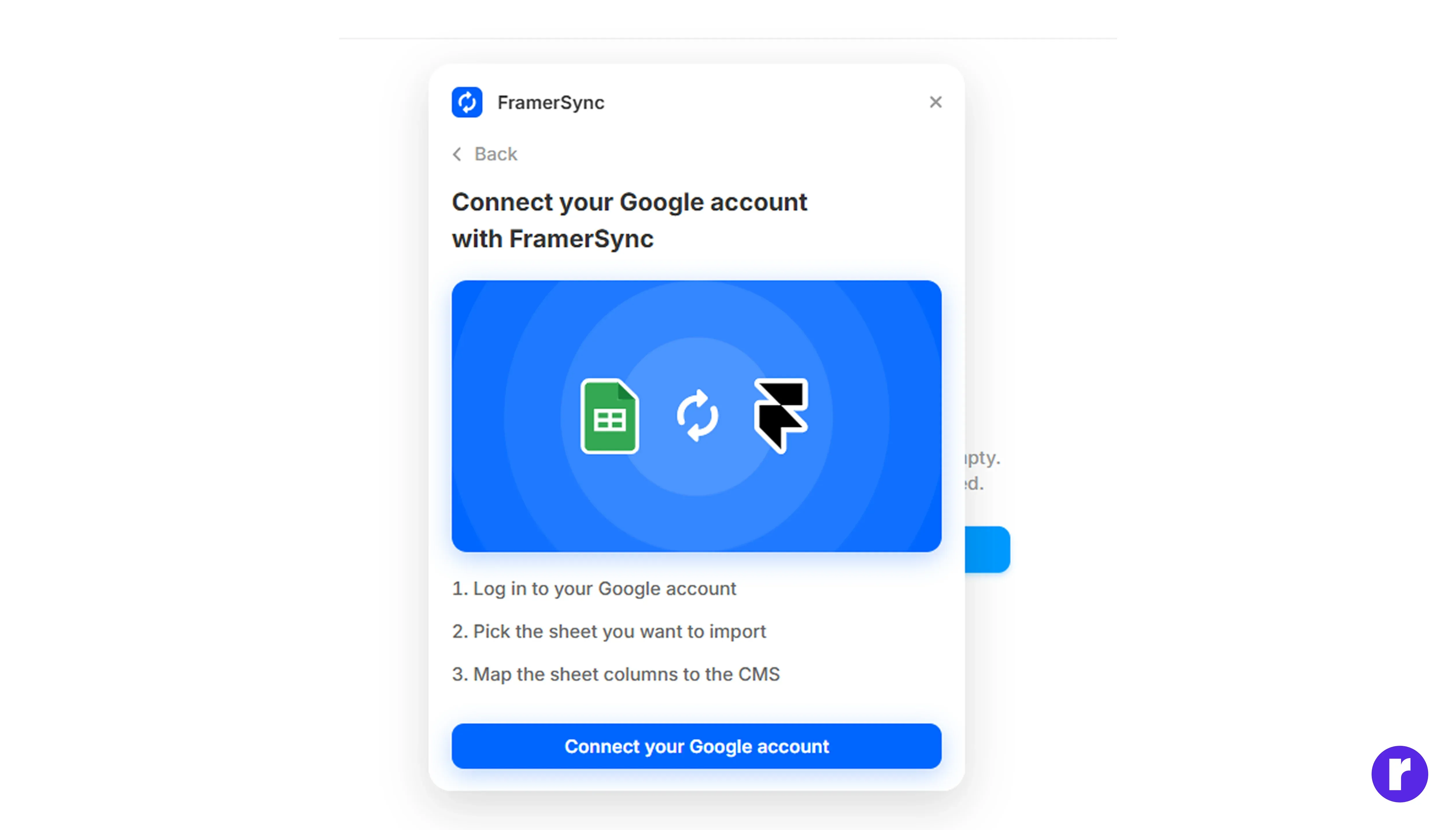
FramerSync provides enhanced features for power users, including support for Notion and Airtable alongside Sheets, available as a one-time purchase. Install from Marketplace, connect your Sheet, and it auto-generates CMS fields from all columns. Standout tools include Markdown/HTML rendering, multi-value support, and bulk re-syncing. Choose it for complex sites needing SEO optimization or team-scale data handling.
Feature Comparison Table
|
Feature |
Official Plugin |
FramerSync |
|---|---|---|
|
Cost |
Free |
One-time payment |
|
Field Support |
9 core types |
Full + advanced parsing |
|
Sync Method |
Single-click |
Bulk and automated |
|
Extra Integrations |
Google Sheets only |
Sheets, Notion, Airtable |
|
Ideal Use |
Basic dynamic content |
Advanced team workflows |
Troubleshooting Guide

Resolve issues quickly with these fixes:
- Authentication Errors: Visit Google Account settings > Security > Third-party apps, revoke Framer access, then reconnect.
- Sync Failures: Verify Sheet permissions are "Anyone with link," headers match exactly, and data types align (e.g., valid URLs for images).
- Display Problems: Test image links by opening directly; use Google Drive's "Get link" for direct access.
- Performance Limits: Framer CMS has item caps—sync smaller sheets first and monitor usage. Always preview on a staging page before going live.
Pro Tips for Success
- Design sheets mirroring CMS structure: consistent headers, clean data, no empty rows.
- Leverage Sheet formulas for dynamic calculations, like concatenating fields pre-sync.
- Maintain backups by duplicating sheets prior to major changes.
- Combine with Framer Forms for inbound data flows that auto-populate Sheets, creating closed-loop systems. Regular syncs keep content fresh without overhauling designs.
Conclusion
This plugin-powered method makes Framer incredibly versatile for data-driven sites. Get started today—your spreadsheets become live site engines effortlessly.
Ready to take your Framer skills to the next level? Discover tips, tutorials, and inspiration on our website! Visit Here