The New Frontend Skill: Reviewing AI-Generated Code

Written by

Rinkle Poonia
Front End Developer
Table of contents
Build with Radial Code
Share this


You ask an AI tool to build a contact form. Within seconds, the component is ready. The spacing looks clean, the inputs accept text, and the submit button responds.
Then you test a little further.
The form clears itself when the request fails. The inputs have placeholders but no labels. Clicking submit twice sends two requests. The component looked finished. The review revealed what was missing. AI can speed up implementation, but developers still need to decide whether the result is correct, accessible, maintainable, and suitable for the application. Code review has always mattered. With AI, it becomes especially valuable because you can receive a substantial implementation before understanding the decisions behind it.
A Practical Guide to Reviewing AI-Generated Code
- Review the Requirement Before the Implementation
- Show validation messages beside the relevant fields.
- Display a pending state while the request runs.
- Preserve entered values if submission fails.
- Show a clear next step after successful registration.
- Test Beyond the Happy Path
- Inspect Small Decisions That Affect Correctness
- {work.title} ))}
- {work.title} ))}
- Make Accessibility Part of the Review
- Challenge the Layout with Real Content
- Long headings and button labels.
- Missing images and optional fields.
- Empty lists and larger datasets.
- Narrow screens and increased browser zoom.
- Check How External Content Is Rendered
- Make the Implementation Fit the Project
- Use AI to Assist the Review

The first question is simple: does the code solve the intended problem?
A prompt such as “create a signup form” leaves several decisions open. Which fields are required? What happens after submission? Should the form preserve entered values when a request fails? AI may fill these gaps with assumptions that do not match your product.
Before reviewing the code, define the expected behavior. For a signup form, this could mean:
These expectations give you something concrete to review against. Without them, you might approve clean code that implements the wrong experience.
Want to learn more about websites? Radial Code

The happy path is the flow where everything goes as expected: valid input, a successful request, and a user who clicks once.
Real usage introduces more variation.
Users submit incomplete forms, change filters quickly, lose their connection, and navigate away while requests are still running.
Consider a search interface. A user types “chair” and immediately changes the query to “table.” If the first request finishes last, could the interface show chair results under the table query?
This is a race condition. React’s documentation explains that fetching data through Effects requires care to prevent outdated responses from affecting the current interface.
During review, check loading, success, empty, and error states separately. They represent different situations and should communicate different messages.
“No results found” should mean the search succeeded without matches. It should not hide a failed request.

Some bugs hide inside code that looks perfectly ordinary. Consider this React list:
function TaskList({ works }) {
return (
{works.map((work, index) => (
);
}It renders successfully, but index keys can become problematic when items are inserted, deleted, or reordered—especially when list items contain inputs or component state.
If each task has a stable, unique ID, use that ID:
function TaskList({ works }) {
return (
{works.map((word) => (
);
}This example assumes works is an array and every work has an id that remains stable and is unique among its siblings. React recommends keys based on stable data and warns against generating keys during rendering.
The broader review habit is to question what happens when data changes.
Does a selected item remain correct after sorting? Does deleting one row affect another row’s input? Does editing a record update the intended item?
A successful initial render cannot answer those questions.

An interface can look complete while remaining difficult to operate with a keyboard or assistive technology.
For example, a clickable div may respond to a mouse but lack the built-in semantics and keyboard behavior of a native button.
For a standard action, start with the appropriate HTML element:
function SaveButton({ onSave, isSaving }) {
return (
);
}
Here, the parent component supplies the handler and manages the saving state. The explicit type="button" prevents accidental form submission when this is an independent action. A button intended to submit a form should use type="submit" instead.
W3C guidance recommends native controls because they expose useful behavior and information to browsers and assistive technologies.
Form labels deserve equal attention. A placeholder should not replace a visible label. Associate each label with its input, and use unique IDs when the same component appears more than once.
Then test the actual interface: use Tab to move through controls, check focus visibility, and try completing the main action without a mouse.

Generated layouts often arrive with content that fits neatly: short headings, matching images, and evenly sized cards. Real content is less predictable. A customer’s name might be longer than expected. A translated label may need more space. An error message could push a button onto another line.
Review the interface with:
Watch for fixed heights that clip text, widths that cause horizontal scrolling, and absolute positioning that breaks when content grows. A useful test is to replace the shortest sample content with the longest realistic content you expect. This often exposes layout assumptions faster than checking several screen widths with identical sample data.

Review how content from users, APIs, or a CMS enters the page. Inserting untrusted content with innerHTML can create cross-site scripting (XSS) risks:
preview.innerHTML = message;For plain text, use textContent instead:
preview.textContent = message;
Both examples assume preview references an existing DOM element. If rich HTML is required, sanitize it before rendering. "Does this feature need to interpret HTML, or is it only for displaying text?"
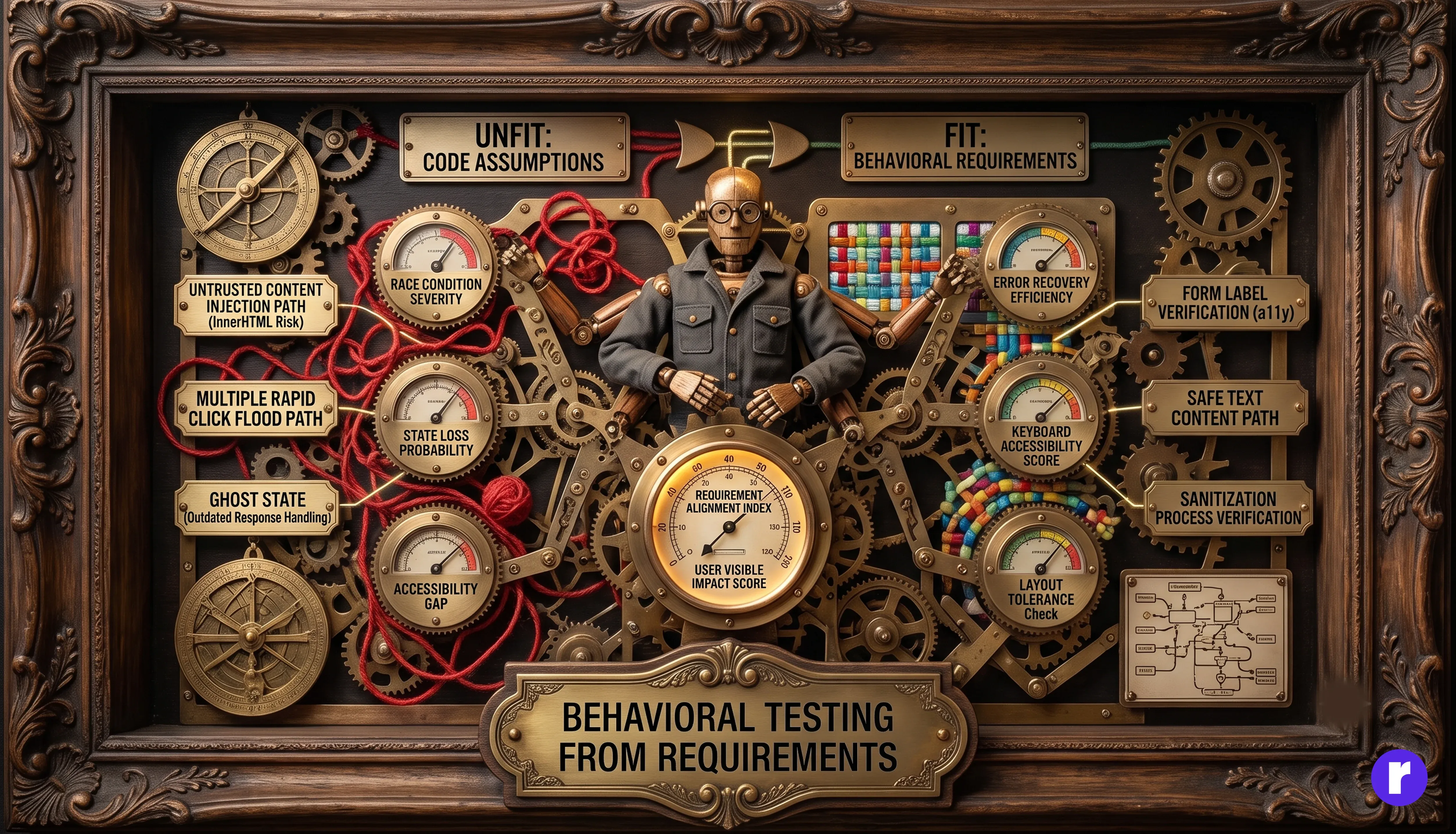
A component can work independently while creating maintenance problems in the surrounding application. It might introduce a new button style when a shared component already exists. It may hard-code colors instead of using design tokens or install a package for functionality the project already provides. Compare the change with the codebase’s established patterns. Check component reuse, naming, styling, state management, and dependency choices. Investigate unrelated modifications, particularly changes to configuration and package files. Review performance with the same practical approach. Look for repeated requests, expensive calculations during interaction, or large dependencies introduced for small features. Measure suspected problems before adding optimizations. Extra caching or memoization also adds code that someone must maintain.

AI can help you identify possible issues and develop test scenarios. Make the request specific enough that its findings can be verified.
For example:
Review this component against the requirements below. Check failed requests, rapid interactions, keyboard access, and consistency with existing components. For each finding, explain the user-visible impact and how to reproduce it. Separate confirmed issues from assumptions. Do not rewrite the code yet.
Verify the response against the source and the running application. An AI-generated explanation can be incorrect, just like an AI-generated implementation.
Run the project’s relevant lint, type-check, test, and build commands, but understand what they establish. A successful build does not prove that keyboard navigation works or that a failed submission preserves user input.
Choose behavioral tests from the requirements. For a form, checking recovery after a failed request is more useful than checking only whether the submit button exists.
A Practical Checklist Before Merging
|
Review Area |
Key Question |
|---|---|
|
Requirements |
Does the feature deliver the intended behavior? |
|
State Handling |
Are loading, success, empty, and error states clear? |
|
Interactions |
What happens after repeated clicks or rapid changes? |
|
Accessibility |
Can users understand and operate the controls? |
|
Layout |
Does the interface handle realistic content and screen sizes? |
|
Security |
Is external content rendered appropriately? |
|
Maintainability |
Does the change follow existing project patterns? |
|
Verification |
Have the important behaviors actually been checked? |
Match the depth of review to the consequences of failure. A spacing adjustment and an account-management form need different levels of scrutiny.
Want to explore more? Click here
Conclusion
AI-generated code is a starting point that developers must understand, validate, and take responsibility for.
Strong review means checking requirements, questioning assumptions, testing failure states, and confirming that the implementation fits the application. Frontend fundamentals—HTML, CSS, JavaScript, accessibility, and framework knowledge—provide the judgment needed to make those decisions.
Before accepting the next AI-generated component, ask: Can I explain how it works, where it might fail, and how I verified its behavior?