Why every component needs different states

Written by

Sumit Verma
UI/UX Designer
Table of contents
Build with Radial Code
Share this


A UI component may look simple when everything is working perfectly, but real users interact with interfaces in many different ways. They click, wait, submit, make mistakes, and sometimes face unexpected problems.
This is why UI components need different states. Each state helps the interface respond to what is happening instead of leaving users confused about what to do next.
A component should respond, not just exist
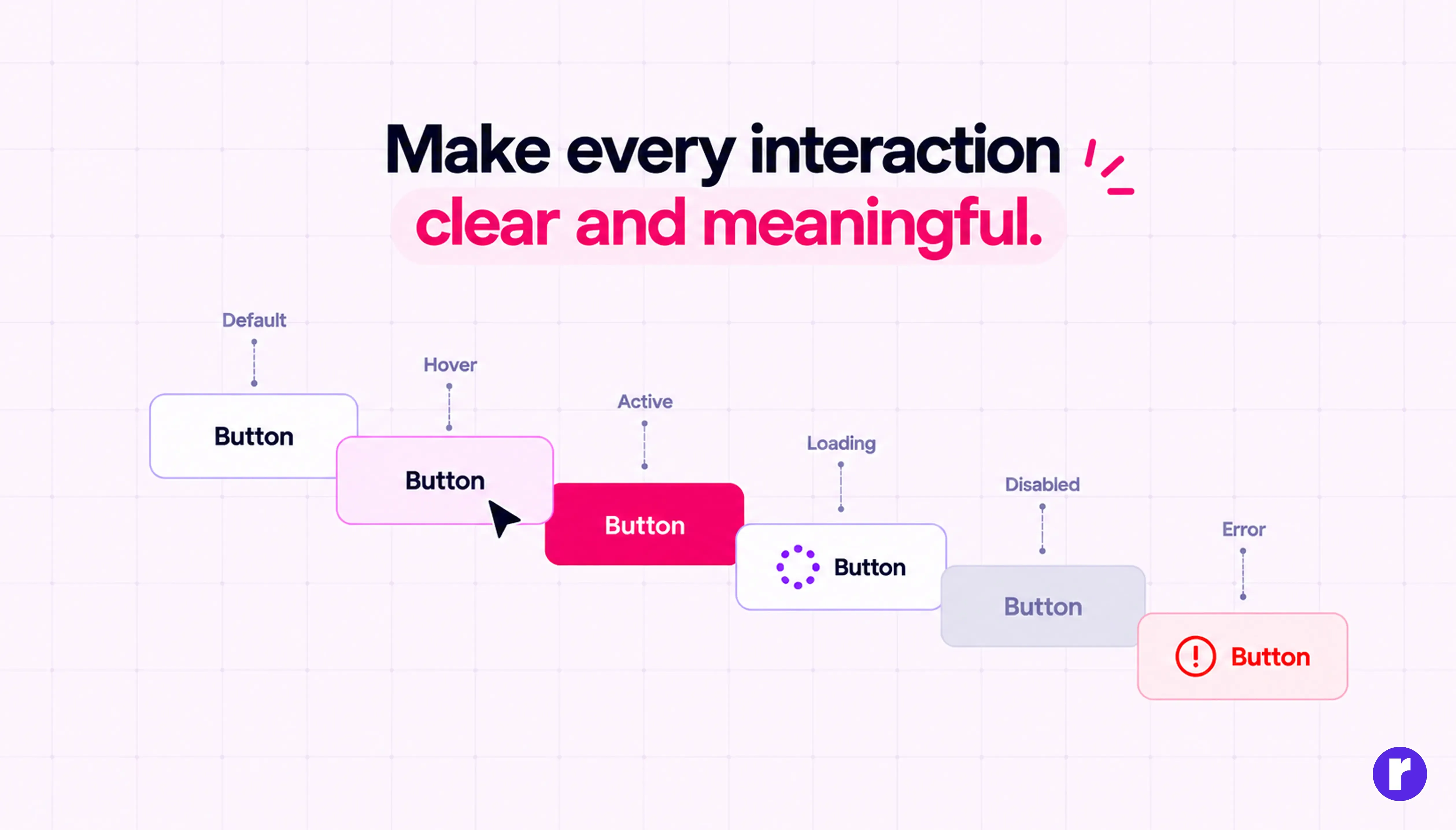
A button, input field, or dropdown should communicate its current condition. Without proper UI states, users may not know whether an action worked, failed, or is still in progress. Component states help designers create interfaces that feel clear, responsive, and predictable.
Common component states include:
- Default: The component is ready to use.
- Hover: The pointer is over the component.
- Active: The user is interacting with it.
- Focus: The component is selected for keyboard interaction.
- Disabled: The action is temporarily unavailable.
- Loading:The system is processing an action.
- Error: Something needs attention.
💡Pro tip: Before designing a component, ask yourself: What should the user see before, during, and after interacting with it?
Different states solve different problems
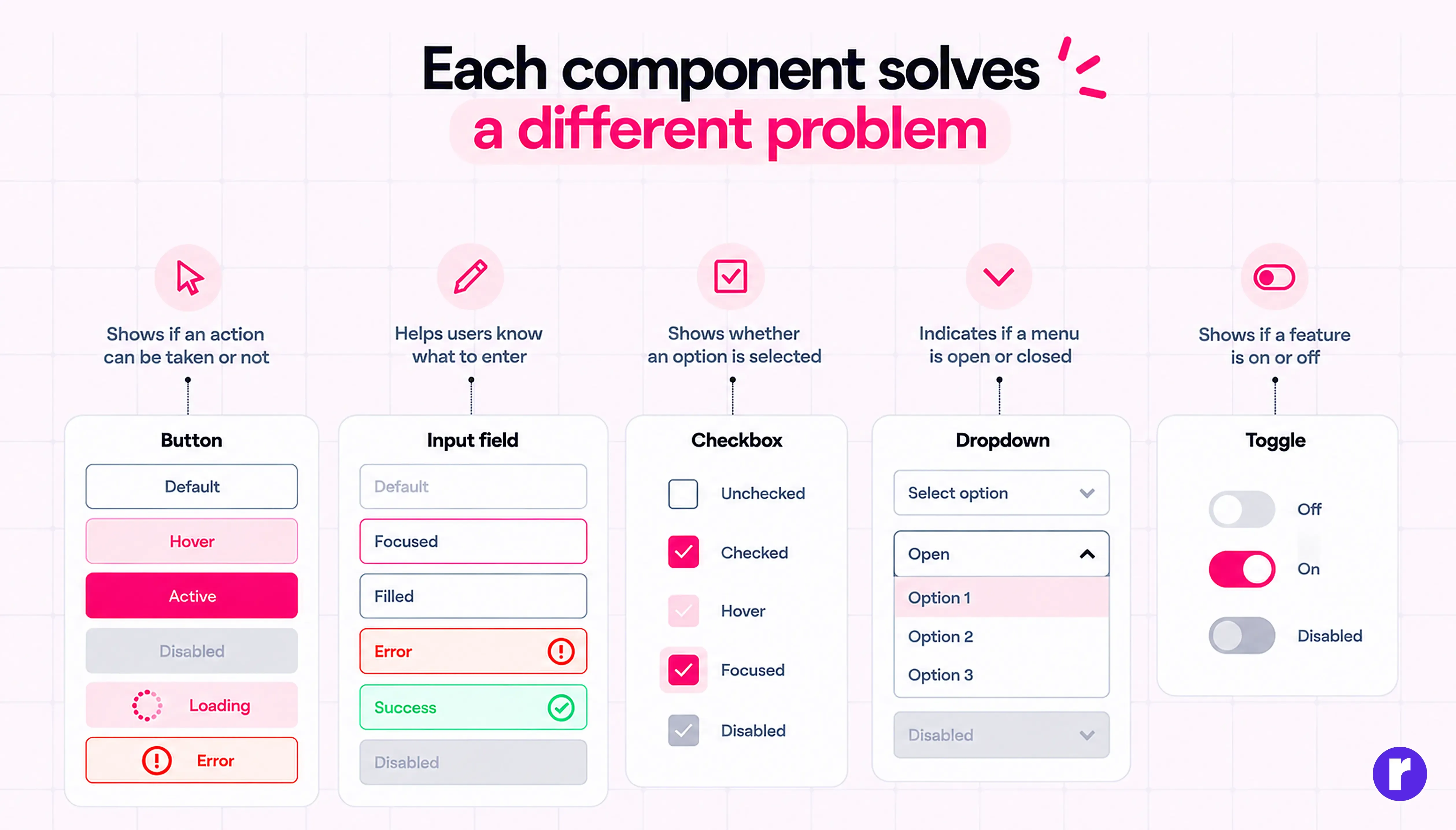
Not every component needs the same states. A button and a text field have different responsibilities, so their visual responses should support their specific purpose.
| Component | Important States |
|---|---|
| Button | Default, hover, active, disabled, loading |
| Input field | Empty, focused, filled, error, success |
| Checkbox | Unchecked, checked, disabled, focused |
| Dropdown | Closed, open, selected, disabled |
| Toggle | On, off, disabled |
The goal is not to create as many states as possible. It is to identify the states that help users understand what is happening.
Make every component state meaningful for better user experiences Radial Code
Small state changes make interfaces easier to use
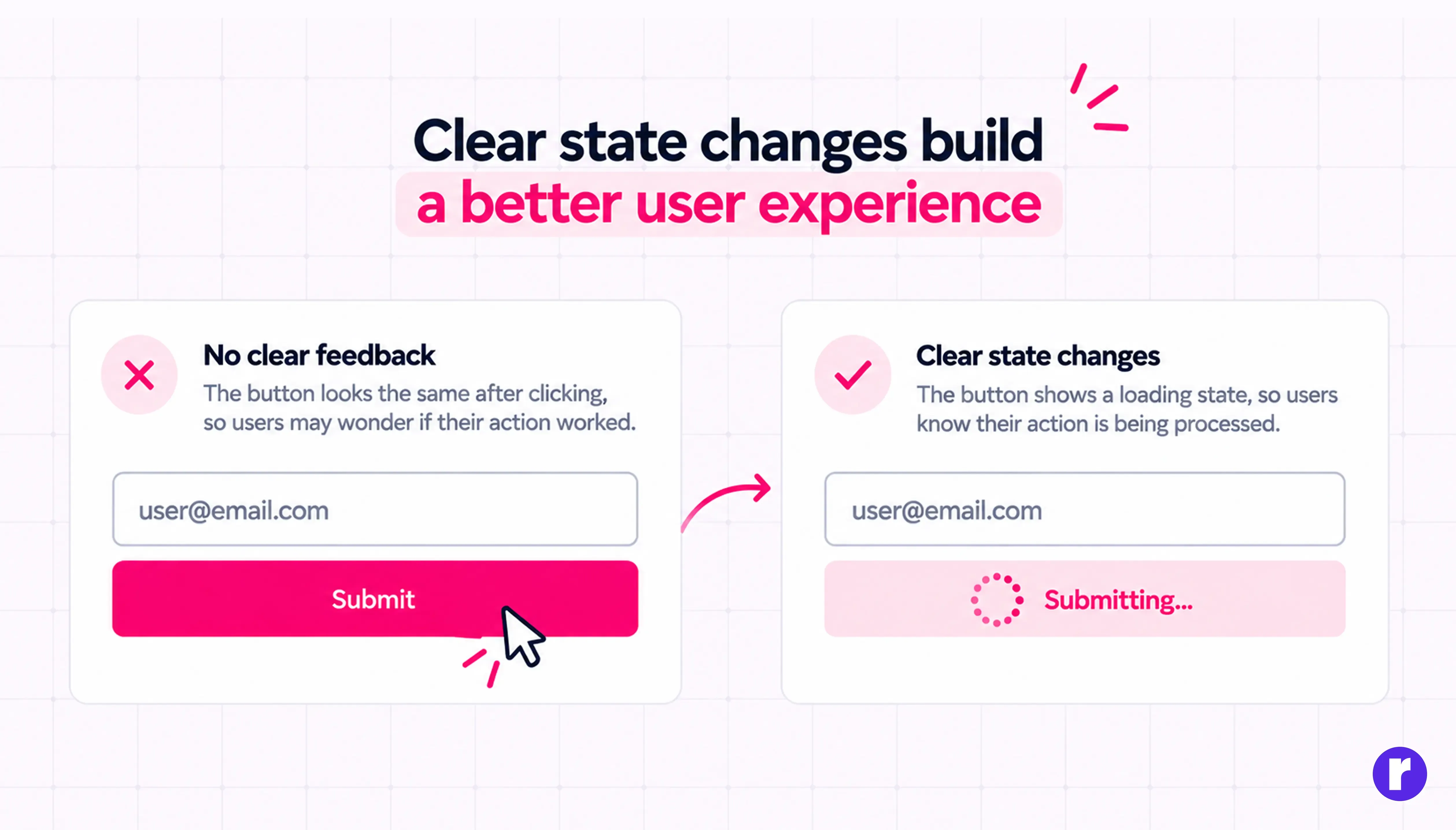
Users notice when an interface gives no response. A button that stays unchanged after clicking can make someone wonder whether the action worked. Clear state changes reduce this uncertainty and help users move forward confidently.
Keep these principles in mind:
- Use clear visual feedback: Make interactive changes easy to notice.
- Keep patterns consistent: Components with similar functions should behave similarly.
- Explain problems clearly: Error messages should tell users what needs fixing.
- Support accessibility: Make keyboard focus visible and never rely on color alone to communicate important information.
💡Pro tip: Review your design without relying on color. If users cannot recognize an error, selection, or disabled state, improve the visual cues.
Build states into your design system
Creating component states individually on every screen can lead to inconsistent designs and unnecessary work. A design system helps you define how components should look and behave before they are reused across a product.
In Figma you can organize related component variations using component properties and variants. This makes it easier to maintain consistent styling and update components as the product evolves.
A useful workflow is to identify the required states, design each variation, check its behavior in prototypes, and document any important interaction rules.
Good design is knowing when to create a component and when to keep things simple Read more
Conclusion
Different component states make a UI more understandable, reliable, and user-friendly. They help users recognize interactions, understand system feedback, and recover from errors without unnecessary confusion.
Great UI design is not just about how a component looks when nothing happens. It is about how clearly it responds when something does. To learn more about UI/UX, visit our website here.