
How to add multiple languages to your shopify store: a step-by-step guide

Written by

Priyanka Singh
Front End Developer
Table of contents
Build with Radial Code
Share this


Expanding your Shopify store internationally involves more than offering worldwide shipping. Customers also need to understand your products and store content in their preferred language.
Shopify lets you add multiple languages, translate store content, and create a localized shopping experience using its built-in multilingual features and Translate & Adapt app.
In this guide, you'll learn how to add languages to your Shopify store, manage translations, configure a language selector, and improve multilingual SEO.
Why should you add multiple languages to your shopify store?
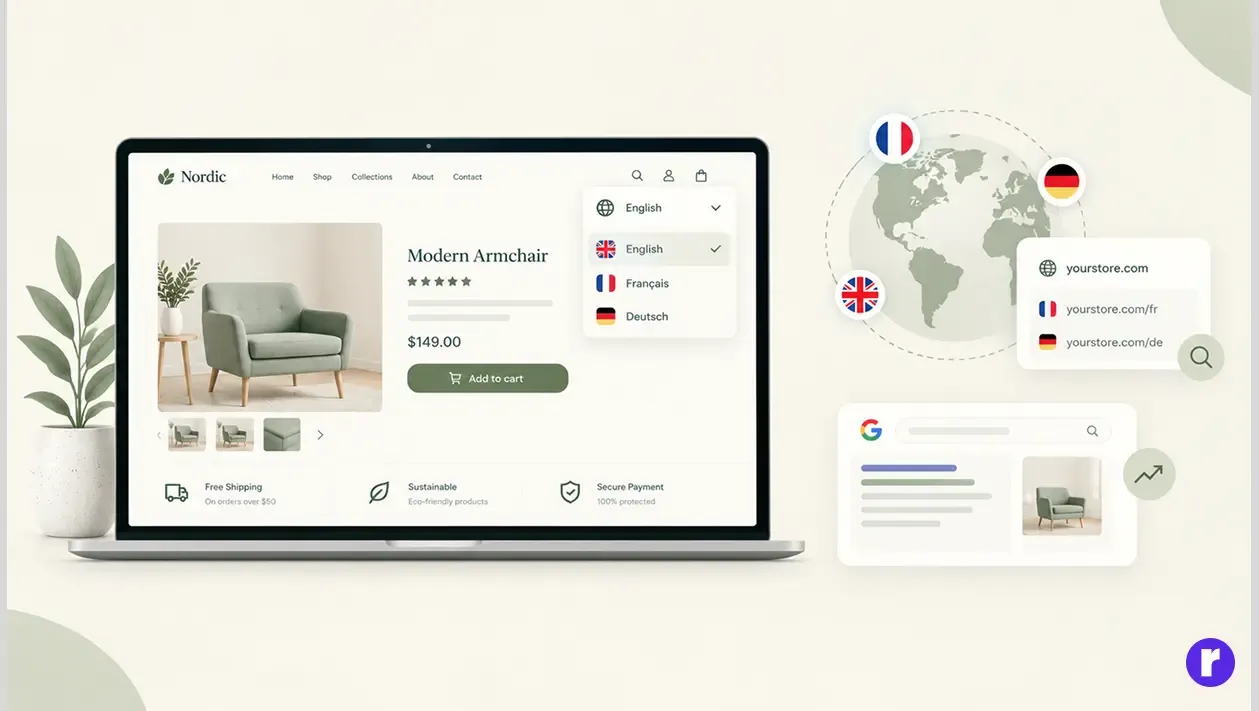
A multilingual Shopify store allows customers to browse your website in their preferred language, helping them understand your products and make more informed purchasing decisions.
Here are some important benefits.
1. Reach international customers
If you sell products to customers in different countries, offering localized content can make your store easier to understand.
For example, a store targeting customers in France and Germany might offer French and German versions of its product pages alongside the original English version.
2. Improve the shopping experience
Customers should be able to understand product descriptions, navigation menus, shipping information, and return policies without constantly translating the content themselves.
A consistent language experience makes it easier for customers to browse your store and complete their purchases.
3. Support international SEO
Shopify creates language-specific URLs for published languages and automatically adds hreflang tags to help search engines understand the relationship between localized pages.
For example:
- English: yourstore.com
- French: yourstore.com/fr
- German: yourstore.com/de
4. Build customer trust
Customers need clear information before placing an order. Translating product details, shipping policies, return conditions, and other essential information can help them make confident purchasing decisions.
Step-by-step guide to adding multiple languages to shopify
Follow these steps to add and configure additional languages in your Shopify store.
Step 1: Open your shopify admin
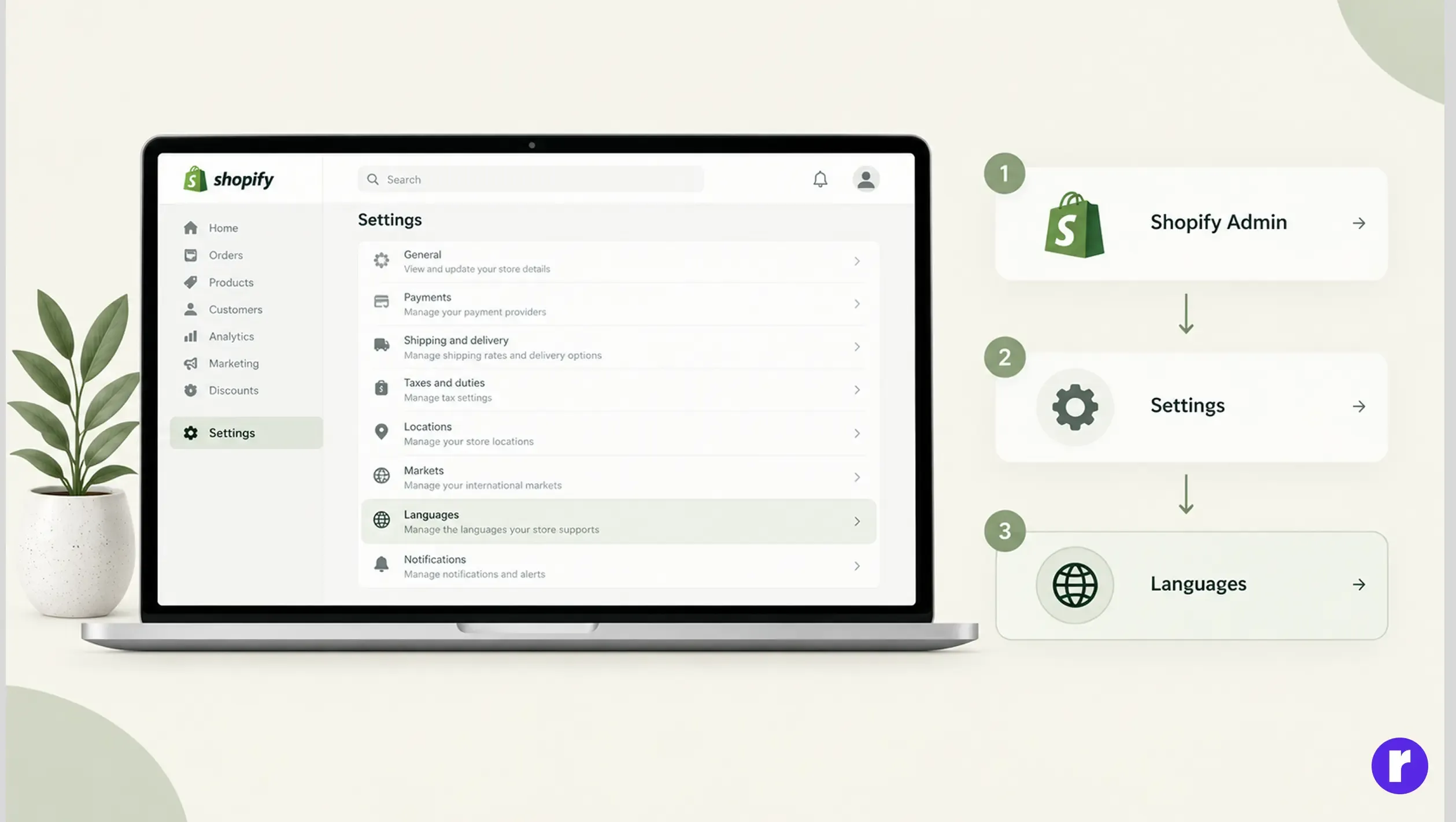
Log in to your Shopify account and open the store you want to update.
Navigate to:
Shopify Admin → Settings → Languages
This is where you can manage your store's languages and their publication status.
Step 2: Add a New Language
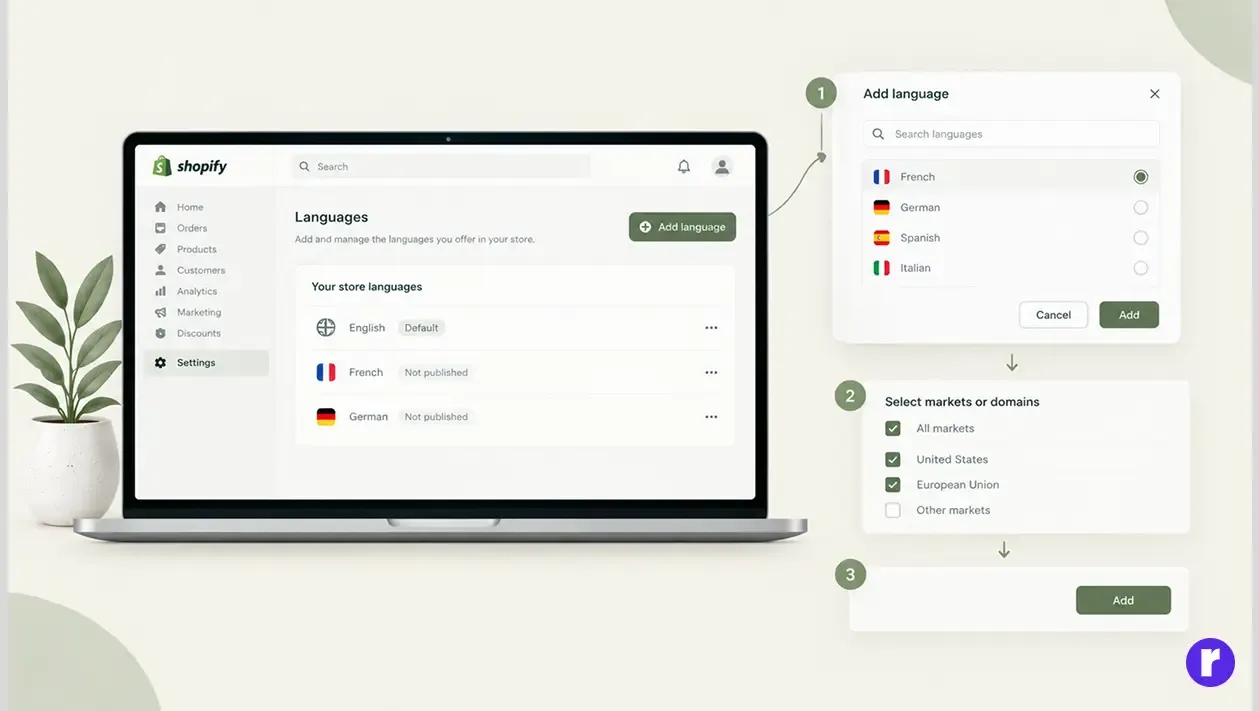
Inside the Languages section:
- Click add language.
- Choose the language you want to add from the available options.
- Follow the prompts to configure the relevant market or domain settings, if applicable.
- Click Add language or follow the confirmation steps displayed in your Shopify admin.
- Once the language is added, proceed to translate the supported store content and publish the language when everything is ready.
For example, if your primary language is English, you might add French, German, or Spanish based on your target audience.
Adding a language makes it available for translation and configuration. It does not automatically translate every piece of your store's content.
Step 3: Install shopify translate & adapt
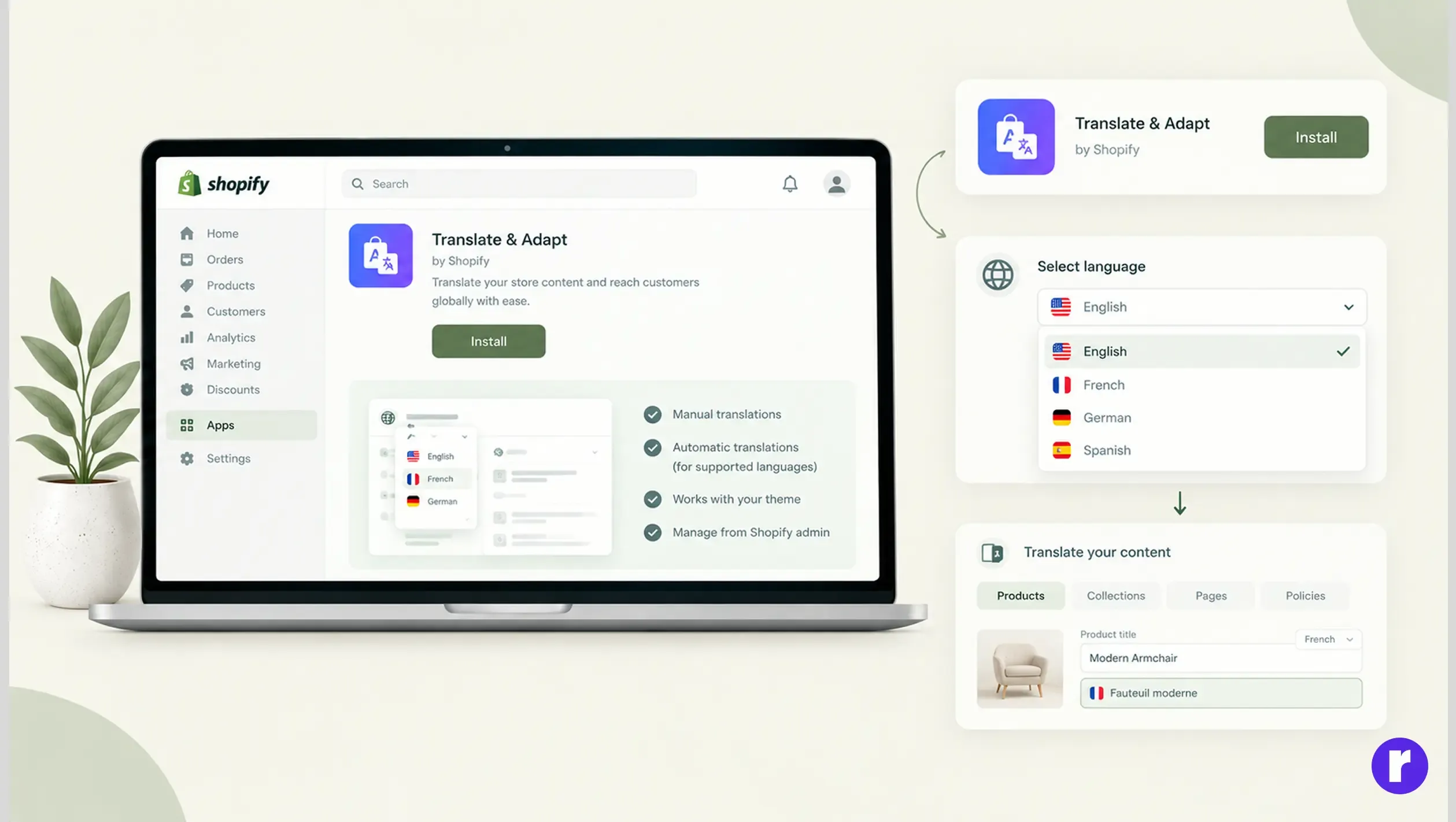
Shopify Translate & Adapt is Shopify's own app for translating and adapting store content.
To get started:
- Open the Shopify Translate & Adapt app.
- Install the app in your store if it is not already installed.
- Open the app from your Shopify admin.
- Select the language you want to work on.
- Review the content available for translation.
The app supports manual translation and automatic translations for supported content and languages. Shopify Translate & Adapt offers automatic translation for up to two additional languages in most countries, while eligible stores in selected countries can translate up to eight additional languages automatically. You can also manually add translations for additional languages. Availability and features depend on your store's location and Shopify's current requirements. Review translations before publishing.
Step 4: Translate your shopify store content
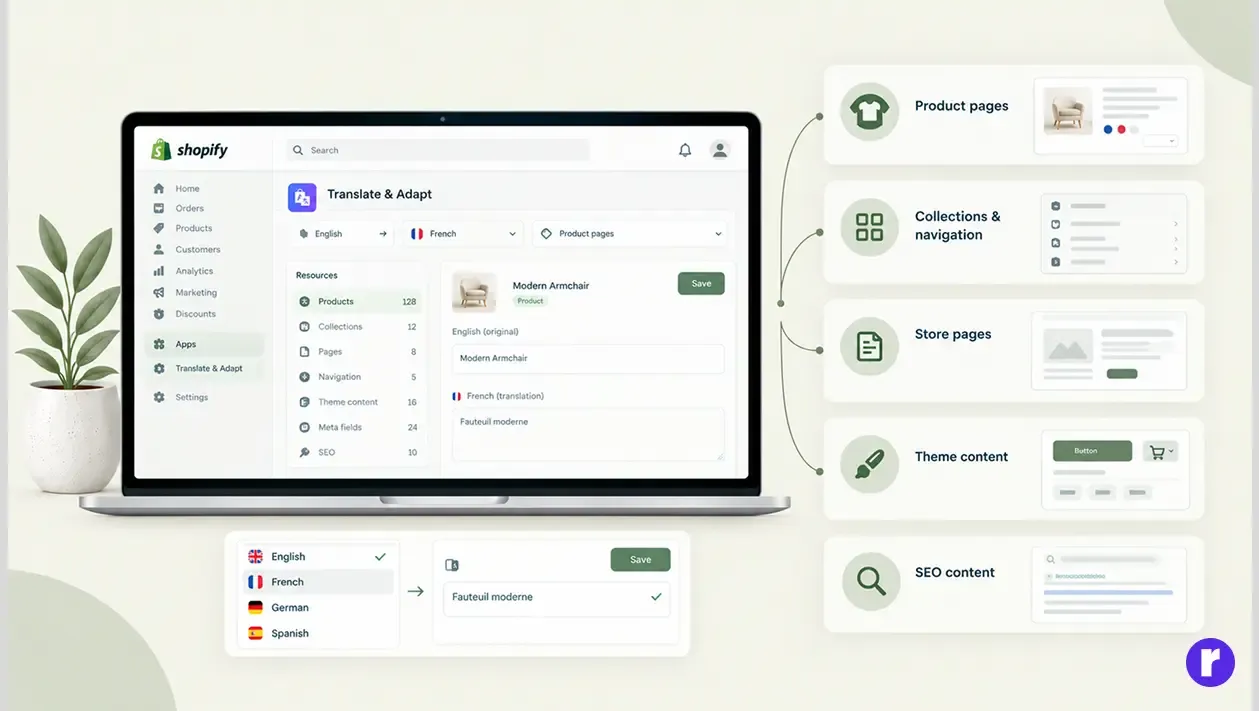
Once your language is added and your translation workflow is ready, begin translating your store's content.
Prioritize the following areas:
- Product pages
- Product titles and descriptions
- Product options and variant details
- Size, material, and usage information
- Relevant product metafields
- Collections and navigation
- Collection titles and descriptions
- Main menu and footer links
- Category labels
- Store pages
- Homepage content
- About Us page
- Contact page
- Shipping and return policies
- Theme content
- Buttons and labels
- Cart messages
- Form labels
- Promotional banners
- Other visible storefront text
- SEO content
- Page titles and meta descriptions
- Relevant translated URL slugs
- Other supported SEO fields
In Translate & Adapt, select the appropriate resource and language, enter or review the translation, and save your changes.
Remember that translation availability varies by resource type. Some content may require manual translation, a compatible third-party app, or a CSV workflow.
Step 5: Review automatic translations
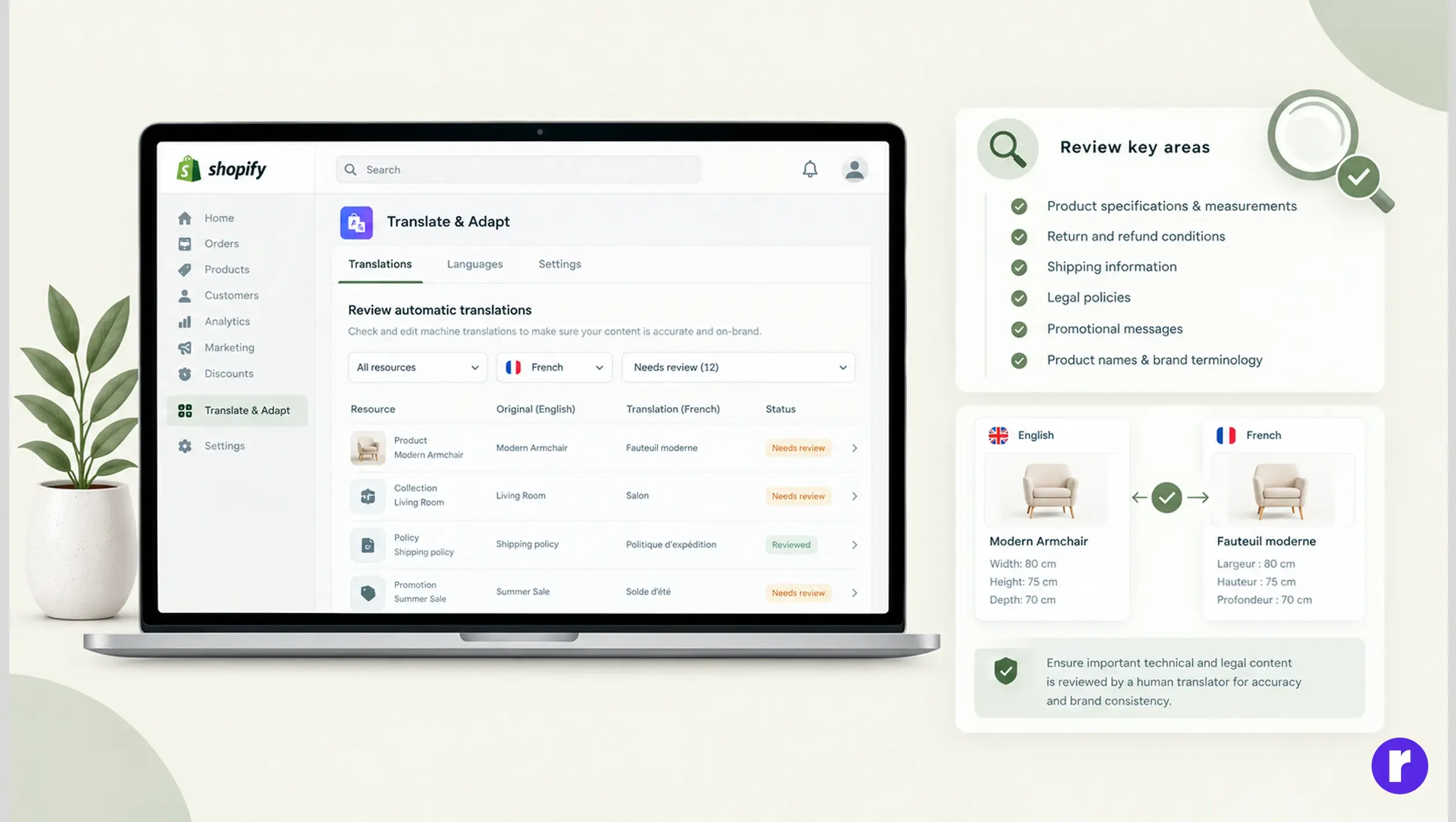
Automatic translation can save time when you have many products or pages. However, machine-generated translations may not always communicate your intended meaning accurately.
Before publishing, review important content such as:
- Product specifications and measurements
- Return and refund conditions
- Shipping information
- Legal policies
- Promotional messages
- Product names and brand terminology
For example, a technical product specification should communicate the same measurements and features in every language. Do not allow translation changes to alter the product's actual specifications.
For important legal or technical content, consider using a qualified human translator.
Step 6: Publish the new language
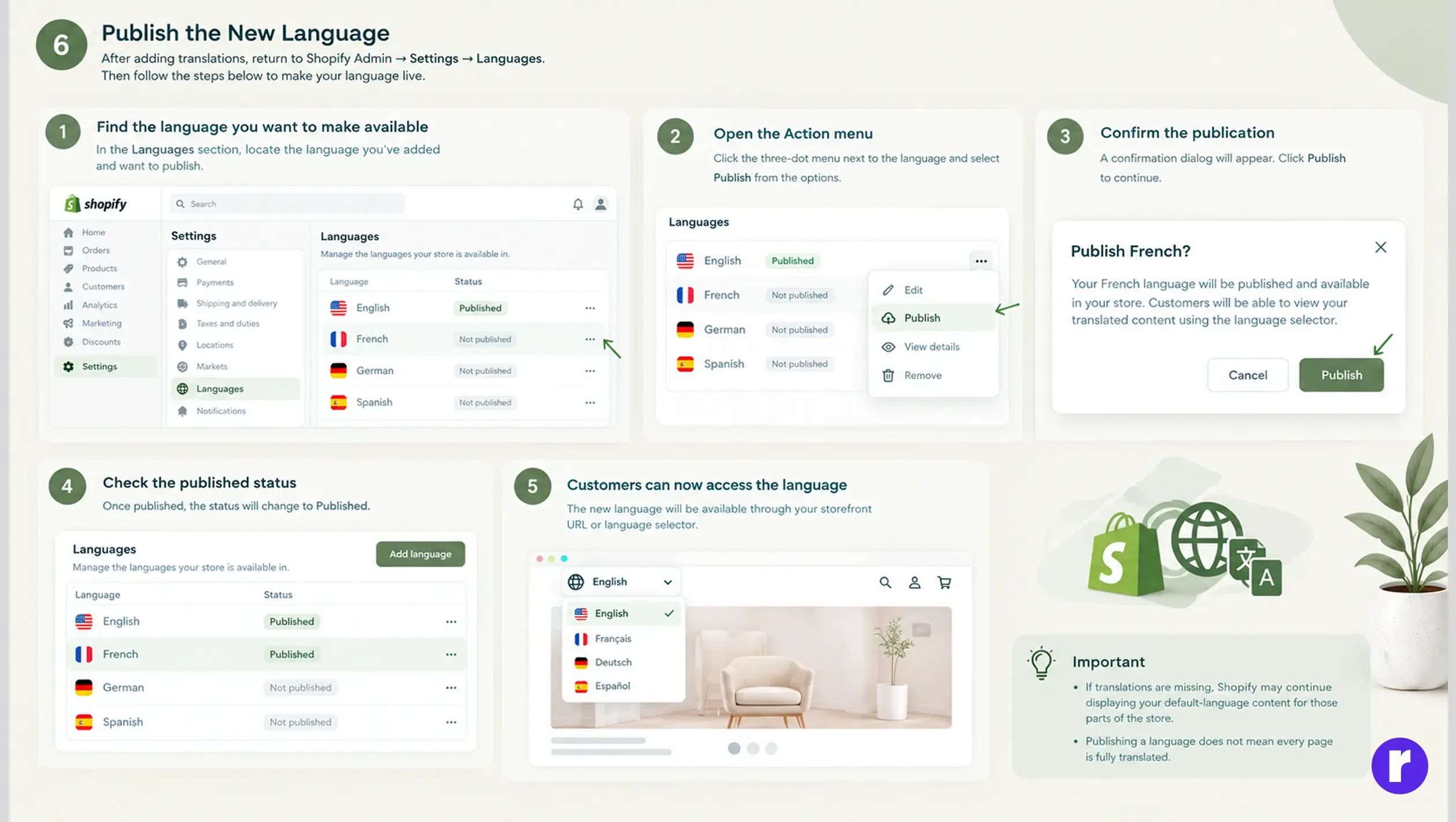
After adding translations, return to:
Shopify Admin → Settings → Languages
Then:
- Find the language you want to make available
- Open its action menu.
- Click Publish.
- Confirm the publication if Shopify asks you to do so.
Once published, customers can access the language through the appropriate storefront URL and language selector.
Important: If translations are missing, Shopify may continue displaying your default-language content for those parts of the store. Publishing a language does not mean every page is fully translated.
Step 7: Configure languages for shopify markets
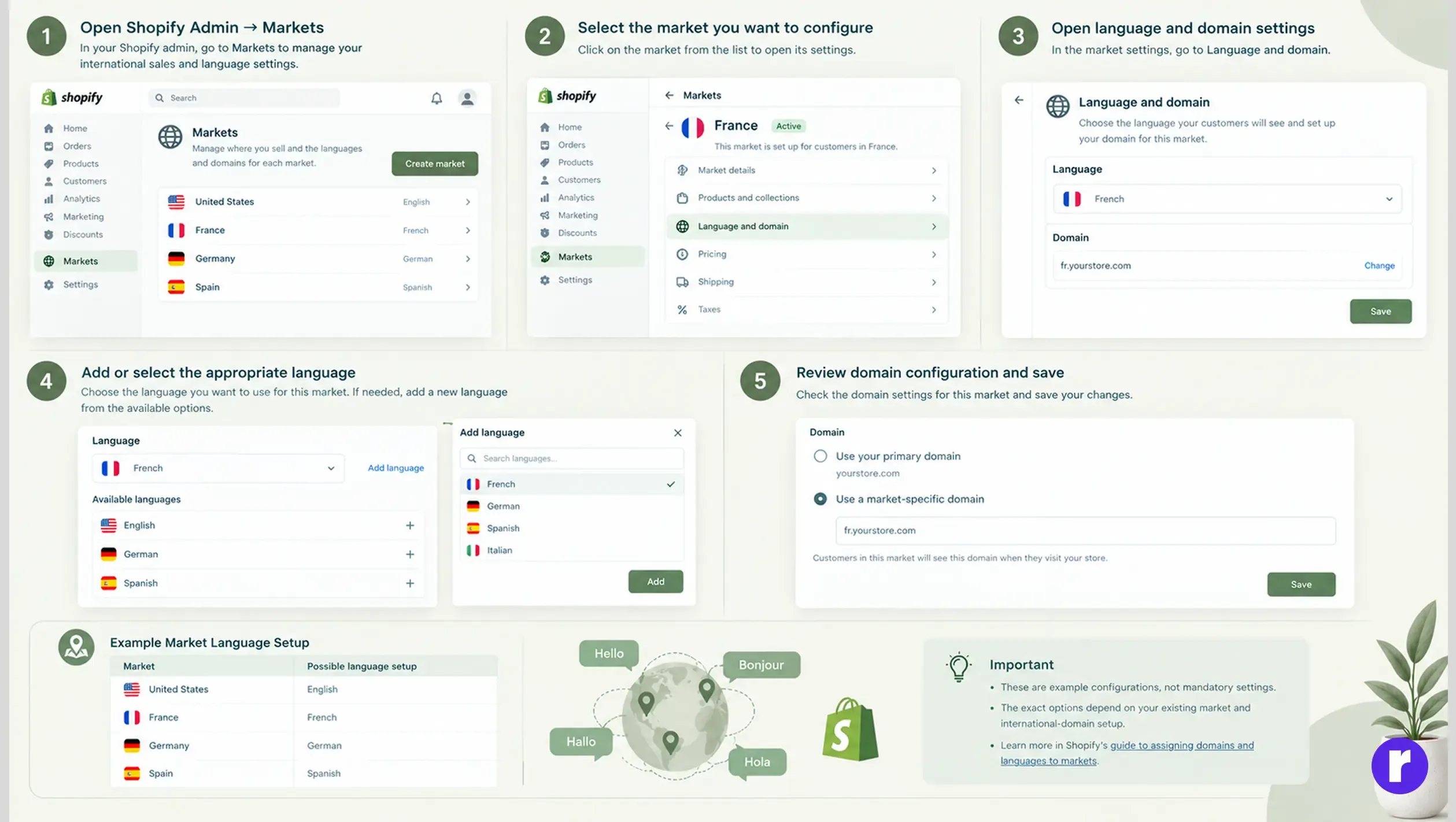
If you sell in multiple countries or regions, you may want different languages available in different markets.
These are illustrative configurations, not mandatory settings.
To manage market-specific languages:
- Open Shopify Admin → Markets.
- Select the market you want to configure.
- Open the language and domain settings.
- Add or select the appropriate language.
- Review the domain configuration and save your changes.
The exact options depend on your existing market and international-domain setup.
Learn more in Shopify's guide to assigning domains and languages to markets.
Step 8: Add a language selector to your store
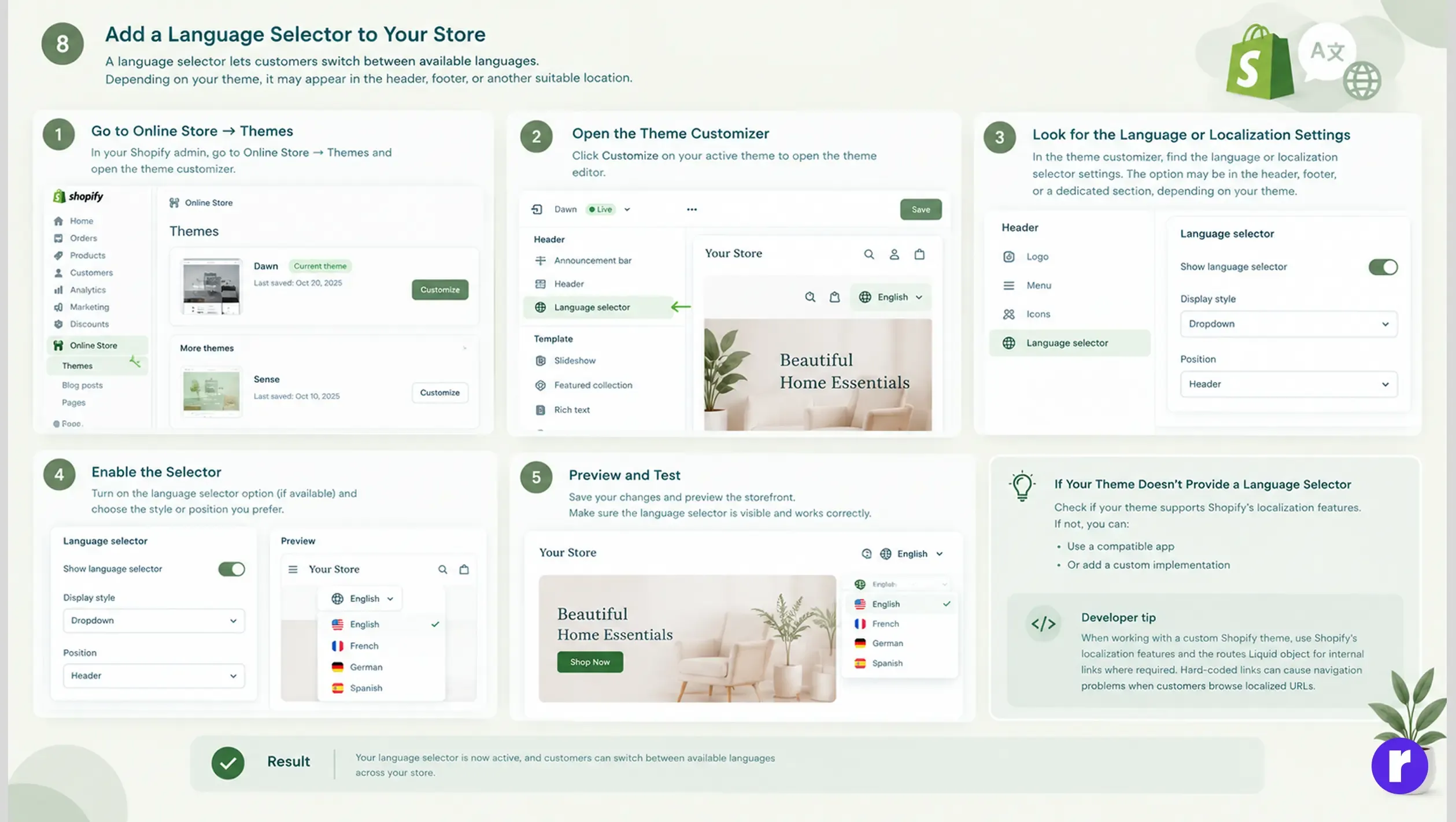
A language selector lets customers switch between available languages.
Depending on your theme, it may appear in the header, footer, or another suitable location.
To check your theme:
- Go to Online Store → Themes.
- Open the theme customizer.
- Look for the language or localization selector settings.
- Enable the selector if the theme provides the option.
- Preview the storefront and confirm that the selector is visible and works correctly.
If your theme does not provide a language selector, check whether it supports Shopify's localization features. You can also consider a compatible app or a custom implementation.
Developer tip: When working with a custom Shopify theme, use Shopify's localization features and the routes Liquid object for internal links where required. Hard-coded links can cause navigation problems when customers browse localized URLs.
Step 9: Configure multilingual SEO
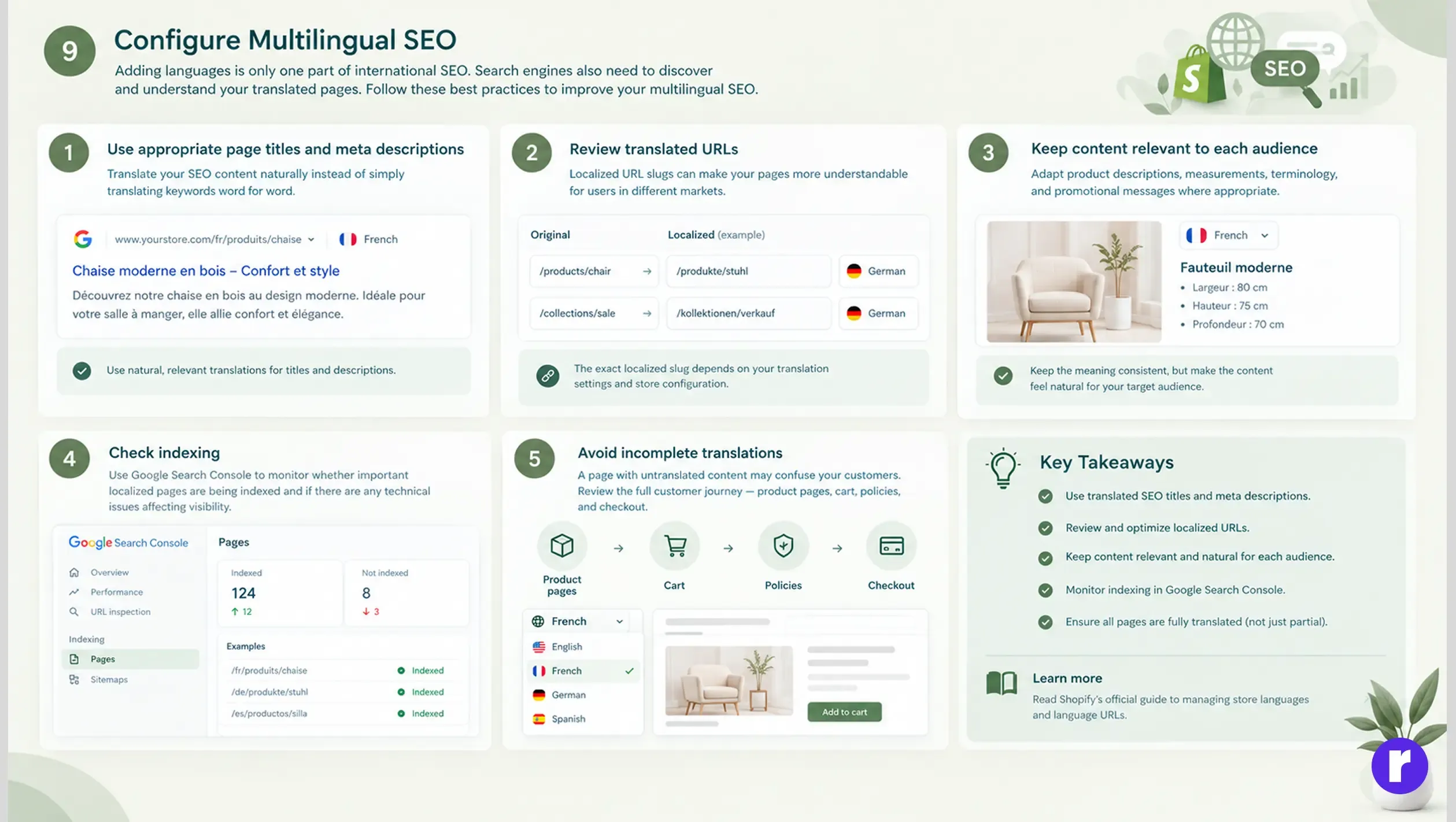
Adding languages is only the first step. Optimize translated pages to help search engines discover and understand your content.
Shopify automatically supports language-specific URLs, hreflang tags, and published language URLs in sitemaps.
- Translate SEO content: Use natural page titles, meta descriptions, and keywords.
- Review URLs: Use localized slugs where supported, such as/products/chair and /produkte/stuhl .
- Adapt content: Make product descriptions and promotions relevant to each audience.
- Check indexing: Use Google Search Console to monitor localized pages.
- Complete translations: Ensure product pages, cart, policies, and checkout provide a consistent experience.
For more details, read Shopify's official guide to managing store languages and language URLs .
Shopify translate & adapt vs. third-party translation apps
Shopify's Translate & Adapt app is a practical starting point for merchants who want to manage translations within Shopify.
A third-party translation app may be worth considering if your store requires additional workflows or capabilities.
|
Feature |
Shopify Translate & Adapt |
Third-party translation app |
|---|---|---|
|
Manual translations |
Supported |
Depends on the app |
|
Automatic translations |
Supported for available languages and content |
Depends on the app and plan |
|
Shopify integration |
Built for Shopify |
Compatibility varies |
|
Additional localization features |
Based on Shopify's app capabilities |
Depends on the provider |
|
Cost |
Free app; check current limits |
Pricing varies |
Before choosing a third-party app, confirm that it supports Shopify's multilingual storefront system, the content types you need to translate, and your theme and other installed apps.
Need help with your Shopify store?
Explore Radial Code's Shopify development services
to learn more about Shopify store development and customization.
Conclusion
Adding multiple languages to your Shopify store helps you reach a wider audience and provide a more personalized shopping experience for international customers. By setting up accurate translations, configuring your language selector, and optimizing multilingual SEO, you can make your store more accessible and prepare your business for global expansion.
Ready to take your Shopify store global? Visit Radial code
to explore Shopify development solutions and create a better shopping experience for customers worldwide.


