How to Create a Custom Product Template in Shopify

Written by

Priyanka Singh
Front End Developer
Table of contents
Build with Radial Code
Share this


A custom product template in Shopify lets you create a different layout for selected products without changing the design of every product page. For example, you may want a special template for premium products, limited-edition items, detailed product pages, or products that need extra sections. In this guide, you'll learn how to create and assign a custom product template in Shopify.
What is a Custom Product Template in Shopify?
A product template controls how a product page is structured. Shopify themes can have multiple templates for the same page type. This means you can keep the default template for most products and create alternate templates for products that need a different layout.
For example, one template might include:
- Product information
- Image banners
- Product benefits
- FAQs
- Videos
- Related products
- Additional content sections
The sections available depend on your Shopify theme.
Method 1: Create a Product Template Using the Theme Editor:
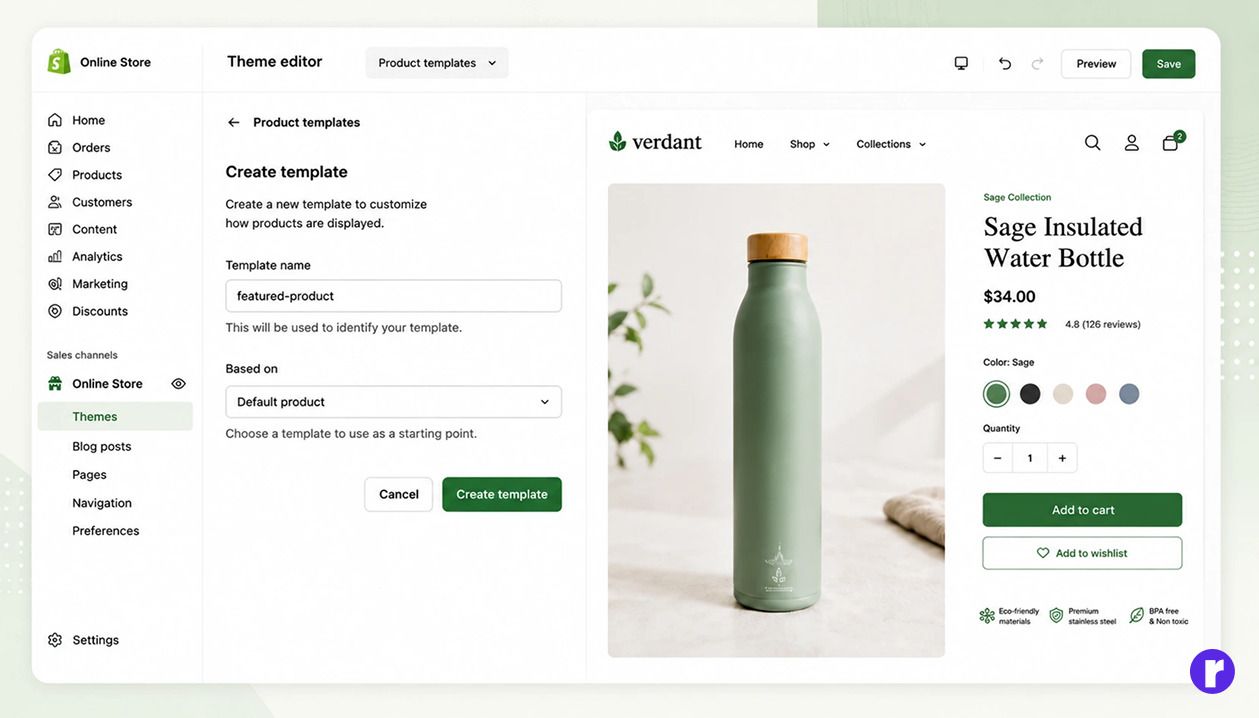
For most Shopify stores, the theme editor is the easiest option because it doesn't require coding.
- Open the theme editor
- Open Product Templates
- Create a New Template
- Customize the Template
- Add sections
- Remove sections
- Rearrange sections
- Add or remove blocks
- Change section settings
- Add app blocks
- Connect supported settings to dynamic sources
- Product information
- Product benefits
- Image with text
- FAQ section
- Related products
- Preview the Template
- Assign the Template to a Product
- Go to Shopify Admin → Products.
- Open the product.
- Find Theme template.
- Select your new template.
- Click Save.
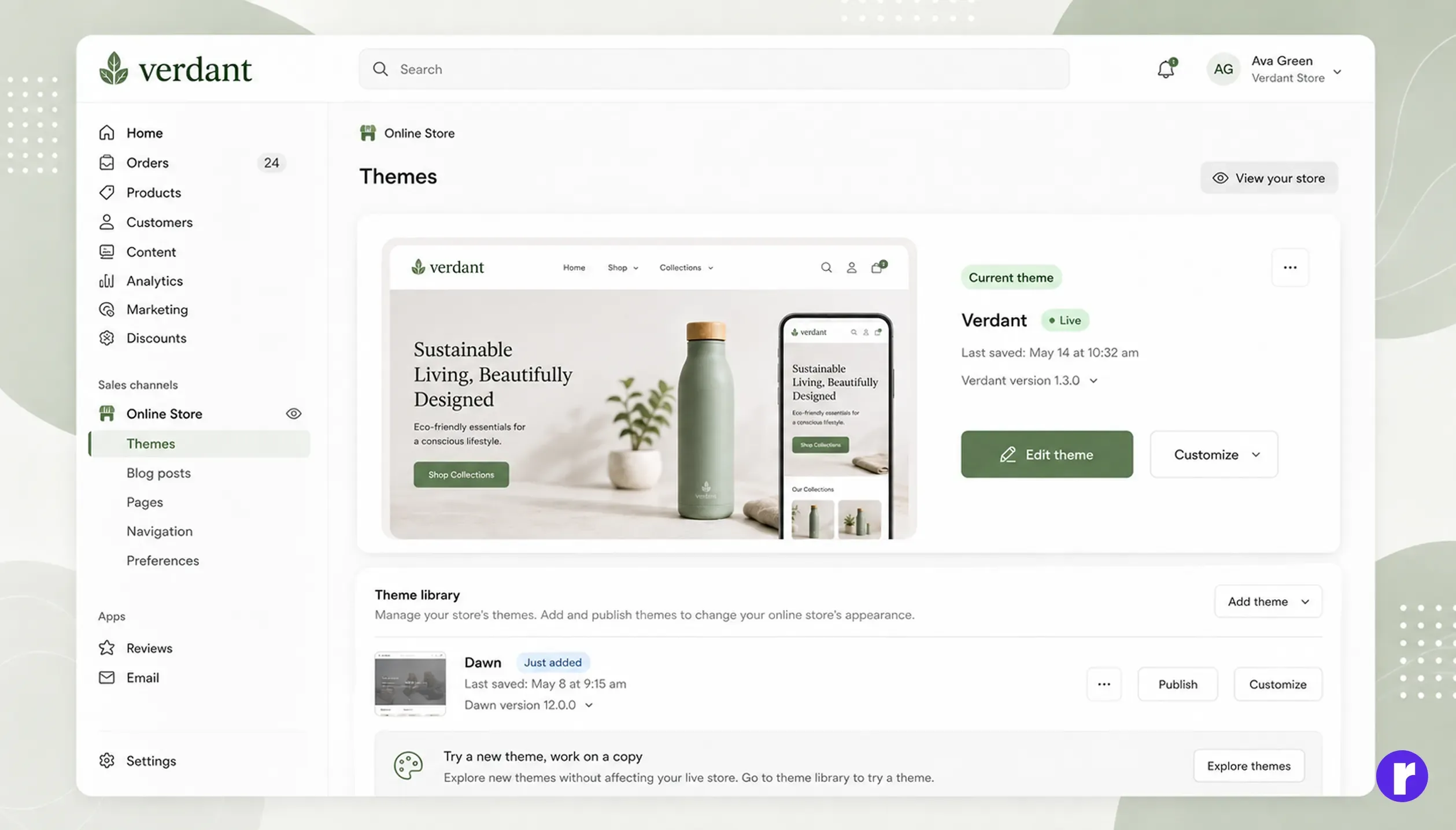
Go to
Shopify Admin → Online Store → Themes
Find your active theme and click Edit Theme.
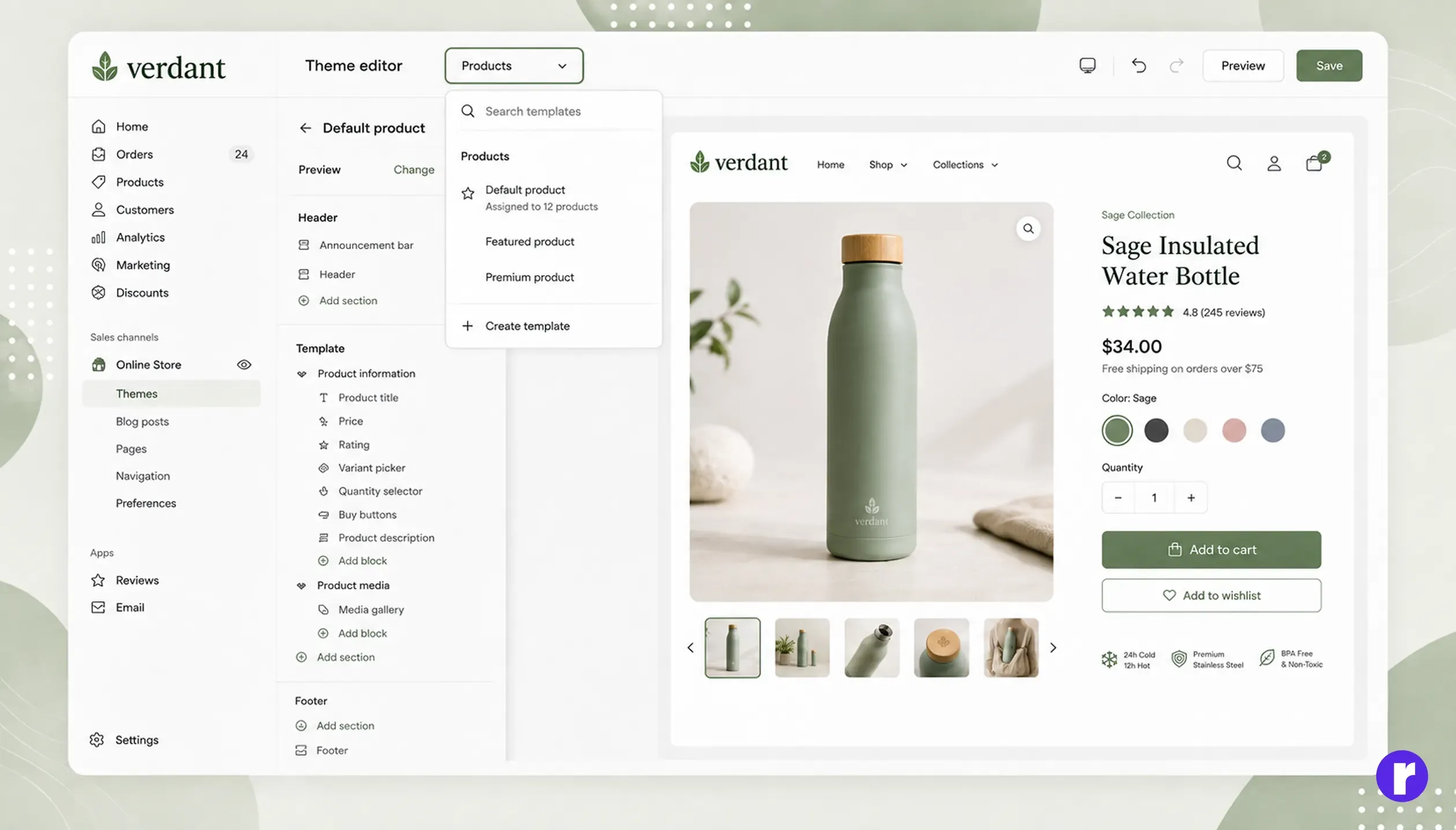
Use the template selector at the top of the theme editor.
Choose:
Products
You will see the product templates available in your theme.
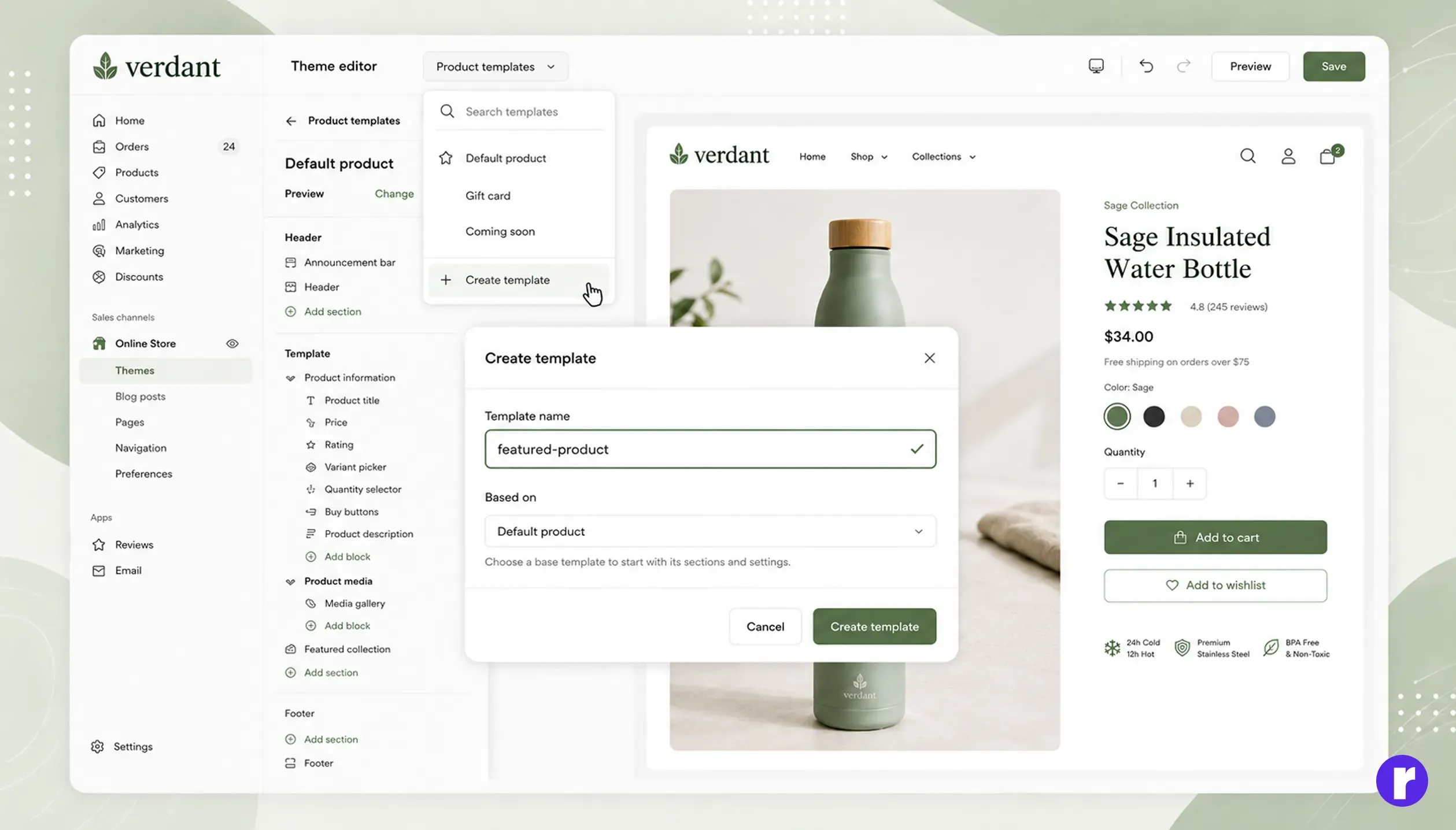
Click Create template.
Enter a unique name, such as:
featured-product
or:
premium-product
Choose an existing product template as the base and click Create template.
Shopify will copy the structure of the selected template so you can customize the new version separately.
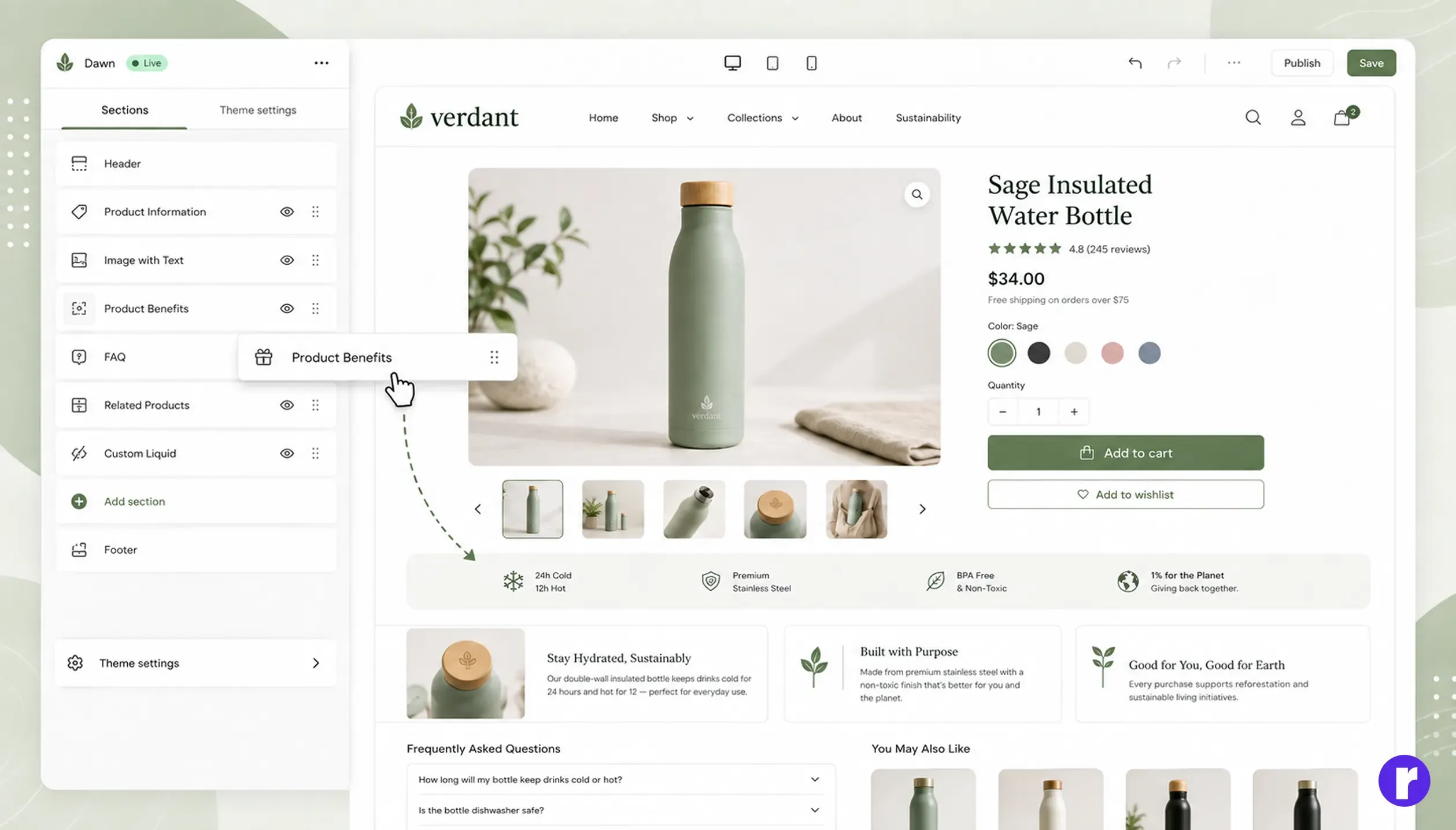
Now you can change the layout using the theme editor.
Depending on your theme, you can:
For example, you could create a product page with this structure:
Click Save after making your changes.
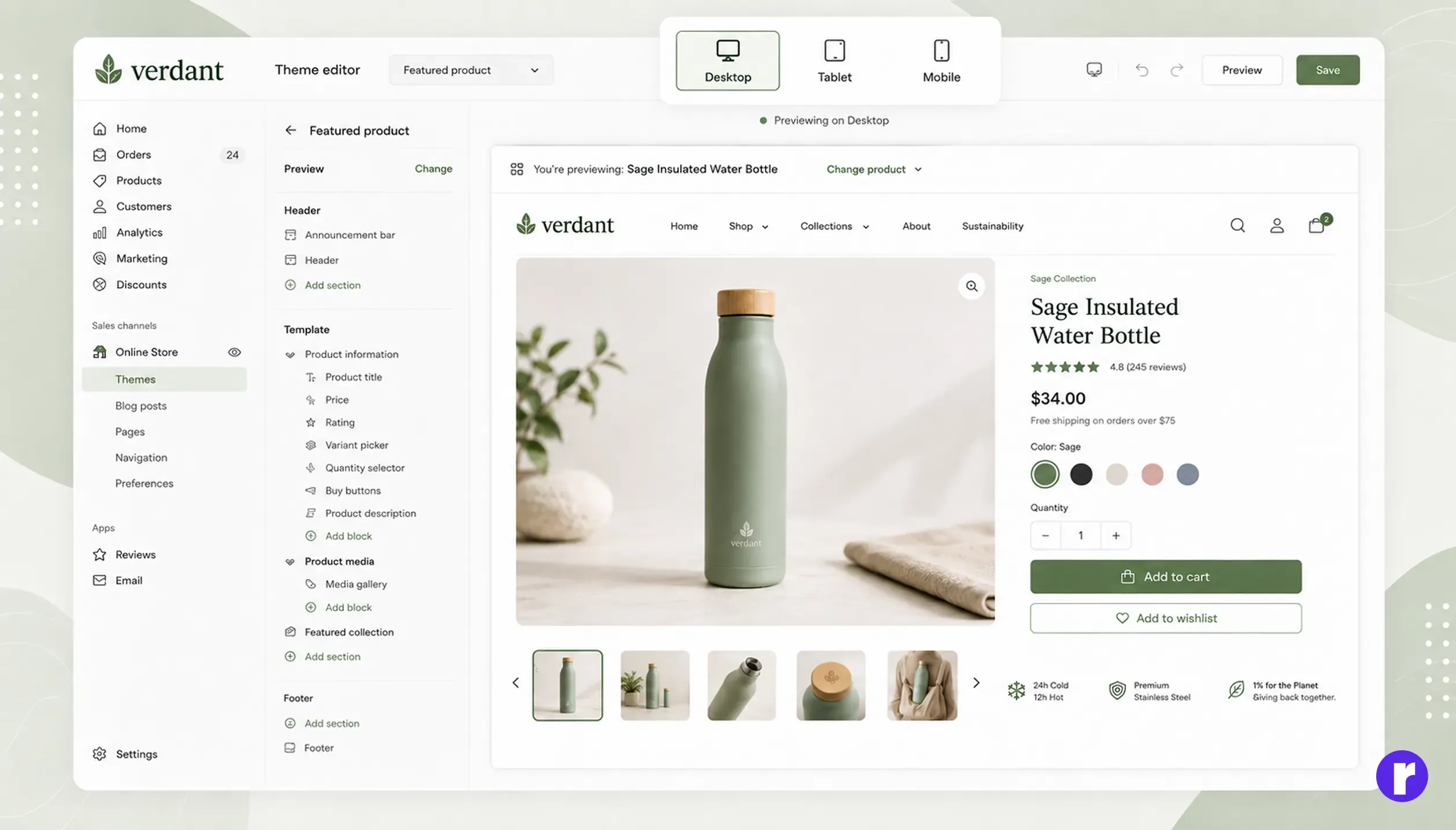
Before assigning the template, preview it with an existing product.
In the theme editor, select a product from the preview options.
Check how the page looks on desktop and mobile.
Previewing a product with a template does not permanently assign that template to the product.
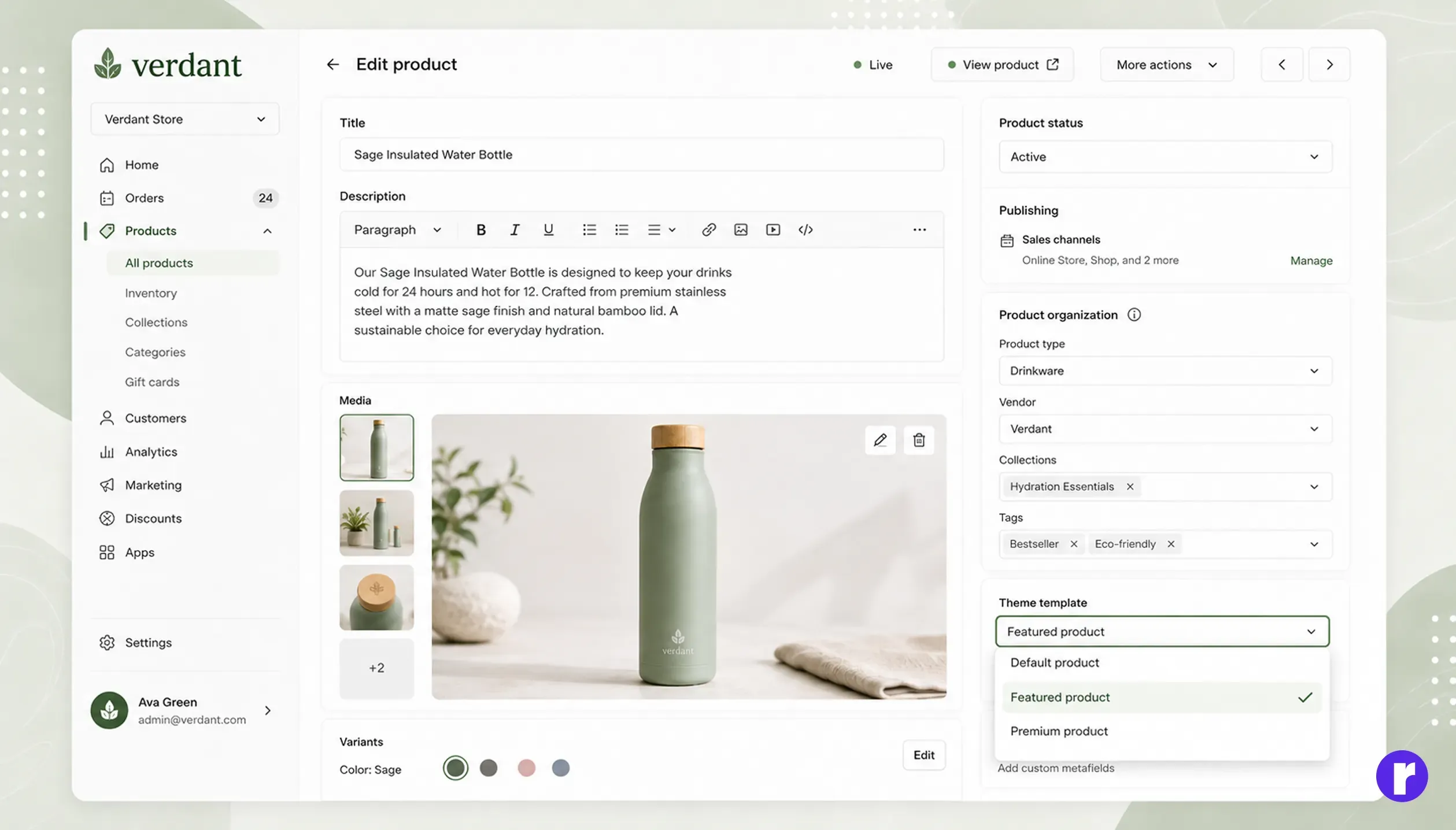
Once the template is ready:
The product will now use the custom template.
Important: If you create the new template inside an unpublished or duplicate theme, it won't appear in the product's Theme template dropdown until that theme is published.
Assign a Template to Multiple Products
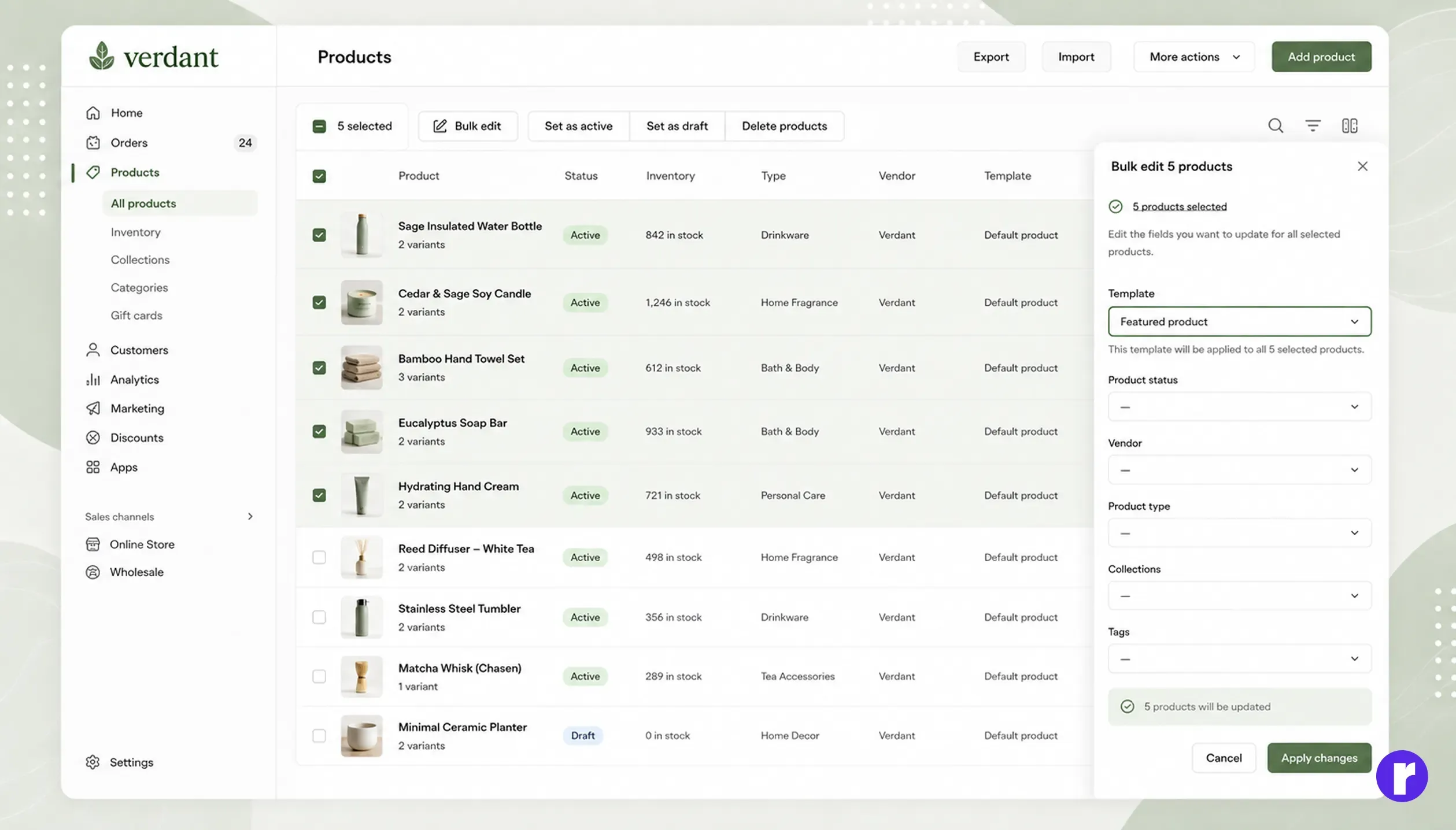
If several products need the same template, you can use Shopify's bulk editor.
Go to Products, select the required products, and click Bulk edit.
Add the Template column, choose the new template for the selected products, and save your changes.
This is useful when a whole group of products needs the same page layout.
Method 2: Create a Product Template Using Code
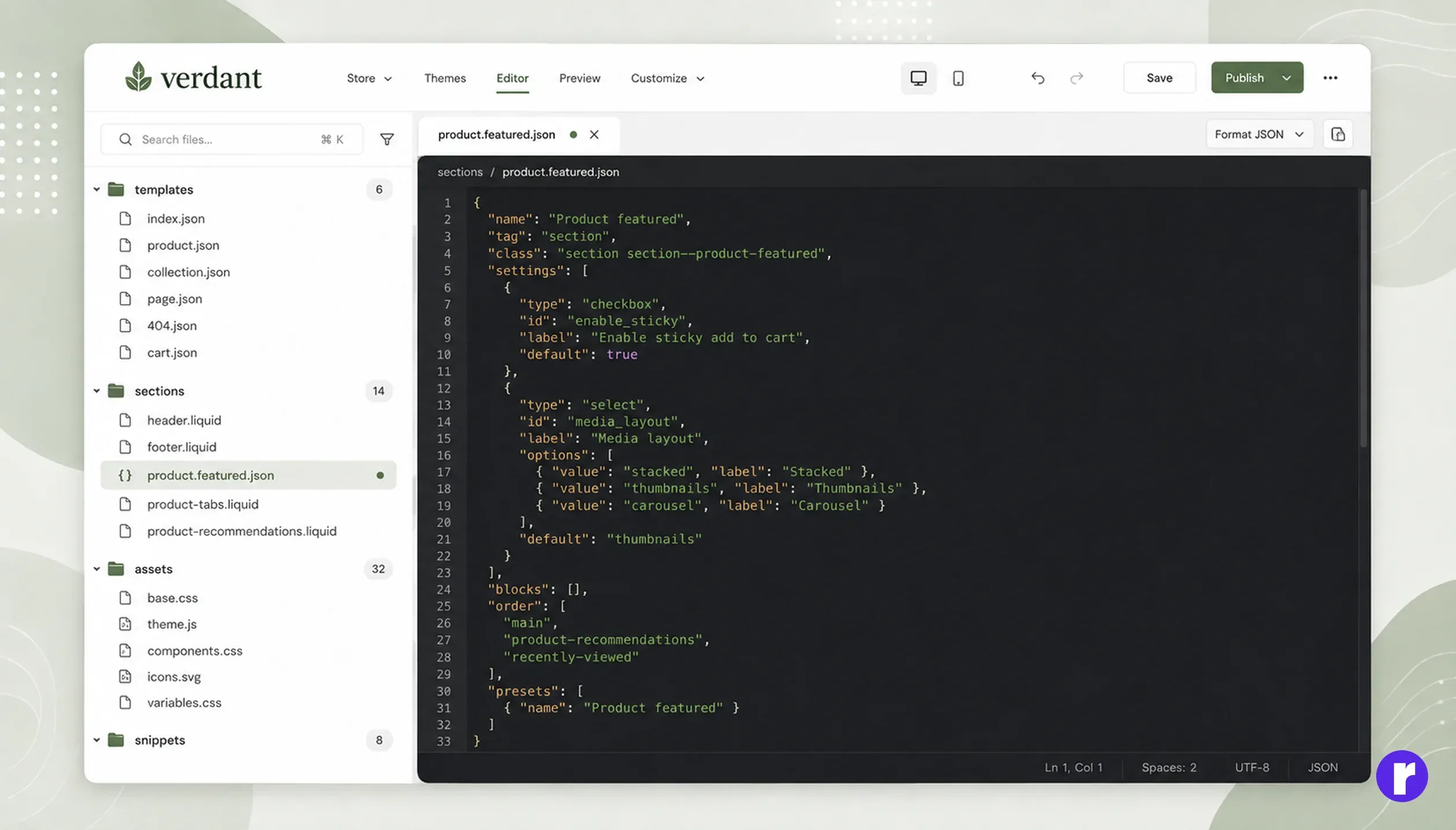
Developers can also create custom product templates through Shopify theme files.
Modern Shopify themes commonly use JSON templates.
The default product template is usually:
templates/product.jsonAn alternate template follows this format:
product.template-name.jsonFor example:
product.featured.jsonJSON templates mainly define which sections appear on the page and the order in which they are displayed.
A simplified example might look like:
{
  "sections": {
    "main": {
      "type": "product"
    },
    "recommendations": {
      "type": "product-recommendations"
    }
  },
  "order": [
    "main",
    "recommendations"
  ]
}
The actual section names depend on your theme, so you shouldn't copy code from another theme without checking its structure.
Shopify recommends editing theme code only when the required customization can't be achieved through the theme editor or an appropriate app.
Using Metafields Instead of Multiple Templates
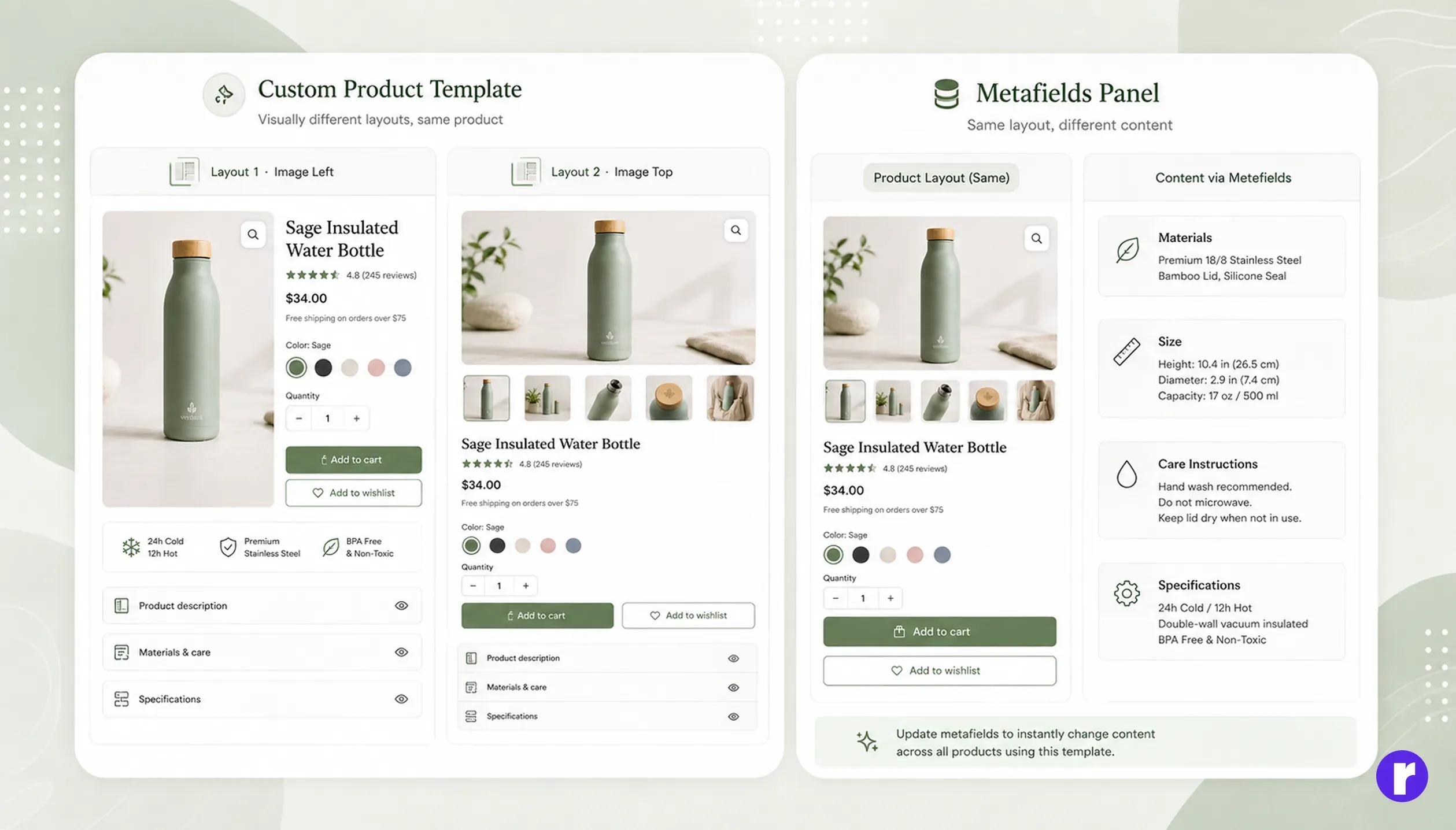
You don't always need a separate product template.
If the layout remains the same but individual products need different information, Shopify metafields may be a better option.
For example, metafields can store:
- Materials
- Size information
- Product specifications
- Additional product details
Compatible theme settings can connect this information using dynamic sources. This keeps your store easier to manage than creating many similar templates.
Best Practices for Shopify Product Templates
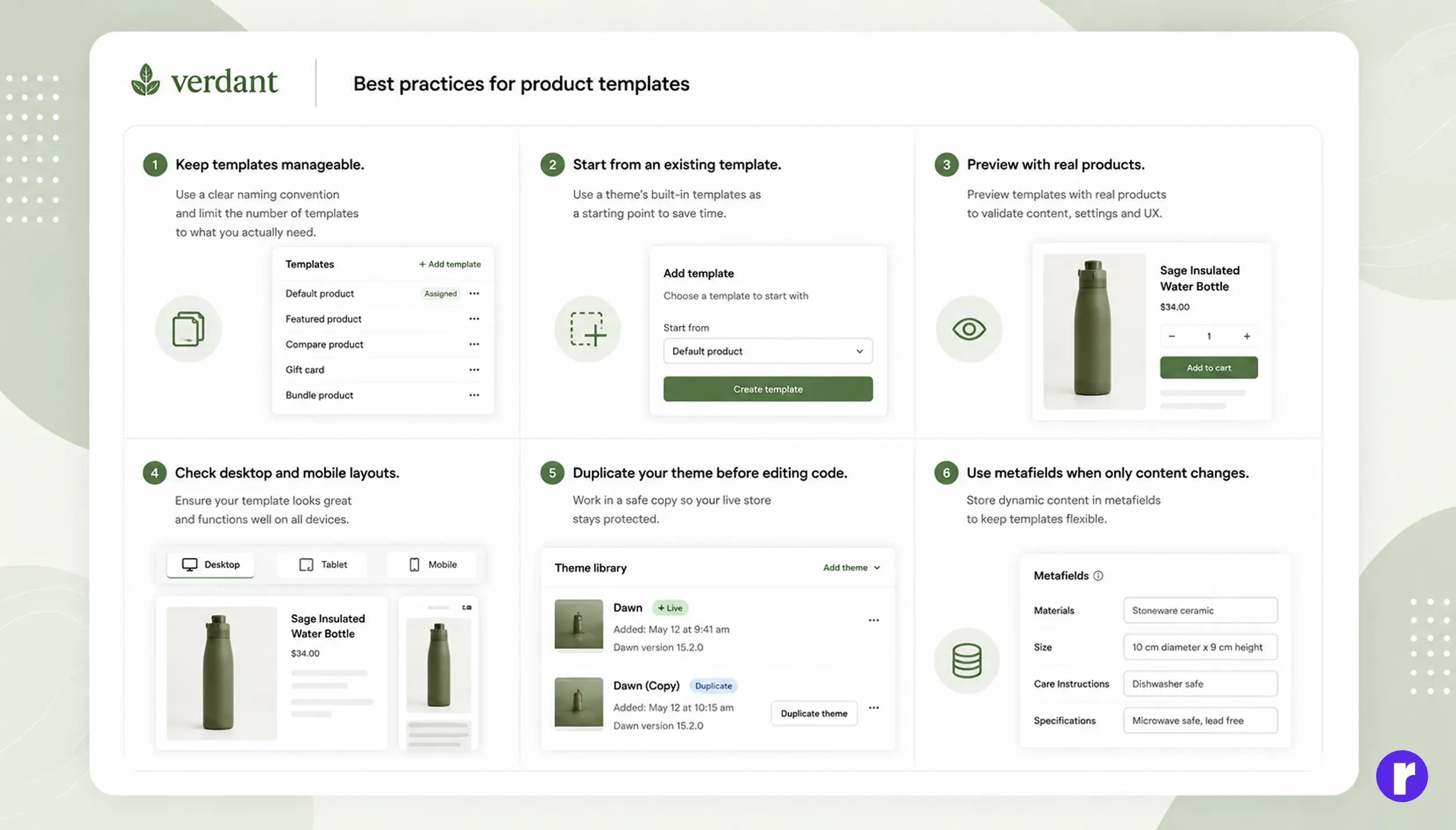
Keep the number of templates manageable. Create a separate template when the page layout or functionality needs to change, not simply because one product has different text. Start from an existing template whenever possible, preview your changes with real products, check both desktop and mobile layouts, and duplicate your theme before editing code. If only the product content changes while the layout stays the same, consider using metafields and dynamic sources instead.
Conclusion
Creating a custom product template in Shopify is a simple way to give selected products a different layout without redesigning your entire store.
For most merchants, the theme editor is the easiest option: create a new product template, customize its sections, preview it, and assign it to the required products. Developers can use JSON templates and Liquid sections when more advanced customization is needed.
If the layout stays the same and only product-specific information changes, metafields can often be a cleaner solution than creating multiple templates.
For more advanced Shopify customization and development support, visit Radial Code