How to Create Product Metafields in Shopify (Beginner-Friendly Guide)

Written by

Nupur Bishnoi
Shopify Developer
Table of contents
Build with Radial Code
Share this


In today’s competitive e-commerce landscape, simply adding basic product details isn’t enough. To stand out, you often need to display extra, custom information—like size guides, ingredients, specifications, FAQs, or downloadable files. This is where Shopify Product Metafields come in.
In this blog, you’ll learn what metafields are, why they matter, and how to create and use them effectively in your Shopify store.
What Are Shopify Metafields?
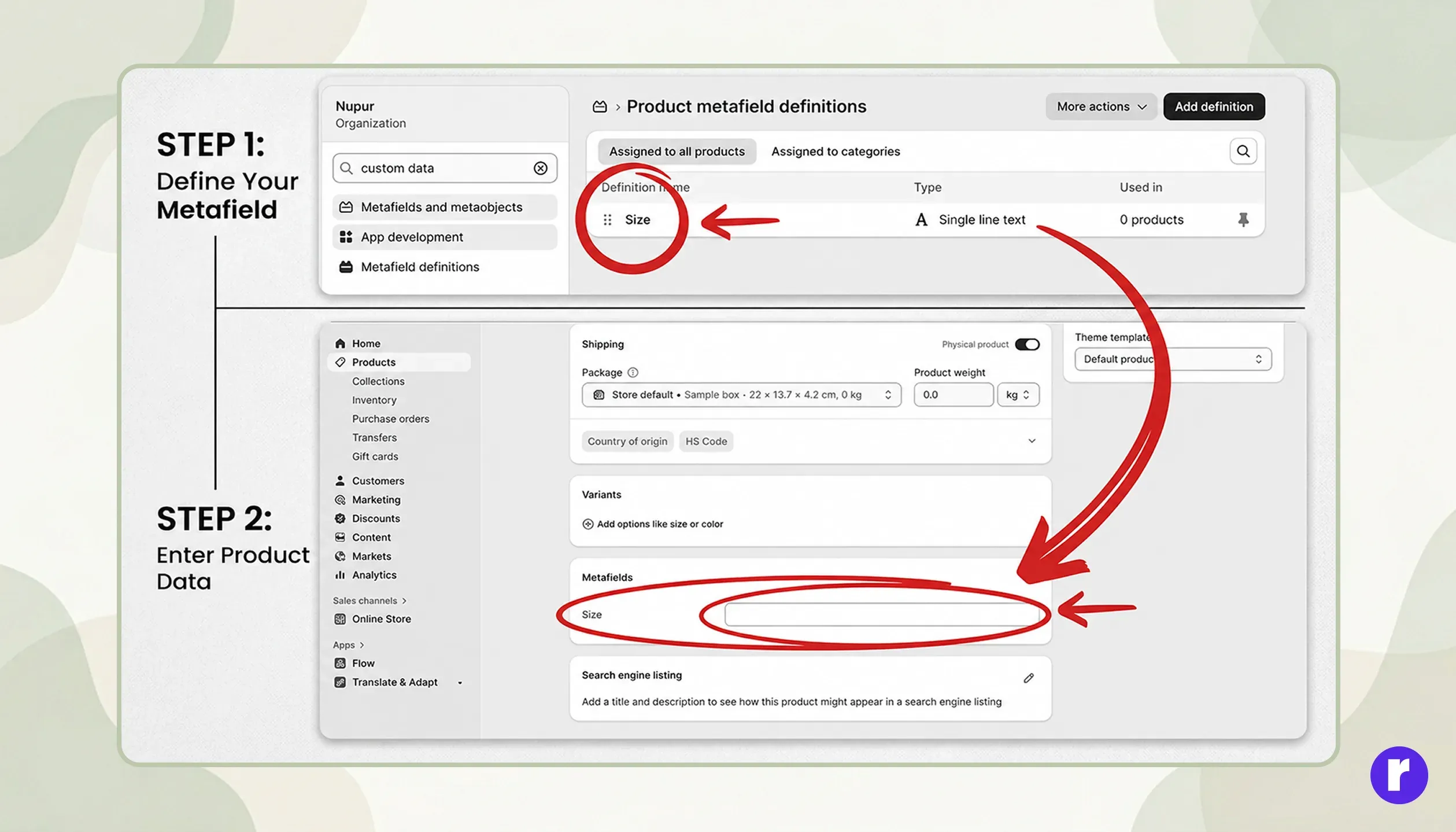
Metafields enable you to attach additional, custom data fields to your Shopify products — fields that go beyond what the platform offers out of the box. For example:
- Material details for clothing
- Nutritional info for food products
- Warranty info for electronics
- Custom badges like “Best Seller” or “Limited Edition”
In simple terms, metafields help you extend Shopify’s default product data.
Discover how to create a Shopify store with radialcode
Why Use Product Metafields?
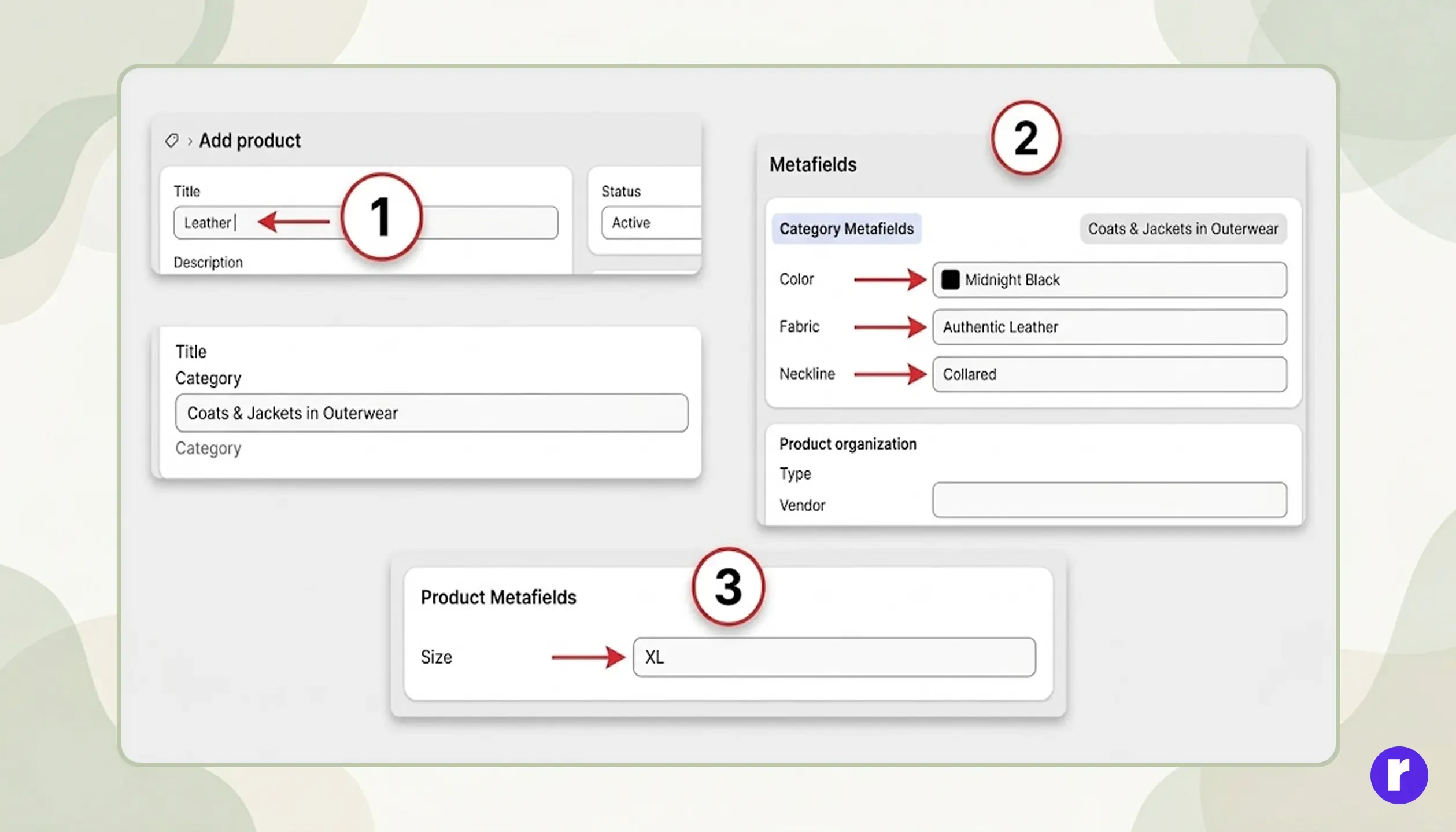
Here’s why metafields are powerful:
- Add extra product information without cluttering the description
- Improve product page design and structure
- Create dynamic and reusable data fields
- Provide a better user experience
Types of Metafields
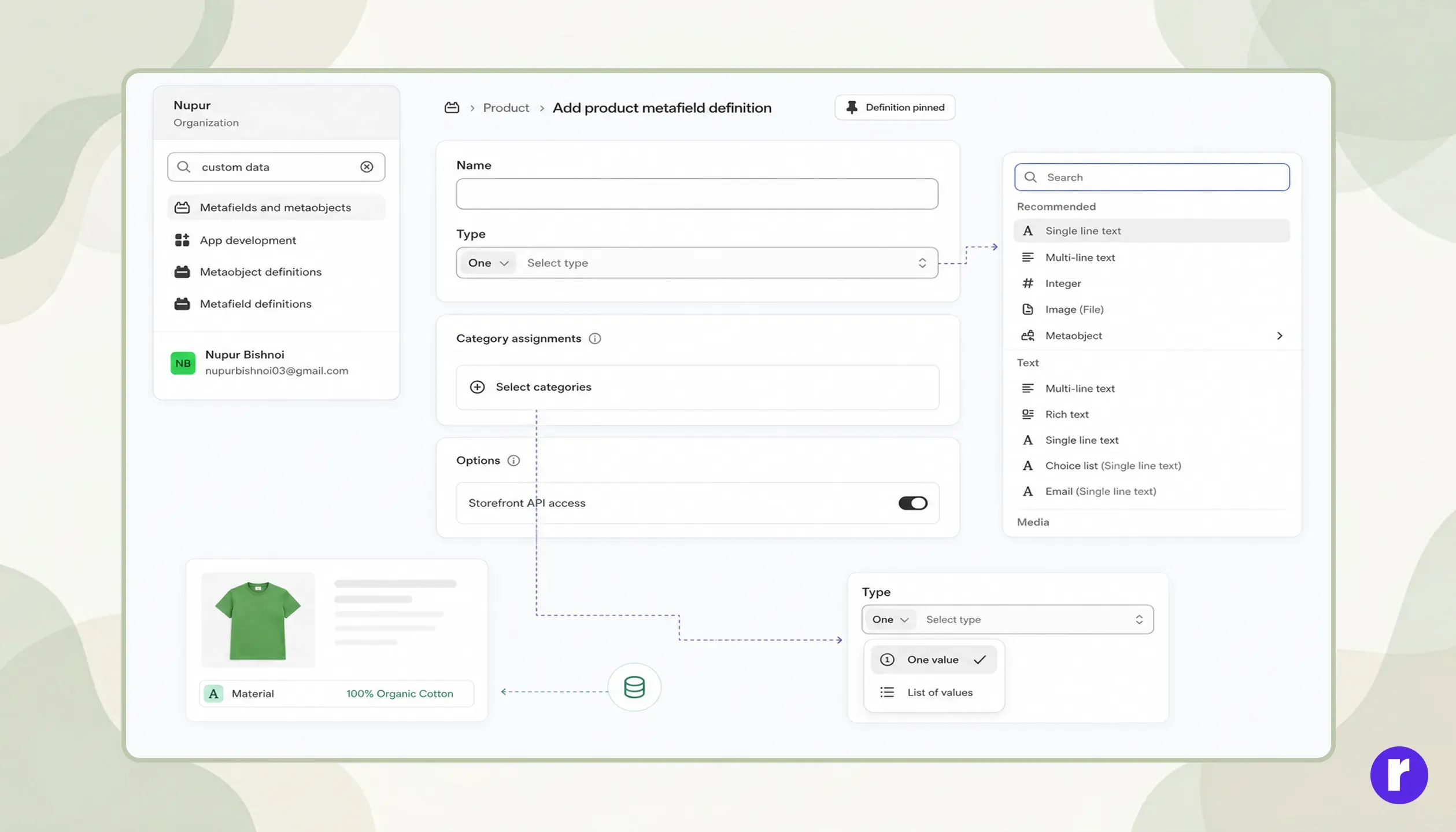
Shopify allows different types of metafields depending on your needs:
- Text (Single Line / Multi-line)
- Number (Integer or Decimal)
- File (PDF, Images, etc.)
- URL
- Date & Time
- Boolean (True/False)
- Product Reference (Link Other Products)
Step-by-Step: How to Create Product Metafields
Step 1: Go to Shopify Admin

- Login to your Shopify admin dashboard
- Click on Settings (Bottom-Left Corner)
Step 2: Open Custom Data
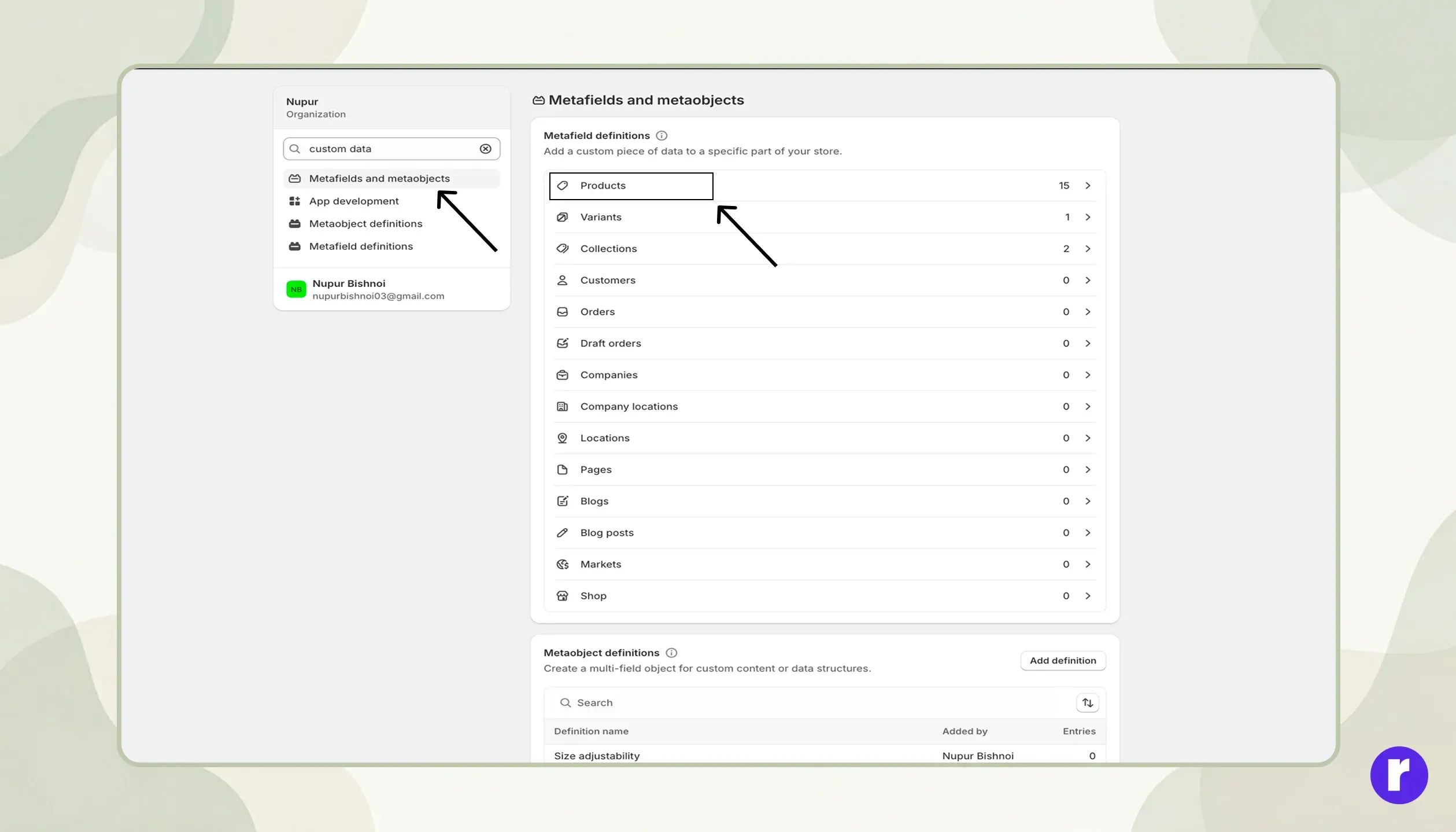
- Inside Settings, click on Custom data
- Select Products
Step 3: Add a New Definition
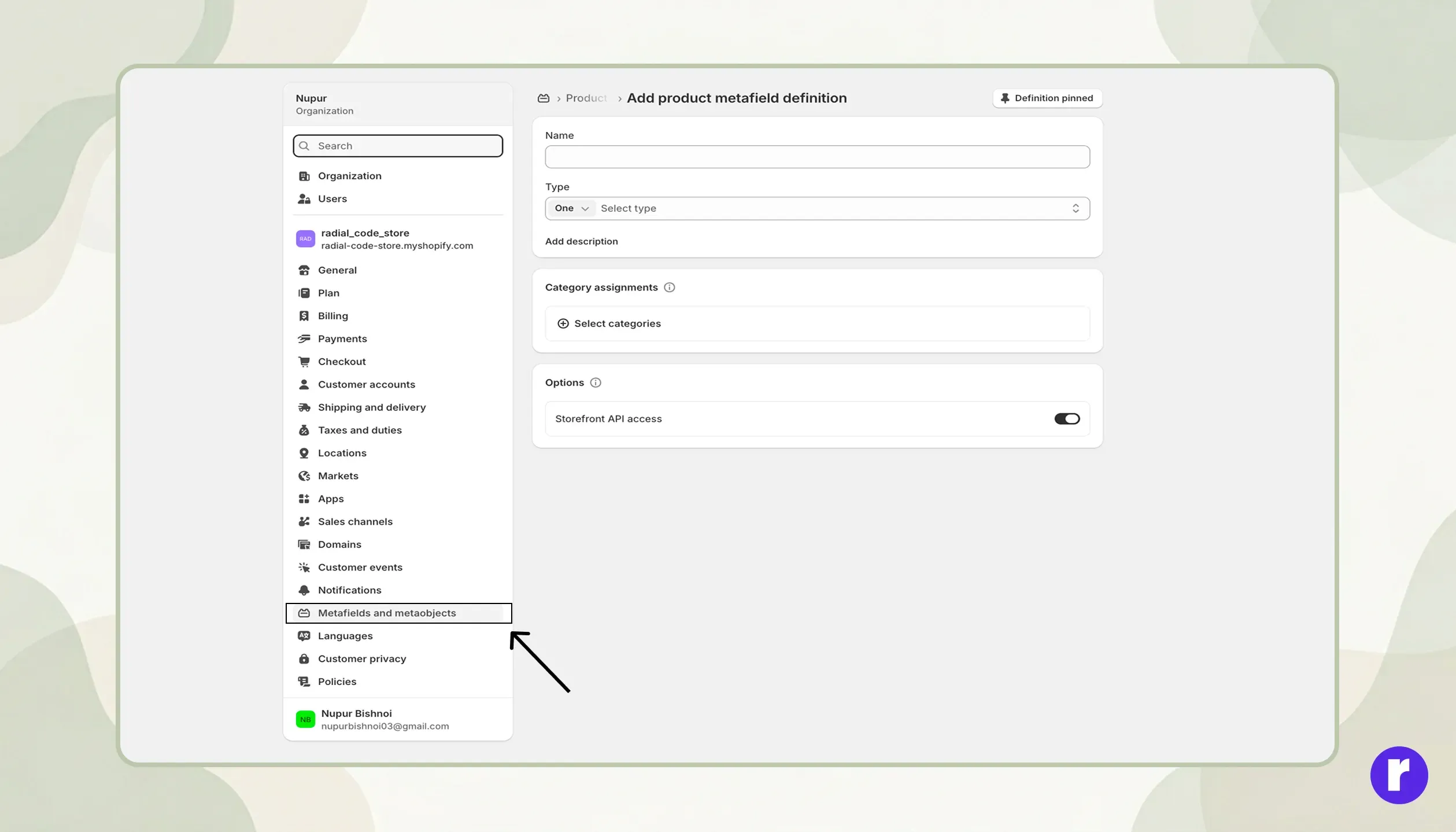
- Click on “Add definition”
- Fill in the details:
- Name: (e.g., “Material”)
- Namespace and key: auto-generated (you can customize if needed)
- Description: (optional but helpful)
- Type: Choose the data type (e.g., Single line text)
Step 4: Save the Metafield
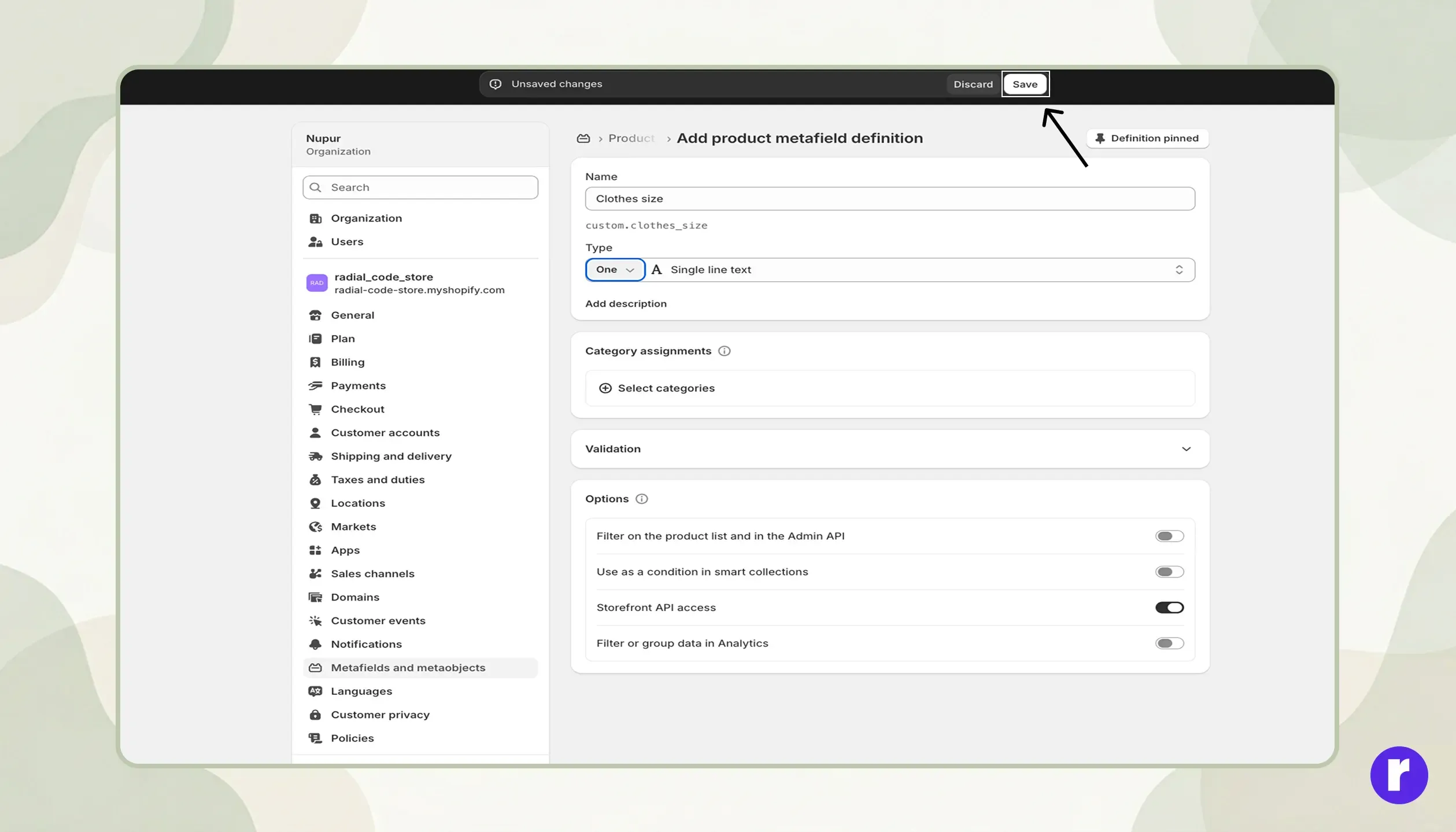
Click Save.
Your metafield is now ready to use. Radial code
How to Display Metafields on Your Store
Method 1: Using Theme Editor (No Code)
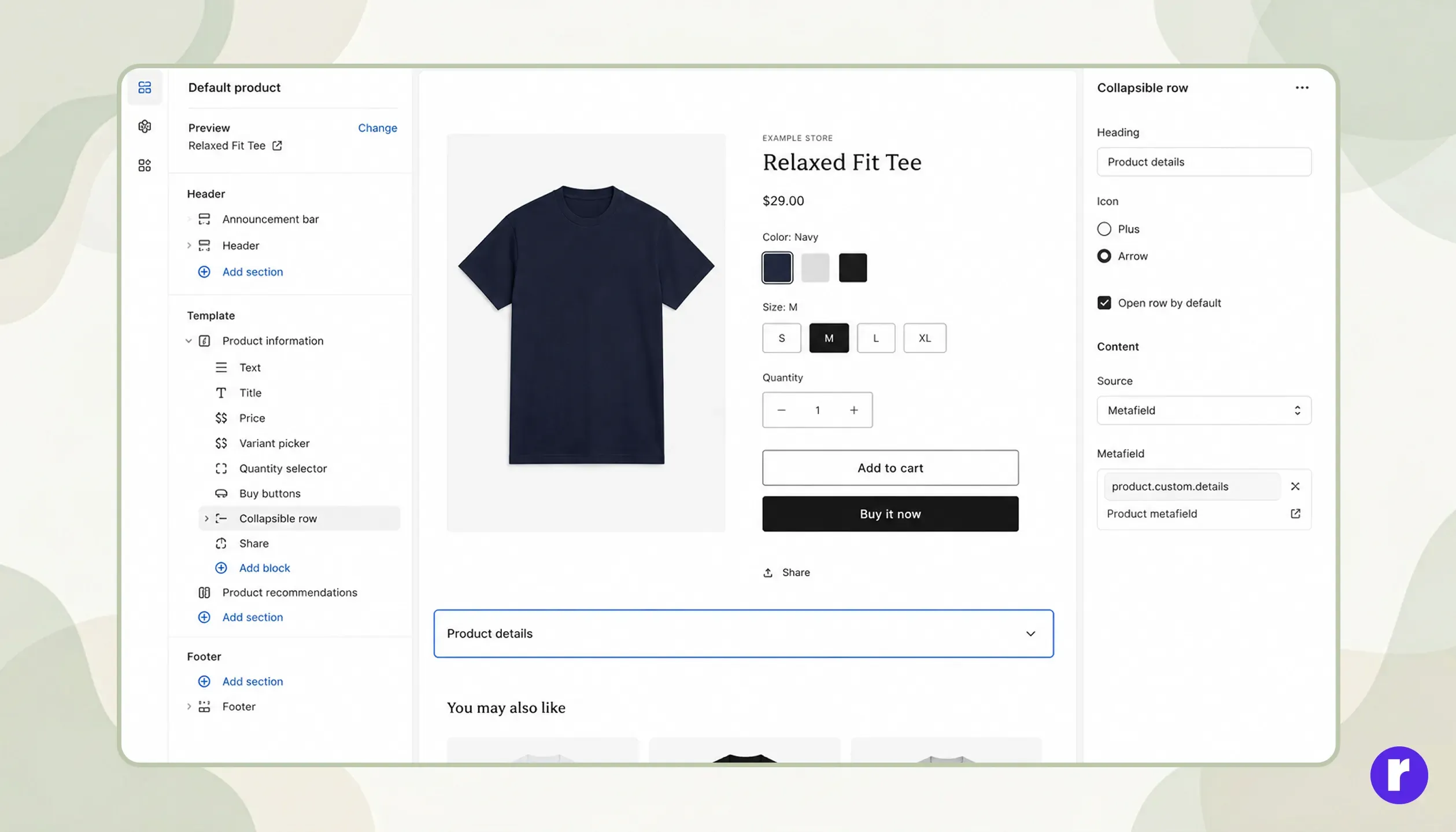
- Go to Online Store → Themes
- Click Customize
- Open your Product page template
- Insert a block (such as a text element or collapsible row)
- Connect it to a Dynamic source (metafield)
Method 2: Using Liquid Code (Advanced)
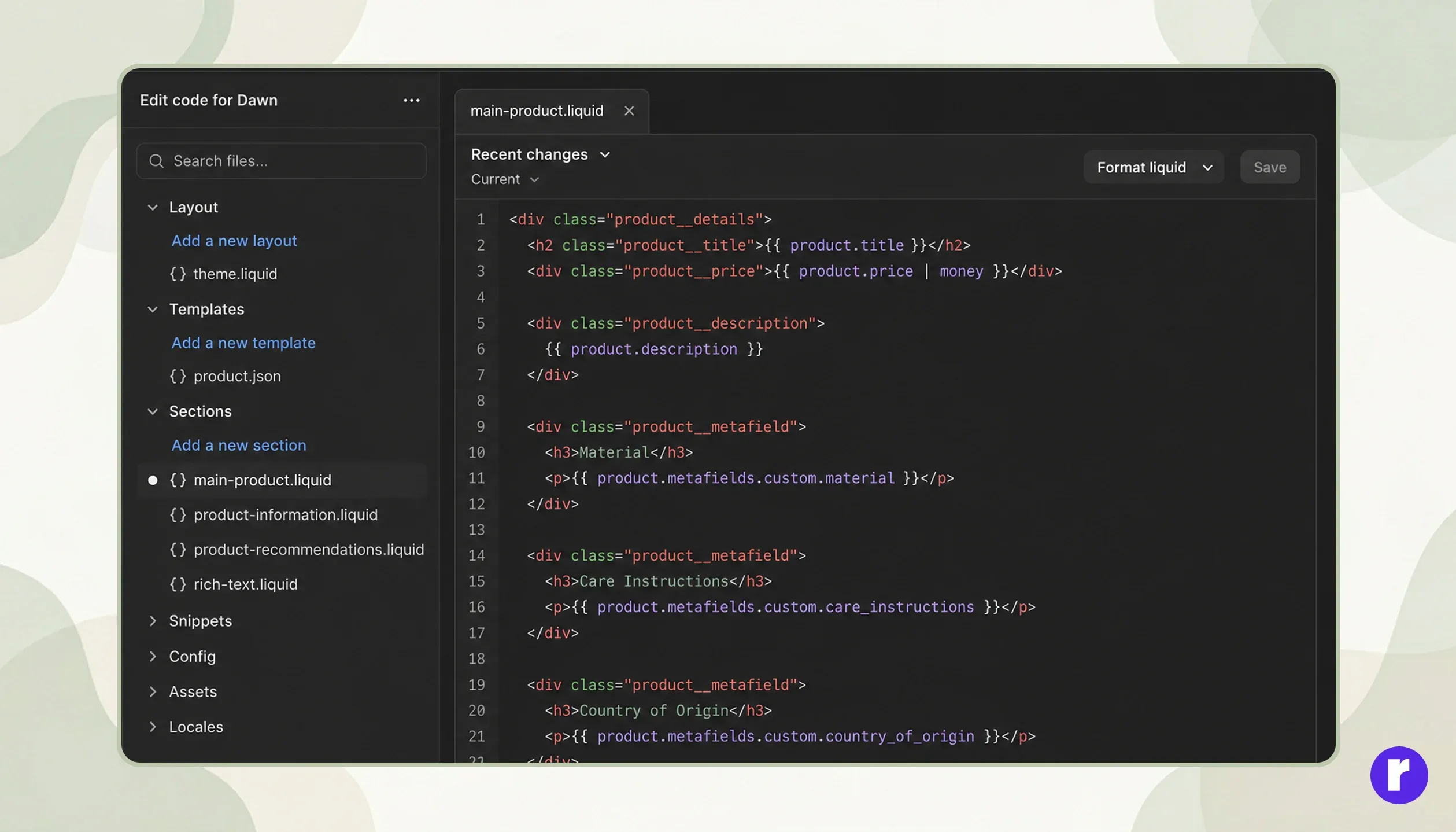
- If you want more control, you can use Shopify Liquid: `{{ product.metafields.namespace.key }}`
- Example: `{{ product.metafields.custom.material }}`
Best Practices for Using Metafields
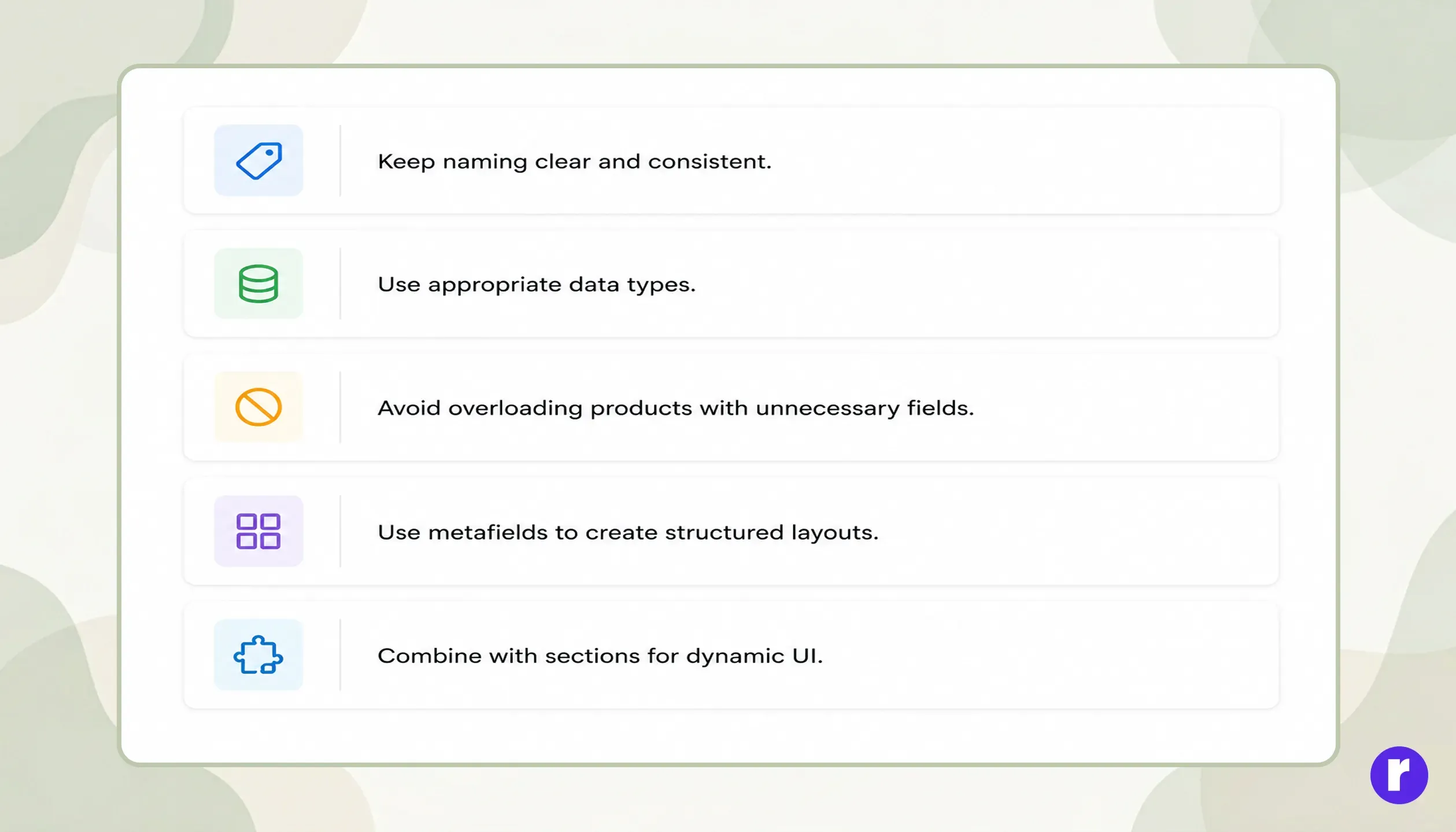
- Keep naming clear and consistent
- Use appropriate data types
- Avoid overloading products with unnecessary fields
- Use metafields to create structured layouts
- Combine with sections for dynamic UI
Common Use Cases
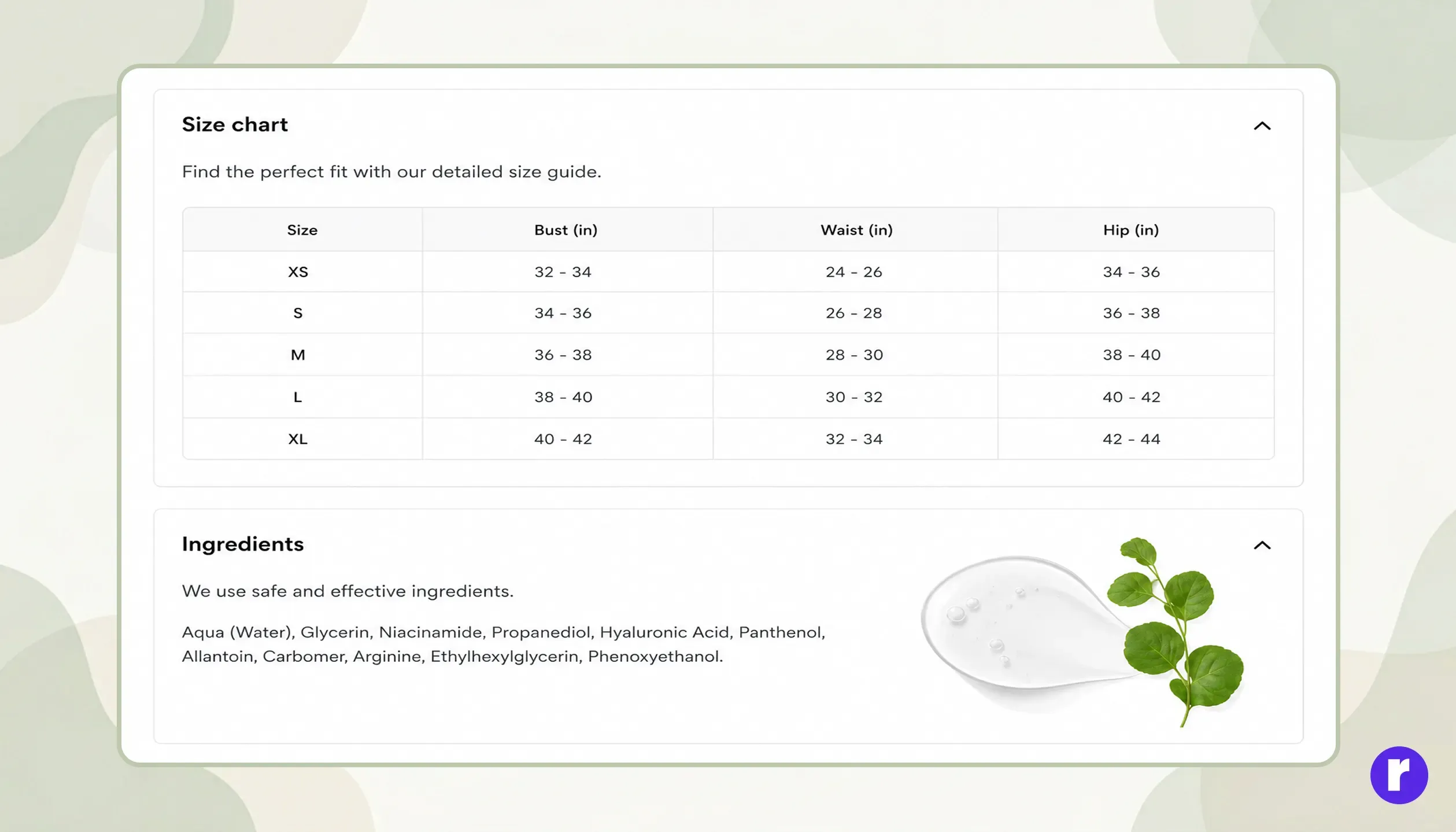
- Size charts for fashion stores
- Technical specifications for gadgets
- Ingredients for beauty products
- FAQ sections per product
- Custom tabs (Description, Details, Reviews)
Conclusion
Shopify metafields are a powerful feature that allows you to go beyond basic product information and create rich, dynamic, and user-friendly product pages. Whether you're a beginner or an advanced developer, metafields give you the flexibility to customize your store exactly the way you want.
Start using metafields today and turn your product pages into high-converting experiences.