How to Create Product Variants in Shopify

Written by

Sonam Bishnoi
Shopify Developer
Table of contents
Build with Radial Code
Share this


Setting up product variants in Shopify is important when you sell items that come in multiple options such as size, color, material, or style. Instead of uploading each version as a separate product, variants allow you to combine them into a single listing, making your store more organized and user-friendly.
What Are Product Variants?
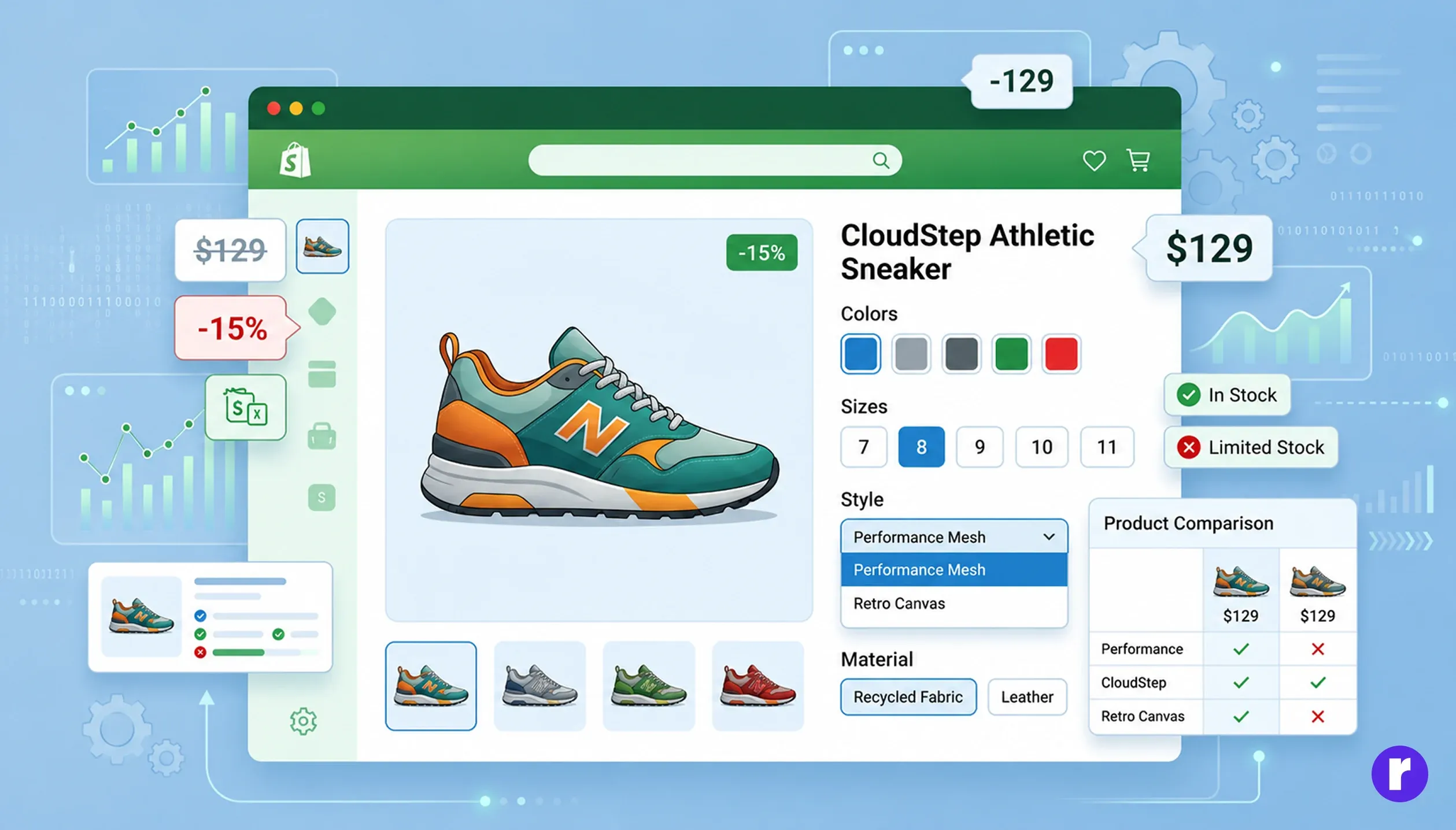
Product variants are simply different variations of the same item.
For example, a T-shirt might be available in:
- Sizes: Small, Medium, Large
- Colors: Red, Blue, Black
Each unique combination (like “Large - Blue”) is treated as an individual variant.
Ready to launch your online store? Read our Beginner's Guide to Creating an Online Store Using a Theme.
Why Are Product Variants Important?

Using variants in your store offers several benefits:
- Makes it easier for customers to choose options
- Keeps your product catalog clean and structured
- Simplifies inventory tracking
- Increases the chances of conversion by offering multiple choices
Step-by-Step Guide to Creating Product Variants in Shopify
Step 1: Access Your Shopify Dashboard

Log in to your Shopify admin panel.
Step 2: Create or Edit a Product
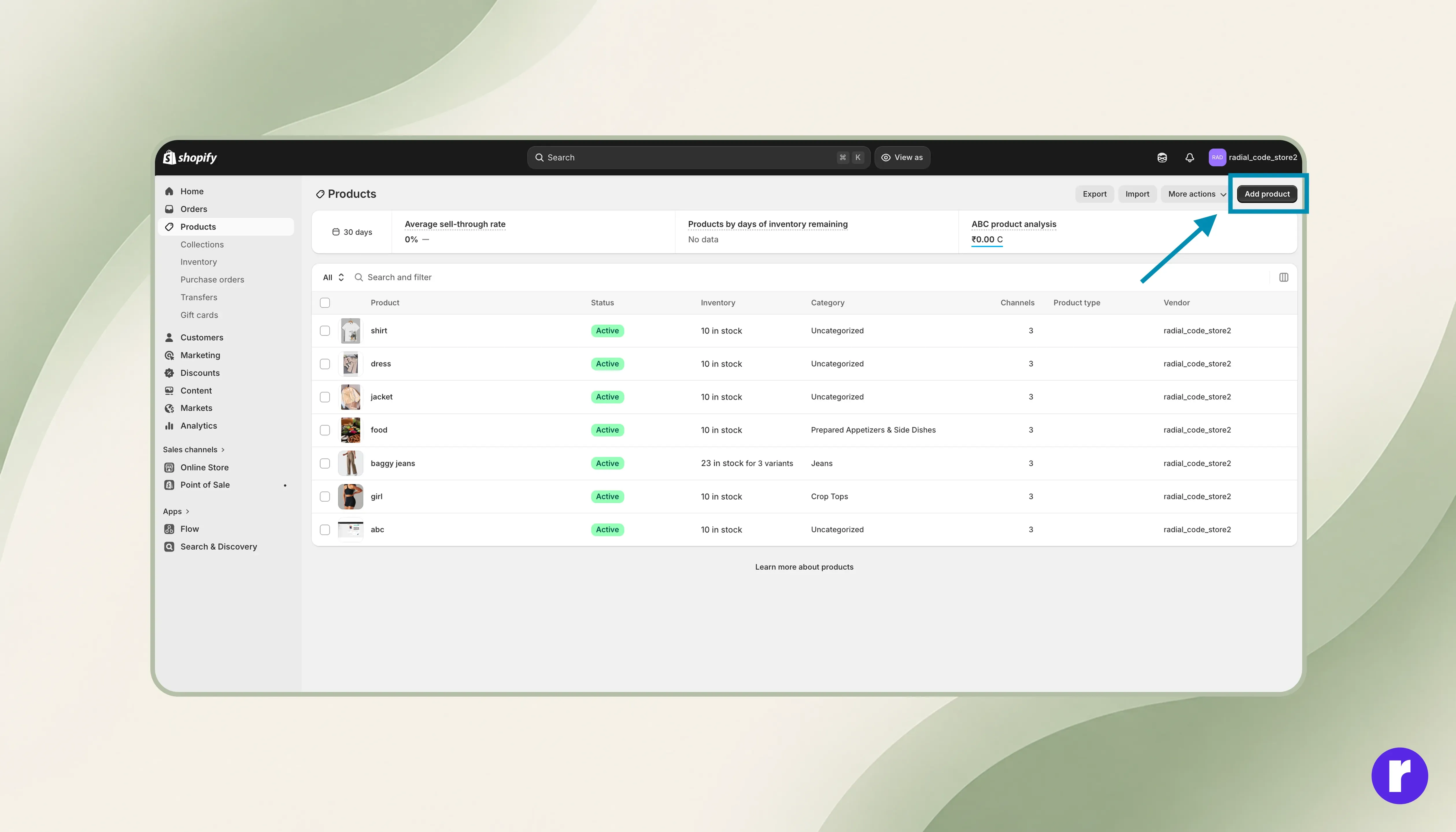
- Navigate to Products
- Click Add product or open an existing product.
Step 3: Activate Variants
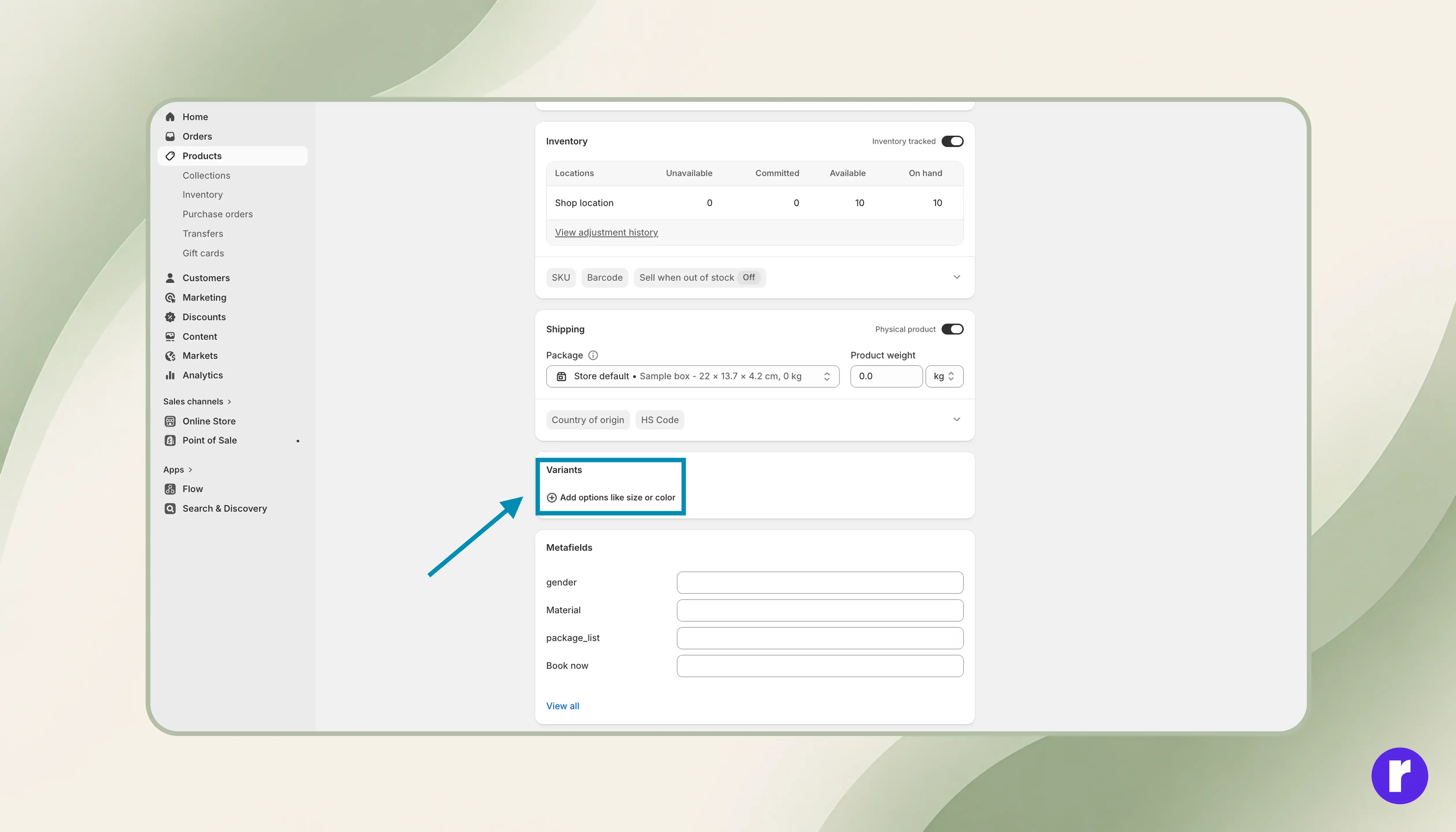
- Scroll down to the Variants section
- Click Add options like size or color
Step 4: Add Variant Options
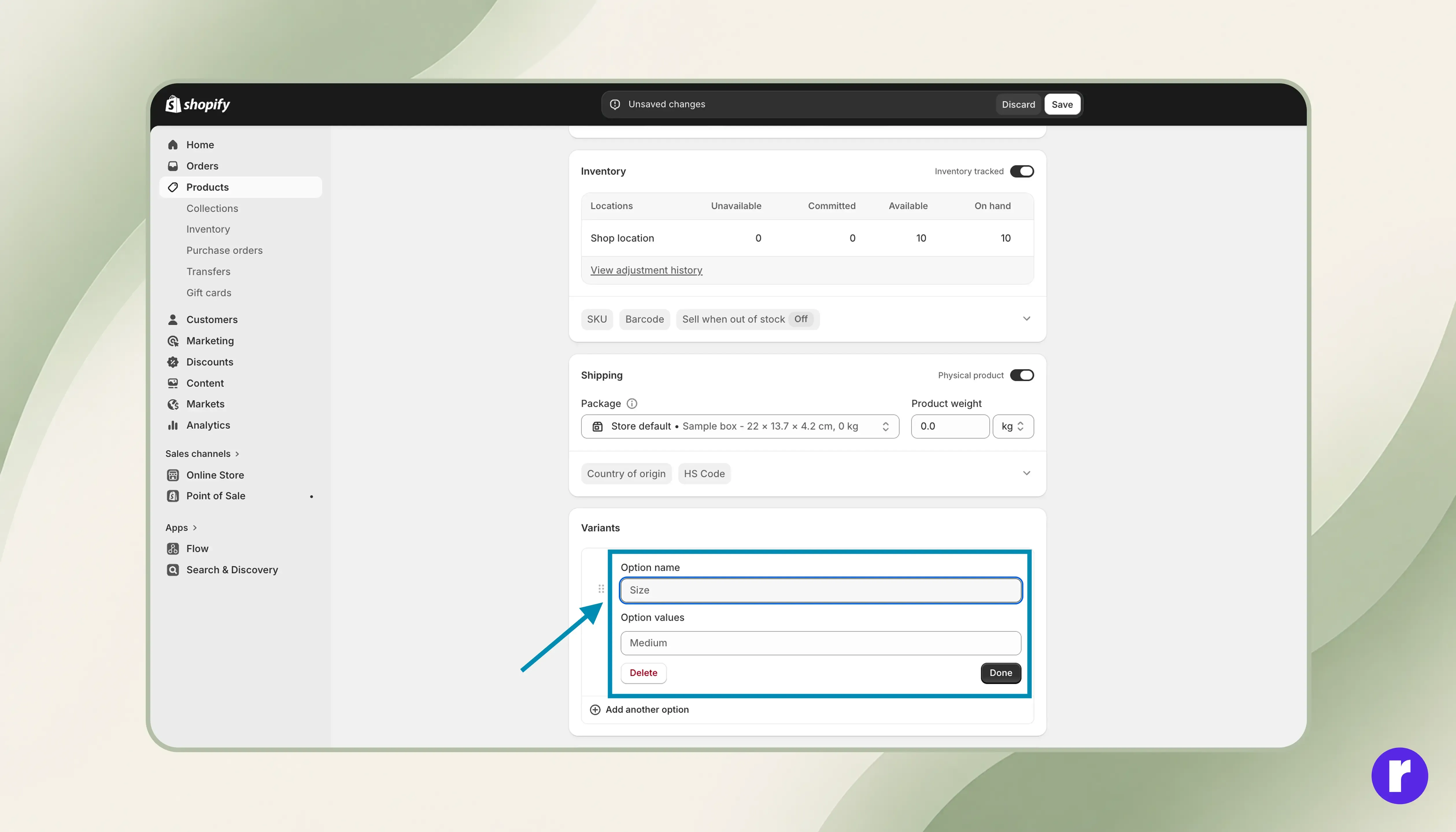
Enter the different attributes your product offers, such as:
- Size
- Color
- Material
Example:
- Size → S, M, L
- Color → Red, Blue
Step 5: Generate Variant Combinations
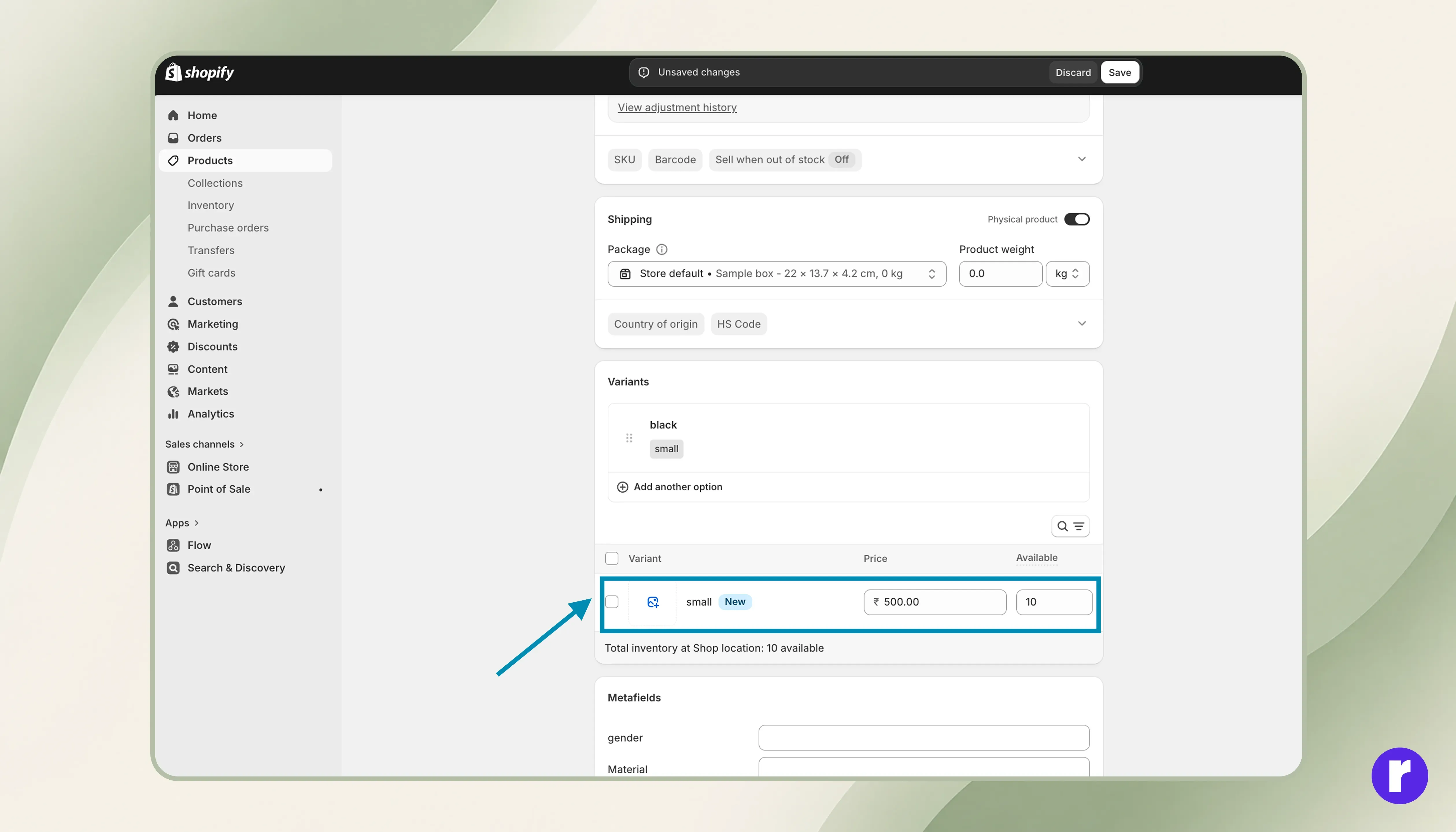
After adding options, Shopify will automatically create all possible combinations.
For example:
- Small / Red
- Medium / Blue
- Large / Red
Step 6: Edit Each Variant
You can customize every variant individually by:
- Setting unique prices
- Uploading specific images
- Assigning SKU codes
- Tracking inventory
- Adding shipping details like weight
Step 7: Save Your Product
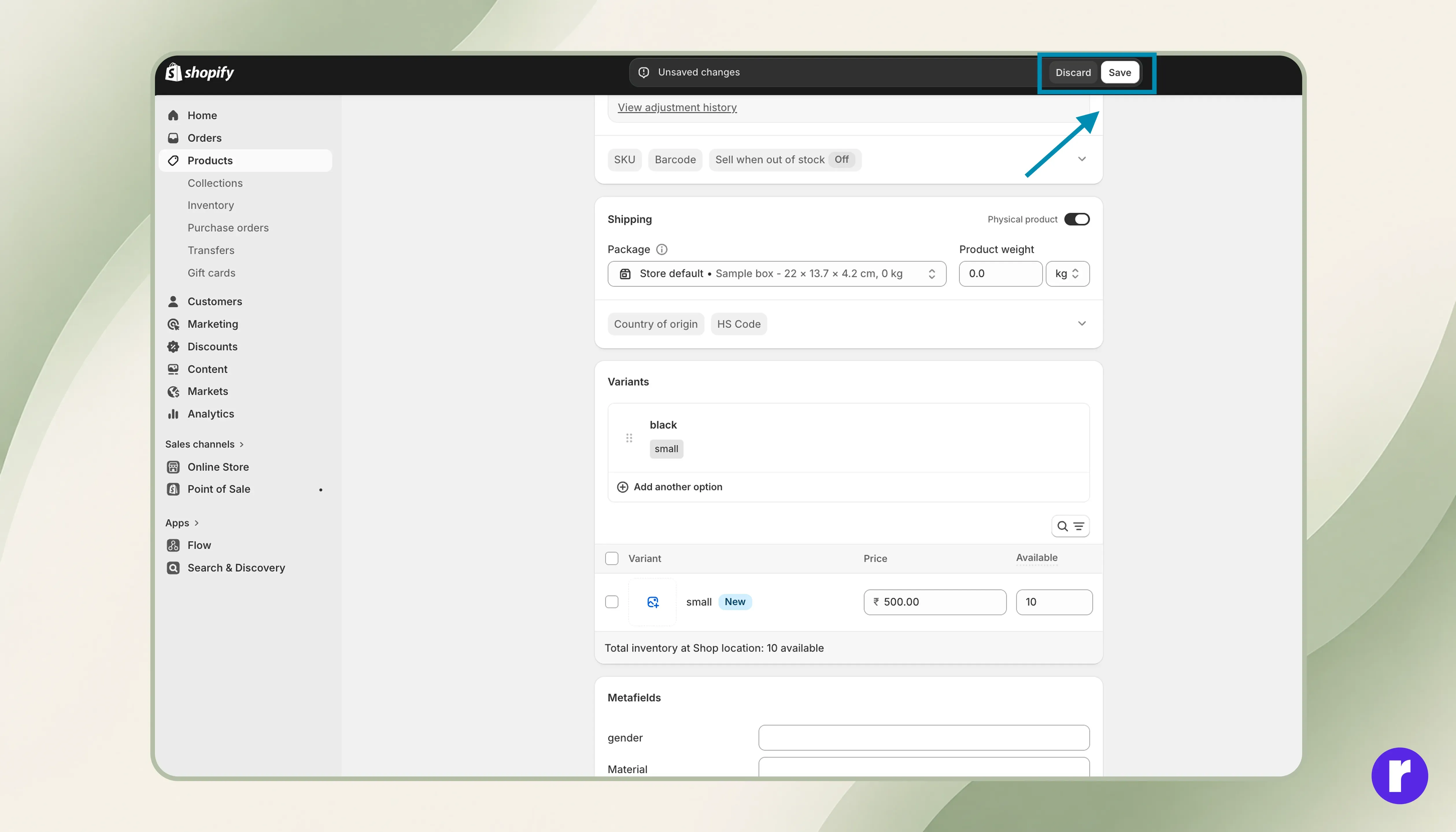
Click Save to publish your product along with all its variants. For more Shopify guides, visit Radial code
Helpful Tips
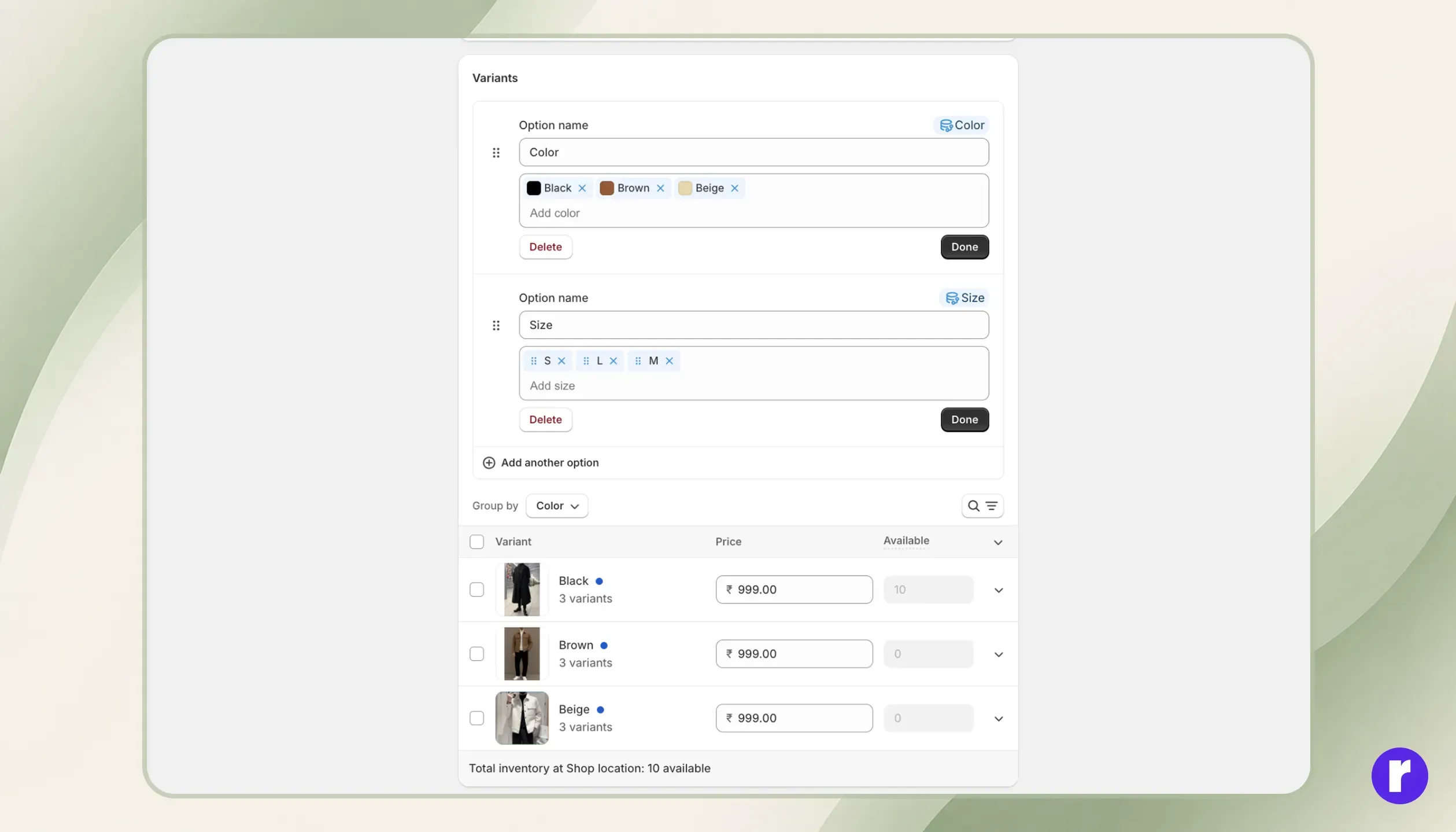
- You can add up to three options per product (e.g., Size, Color, Material)
- Each product supports a maximum of 100 variants
- Use clear and simple option names
- Add images for each variant to improve customer experience
Advanced Tips for Better Management

- Use Shopify apps if you need more than 100 variants. For example, Infinite Options lets you add more product options and customizations.
- Assign images to specific variants (like different colors)
- Use metafields for additional custom data
- Optimize variant names for better SEO performance
Common Mistakes to Avoid

- Creating separate products instead of using variants
- Forgetting to update stock for each variant
- Using confusing or inconsistent option names
- Not optimizing the variant experience for mobile users
Conclusion
Product variants in Shopify make it easier to present multiple options within a single product page. When set up properly, they improve store organization and provide a smoother shopping experience, which can ultimately lead to better engagement and higher sales.