How to Set Up a Website in Squarespace: A Step-by-Step Guide

Written by
Ankush Dhull
Front End Developer

Vishal Chanda
Front End Developer

Table of contents
Build with Radial Code
Share this


Building a website no longer requires advanced coding or technical expertise. Squarespace provides an easy-to-use platform that allows beginners, businesses, creators, and professionals to build and manage a professional website with minimal technical knowledge. Whether you want to create a business website, personal portfolio, blog, or online store, Squarespace offers customizable templates and built-in tools to help you get started. From choosing a template to adding content, connecting a domain, and optimizing your site for search engines, the entire process can be completed in a few simple steps. In this guide, we'll walk through the 10 essential steps to setting up a Squarespace website, helping you create a website that is professional, user-friendly, mobile-responsive, and ready to launch.
Understand your website goals
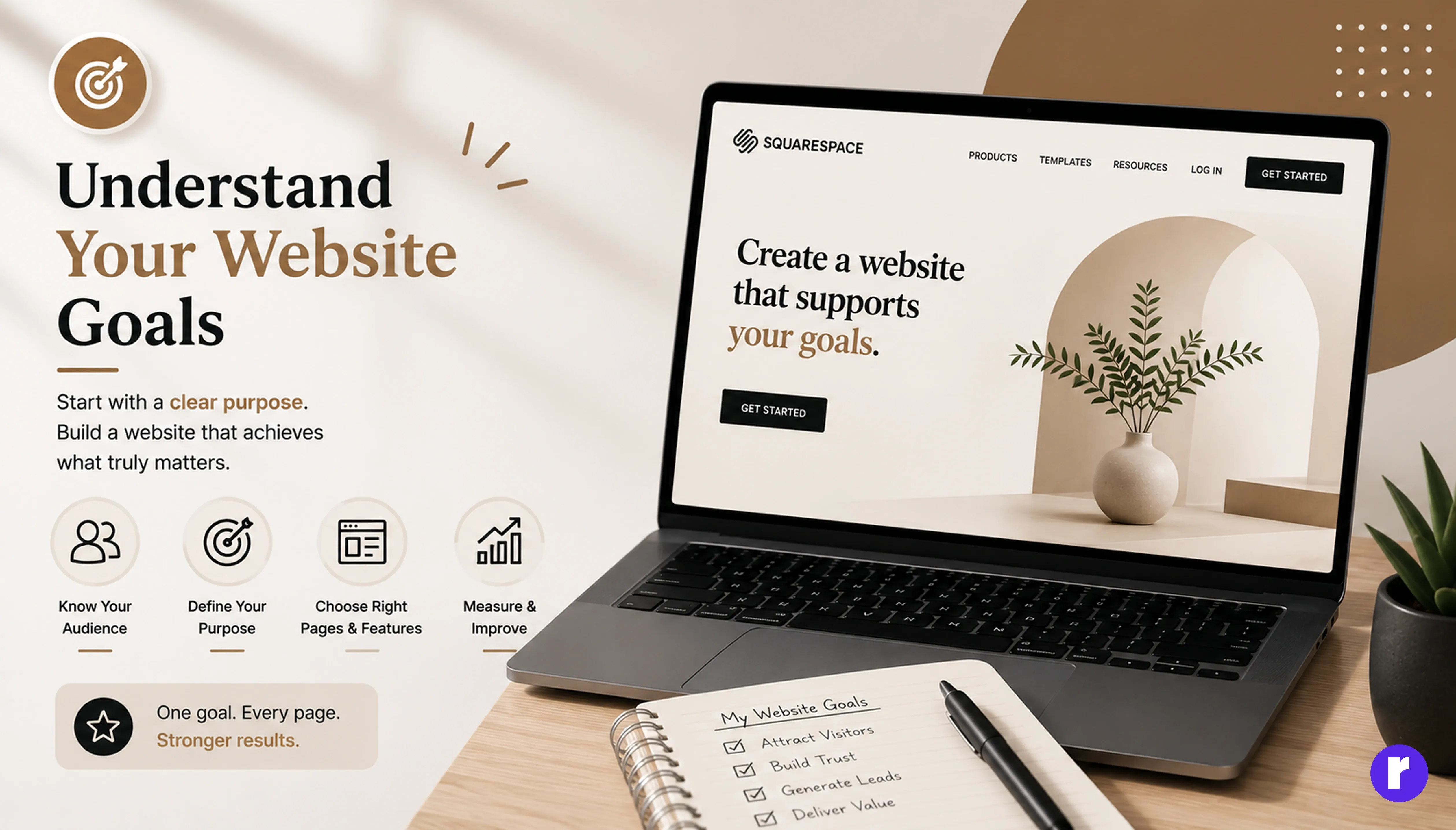
Before creating your Squarespace website, define its main purpose and goals. Decide whether you are building a business website, portfolio, blog, online store, or personal website. Having a clear goal will help you choose the right design, pages, features, and content for your website. It also ensures that every section of your website supports what you want your visitors to do.
It is also important to understand your target audience before starting the website design. Think about who will visit your website, what information they are looking for, and what action you want them to take. Define the main purpose of your website, whether it is to generate leads, showcase your work, sell products, share information, or build brand awareness. It will also make it easier to measure your website’s performance and improve it over time.
|
Website Type |
Main Goal |
Important Pages |
|---|---|---|
|
Business Website |
Generate leads and build trust |
Home, About, Services, Contact |
|
Portfolio |
Showcase your work |
Home, Work, About, Contact |
|
Blog |
Share information and attract readers |
Home, Blog, About |
|
Online Store |
Sell products online |
Shop, Product Pages, Cart, Contact |
|
Personal Website |
Build an online presence |
Home, About, Portfolio, Contact |
Define one primary goal for your website before choosing its design. Every page and CTA should support that goal.
Create a Squarespace account
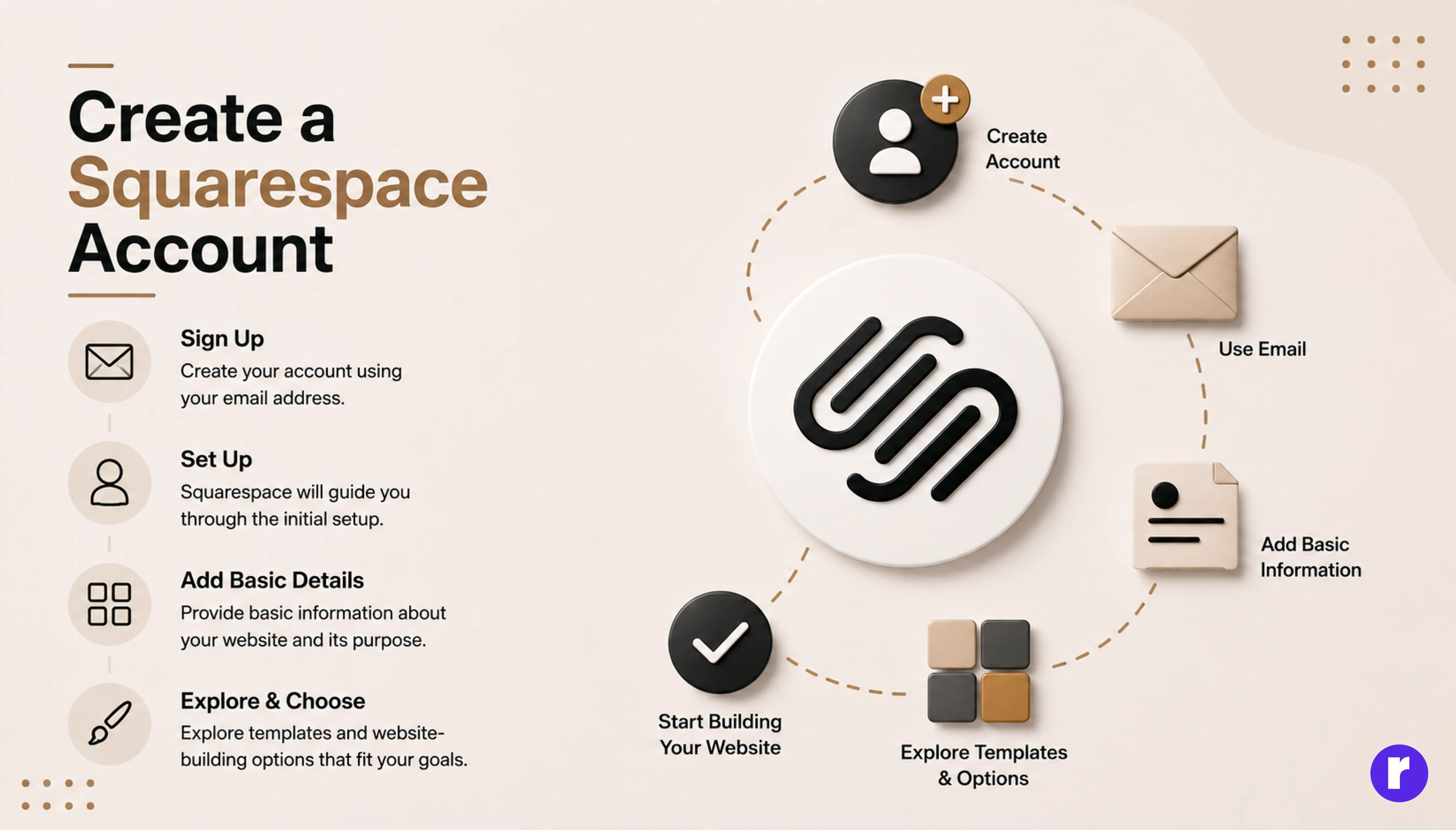
Start by creating an account on Squarespace using your email address or an available sign-in option. Once your account is ready, Squarespace will guide you through the initial website setup process. You can then provide basic information about your website and explore the available templates and website-building options. Starting with the right setup makes it easier to customize your website according to your goals.
During setup, Squarespace may offer Blueprint AI to generate a personalized site layout based on your answers. You can use it as a starting point or skip it and choose a template manually.
Squarespace offers a 14-day free trial, allowing you to explore its website-building features before choosing a paid plan.
Once your account is created, take some time to review the available website setup options before making design decisions. Enter basic details about your website and select the category that best matches your purpose. This information can help Squarespace suggest suitable templates and features for your project. Setting up these basic details correctly gives you a better starting point and makes the rest of the website-building process easier.
Choose the right template
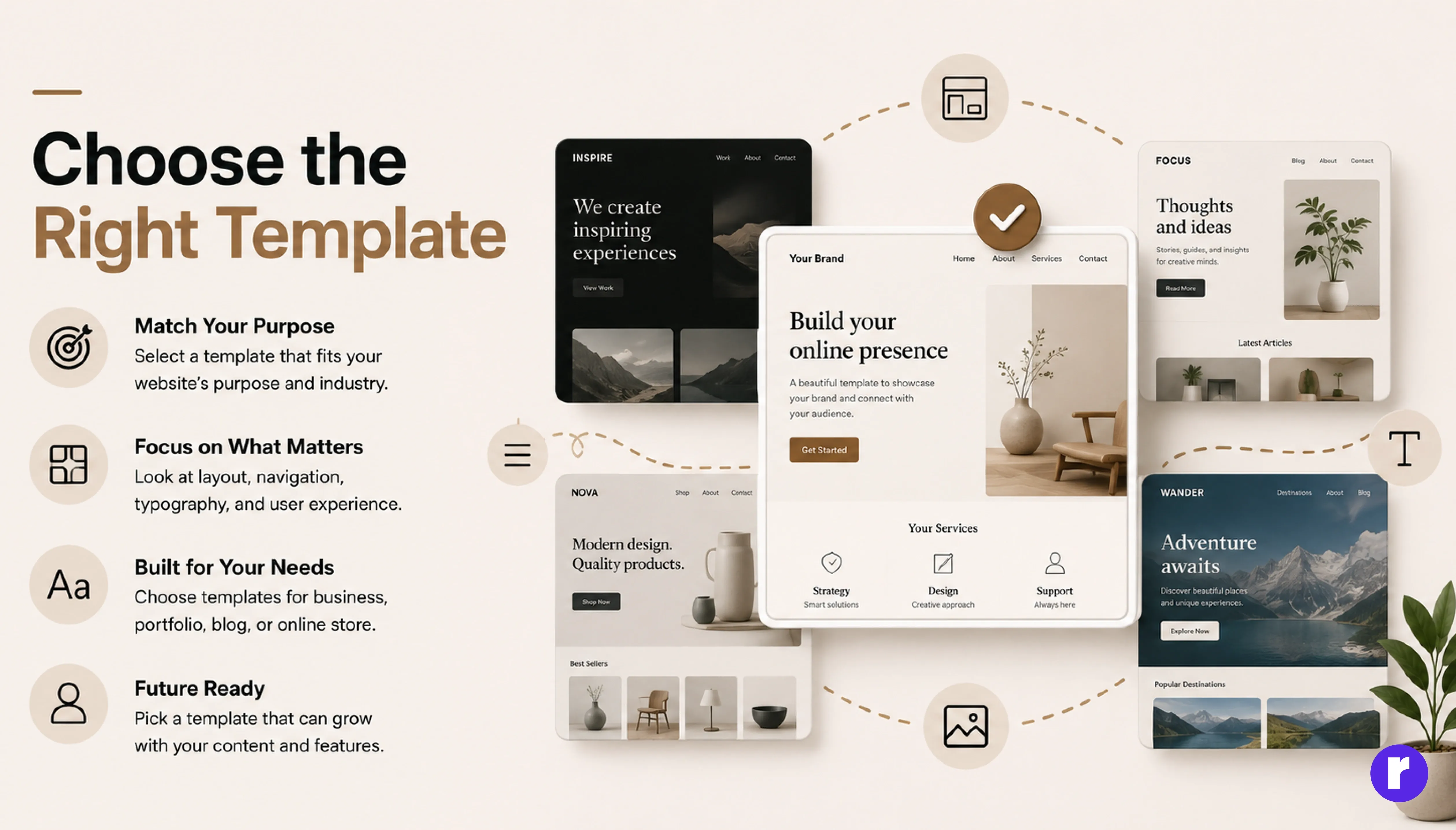
Choose a template that matches your website’s purpose, industry, and visual style. Squarespace offers a range of professionally designed templates for businesses, portfolios, blogs, and online stores. Focus on the layout, navigation, typography, and overall user experience rather than only the visual appearance. Choosing the right template gives you a strong foundation and makes customization easier later.
Before selecting a template, compare a few different options to find the one that best fits your website structure and content. Pay attention to how each template presents important sections, images, buttons. Consider whether the layout will work well as your website grows and whether it can support the features you may need in the future. A template that fits your goals from the beginning can save time and reduce unnecessary design changes later.
Things to check before choosing a template
- Does the layout match your website's purpose?
- Is the navigation easy to understand?
- Does it support the pages you need?
- Does the design work well with your content?
- Is the typography easy to read?
- Does the template provide a smooth experience across smaller screens?
- Does it offer enough flexibility to reflect your brand identity?
Customize your website design
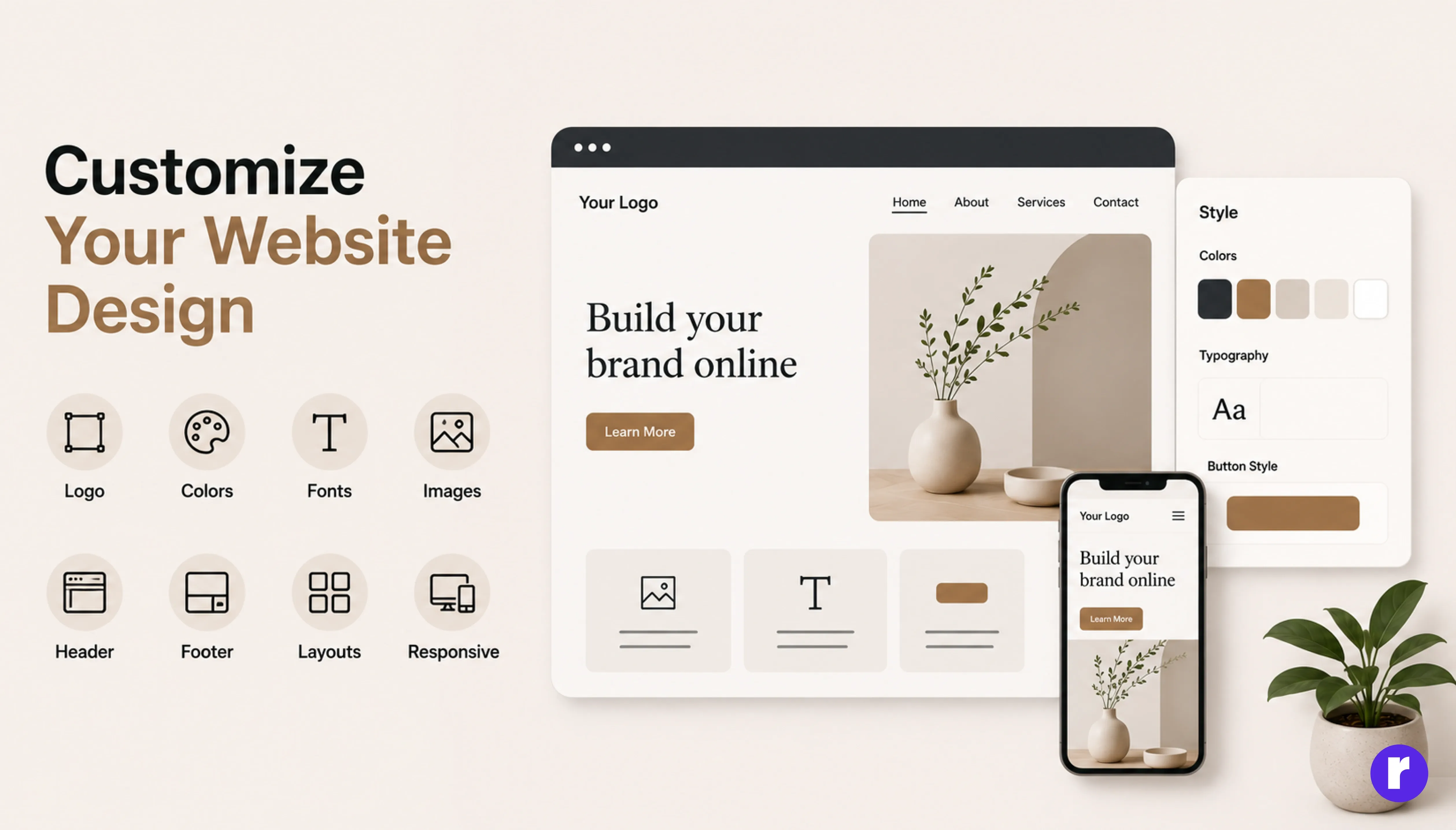
Once you have selected a template, customize the design to match your brand identity. Update the logo, colors, fonts, images, header, footer, and page layouts to create a consistent look across your website. Aim for a clean layout with intuitive navigation that makes it easy for visitors to explore your website. Make sure your typography is readable, your visuals are high quality, and your design works well on both desktop and mobile devices.
Also, keep your visual style consistent across all pages. Use the same color palette, typography, button styles, spacing, and image treatment throughout the website so that every page feels connected and part of the same brand experience.
Simple Design Rules
- Do:
- Use a consistent color palette.
- Keep typography easy to read.
- Maintain consistent spacing.
- Use high-quality images.
- Keep buttons visually consistent.
- Don't:
- Use too many fonts.
- Add unnecessary animations.
- Overload pages with content.
- Use low-quality or stretched images.
- Use different design styles on every page.
Add essential website pages
Create the essential pages your visitors need to understand your business and take action. Depending on your website’s purpose, these may include Home, About, Services, Blog, Contact, and FAQ pages. Keep each page focused on a clear purpose and relevant information. Use clear headings, concise content, and strong calls to action to help visitors find information easily and move through your website.
Your pages should also be organized in a logical order so visitors can easily understand your website and move from one section to another. Make sure important pages are accessible through the main navigation and that related pages are connected with relevant internal links.
Organize your website content
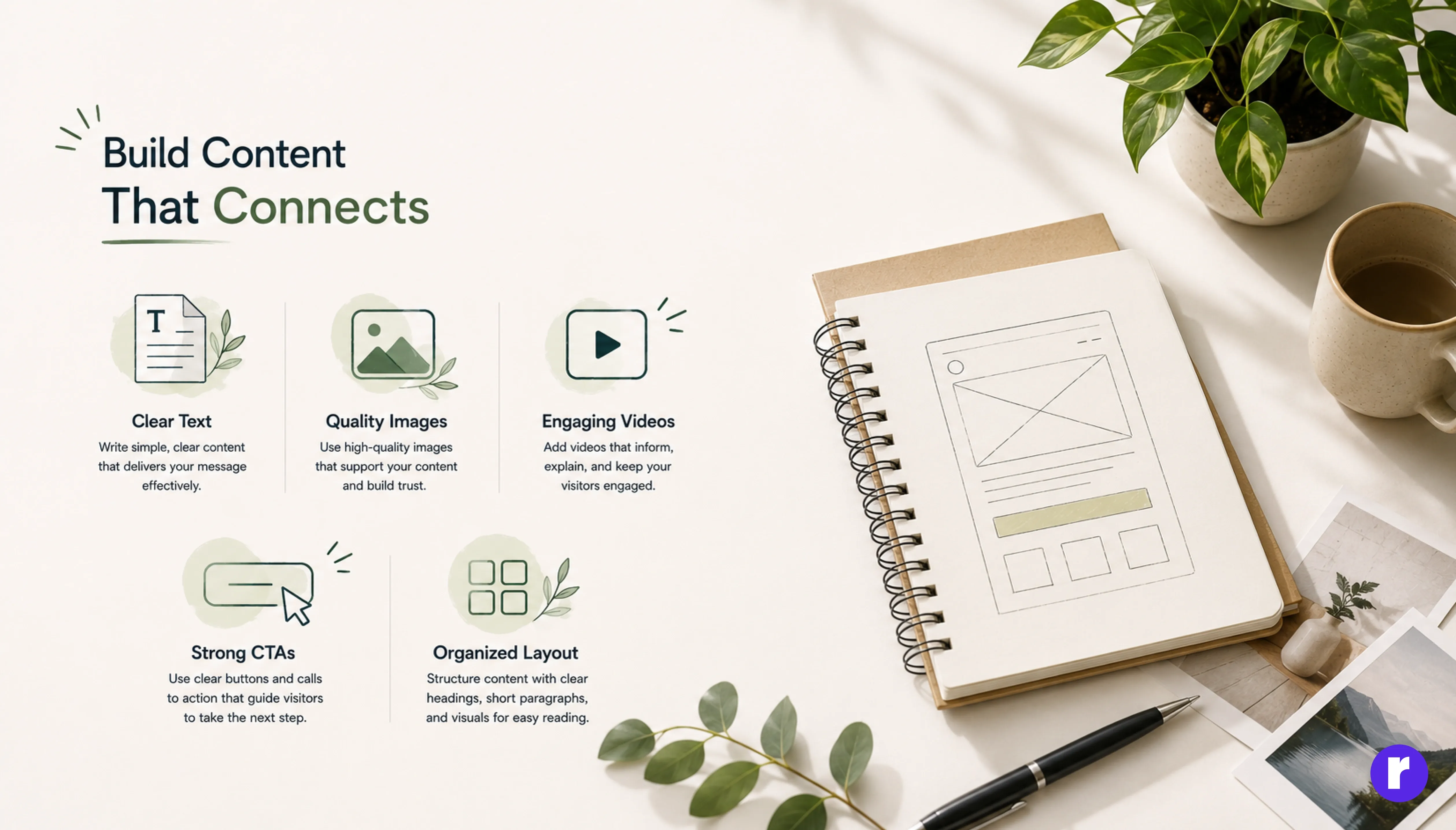
Add clear and relevant content to each page, including text, images, videos, buttons, and other important elements. Make sure your content reflects your brand message and website goals. Organize the content using clear headings, short paragraphs, visuals, and calls to action so visitors can quickly understand your website and find the information they need.
Before adding content, plan what information each page needs and how it should be presented. Keep your writing simple, useful, and relevant to your target audience. Use high-quality images and videos that support your message instead of adding visuals only for decoration. Make sure headings, paragraphs, buttons, and other elements follow a consistent structure throughout the website. Well-organized content makes your pages easier to read and helps visitors quickly find the information they need.
A simple content structure
- Main heading — Clearly explain what the page is about.
- Introduction — Give visitors quick context.
- Supporting sections — Break information into smaller sections.
- Visual content — Add relevant images, videos, or graphics.
- Call to action — Tell visitors what to do next.
Avoid putting large blocks of text on a single page. Break information into short sections so visitors can scan the page quickly.
Set up navigation and mobile design
Create simple and intuitive navigation so visitors can easily find important pages on your website. Organize your main menu with clear page names and logical sections. Make sure your Squarespace website is fully responsive and mobile-friendly. Check the layout, text, images, buttons, and navigation on different screen sizes to provide a smooth user experience on both desktop and mobile devices.
Mobile-Friendly Checklist
- Navigation menu is easy to access.
- Text is readable without zooming.
- Buttons are large enough to tap.
- Images fit properly on smaller screens.
- Sections don't overflow horizontally.
- Forms are easy to complete.
- Important content appears in the correct order.
Test your website on different screen sizes to make sure the layout, content, and interactive elements work properly across desktop, tablet, and mobile devices. Pay attention to spacing, font sizes, images, buttons, navigation, and forms to ensure visitors have a smooth experience on every device.
Connect your domain and set up SEO
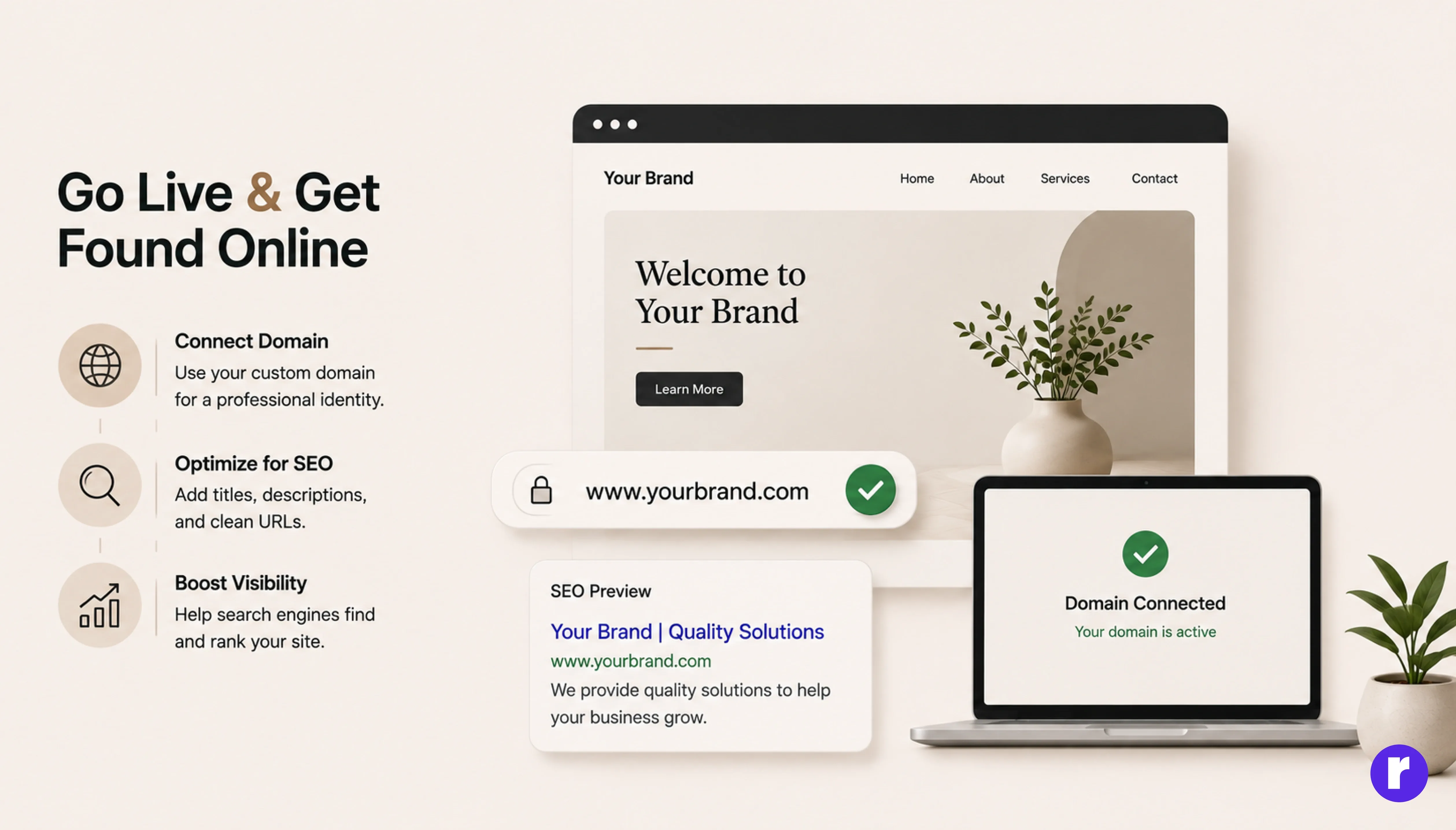
Connect a custom domain name to give your Squarespace website a professional and memorable web address. If you already own a domain, you can connect it to your Squarespace site through the domain settings. Next, improve your website’s search engine visibility by adding relevant page titles, meta descriptions, clean URLs, and descriptive image alt text. Good SEO practices can help search engines understand your content and make it easier for potential visitors to discover your website.
Before launching your website, make sure your domain is properly connected and works correctly across the site. Choose a domain that is simple, relevant to your brand, and easy for visitors to remember. For SEO, review each important page and make sure its title and description accurately explain the content. Use relevant keywords naturally within your content and add descriptive alt text to important images. These basic optimizations can improve how search engines understand and display your website.
Basic SEO Elements to Review
- Page Title: Clearly describe the page
- Meta Description: Summarize the page in a useful way
- URL: Keep it short and descriptive
- Headings: Use a logical heading structure
- Image Alt Text: Describe important images
- Internal Links: Link related pages together
- Keywords: Use relevant terms naturally
Test and review your website
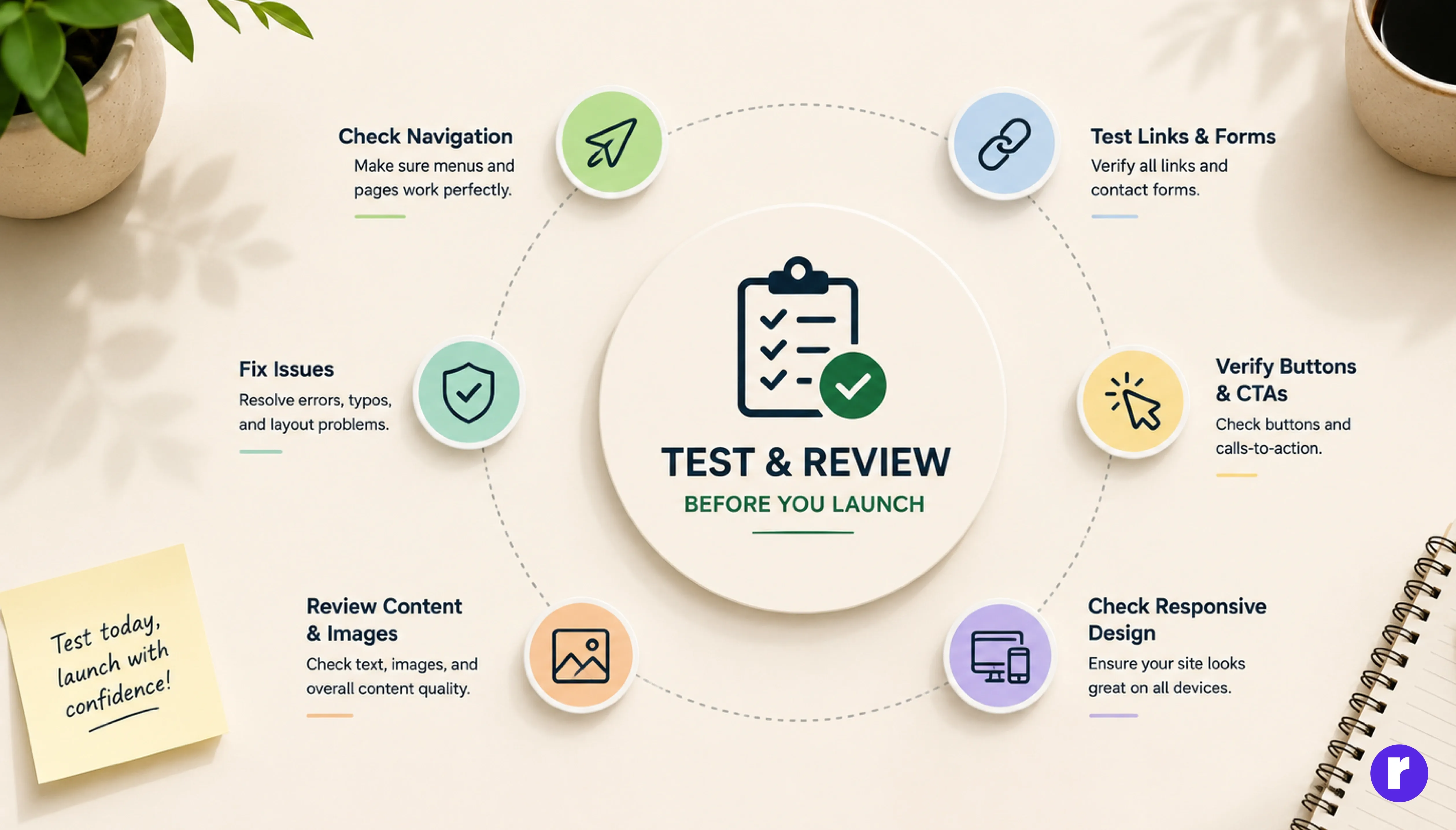
Before publishing your website, test every important element to make sure everything works correctly. Check your navigation, links, contact forms, buttons, images, and page content for any errors. Review your website on different devices and screen sizes to ensure it is responsive and easy to use. Fix any broken links, layout issues, spelling mistakes, or loading problems before moving to the final launch.
Final Website Testing Checklist
- Content
- Check spelling and grammar.
- Confirm all images are correct.
- Check headings and page content.
- Remove placeholder text.
- Navigation
- Test the main menu.
- Test internal links.
- Test buttons and CTAs.
- Check footer links.
- Forms
- Submit contact forms.
- Confirm form notifications.
- Check required fields.
- Test success/error messages.
- Responsive Design
- Check desktop layout.
- Check tablet layout.
- Check mobile layout.
- Check text and button spacing.
Publish your Squarespace website
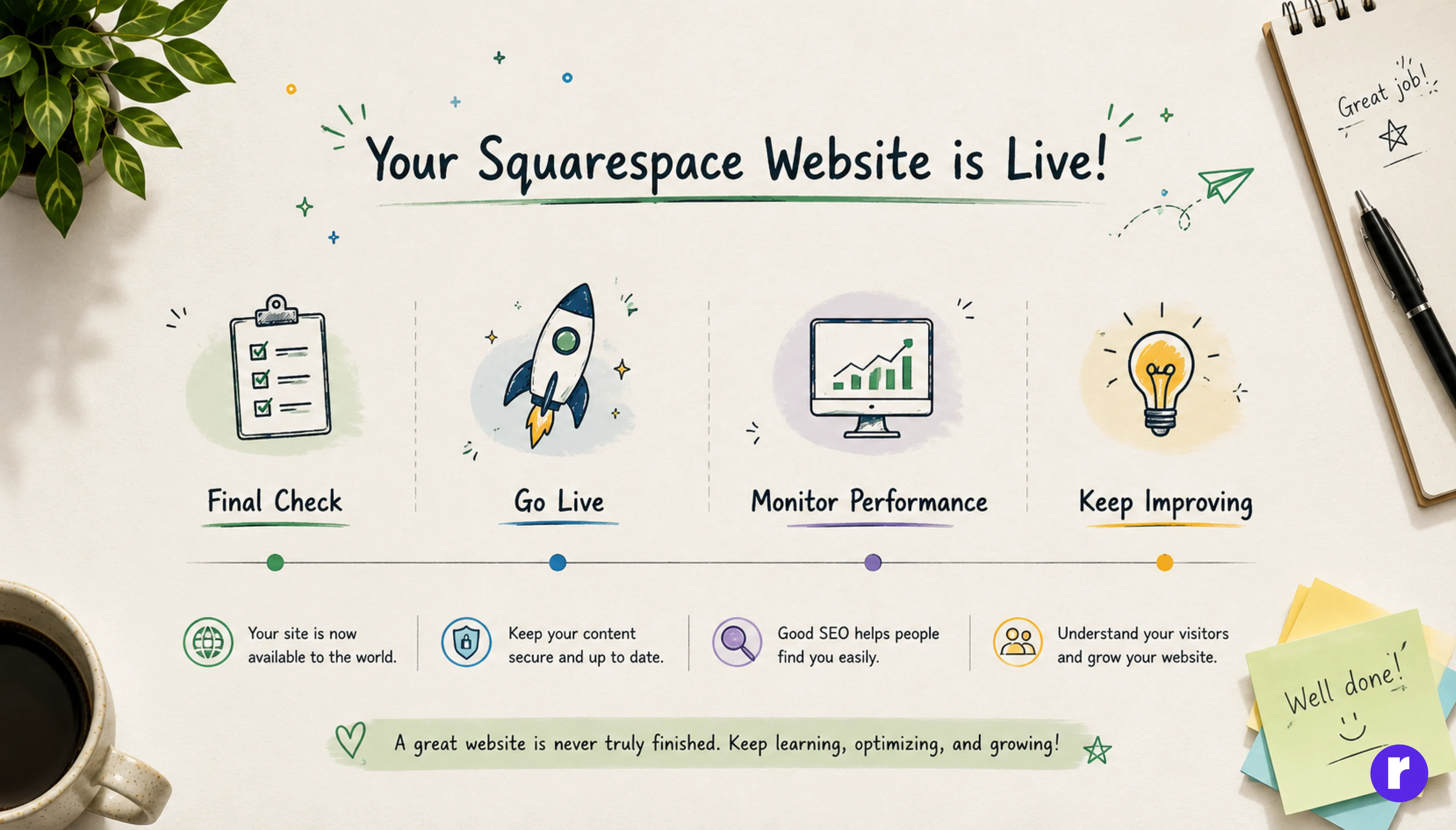
Once everything is ready, publish your Squarespace website and make it available to your visitors. Before going live, complete a final check of your content, domain, SEO settings, forms, and mobile responsiveness. After publishing, regularly monitor your website performance and visitor activity using available analytics tools. Keep your content updated and make improvements based on user behavior, feedback, and website performance.
Ready to take your Squarespace skills to the next level? Explore our web development tutorials and courses
Conclusion
Setting up a Squarespace website is a straightforward process, even if you have limited technical experience. By defining your goals, choosing the right template, customizing your design, adding useful content, and optimizing your website for SEO, you can create a professional and user-friendly online presence.
Before launching, make sure to test your website across different devices and review all important settings. Once your site is live, continue updating your content and monitoring its performance to ensure your website remains effective, relevant, and engaging for your visitors.